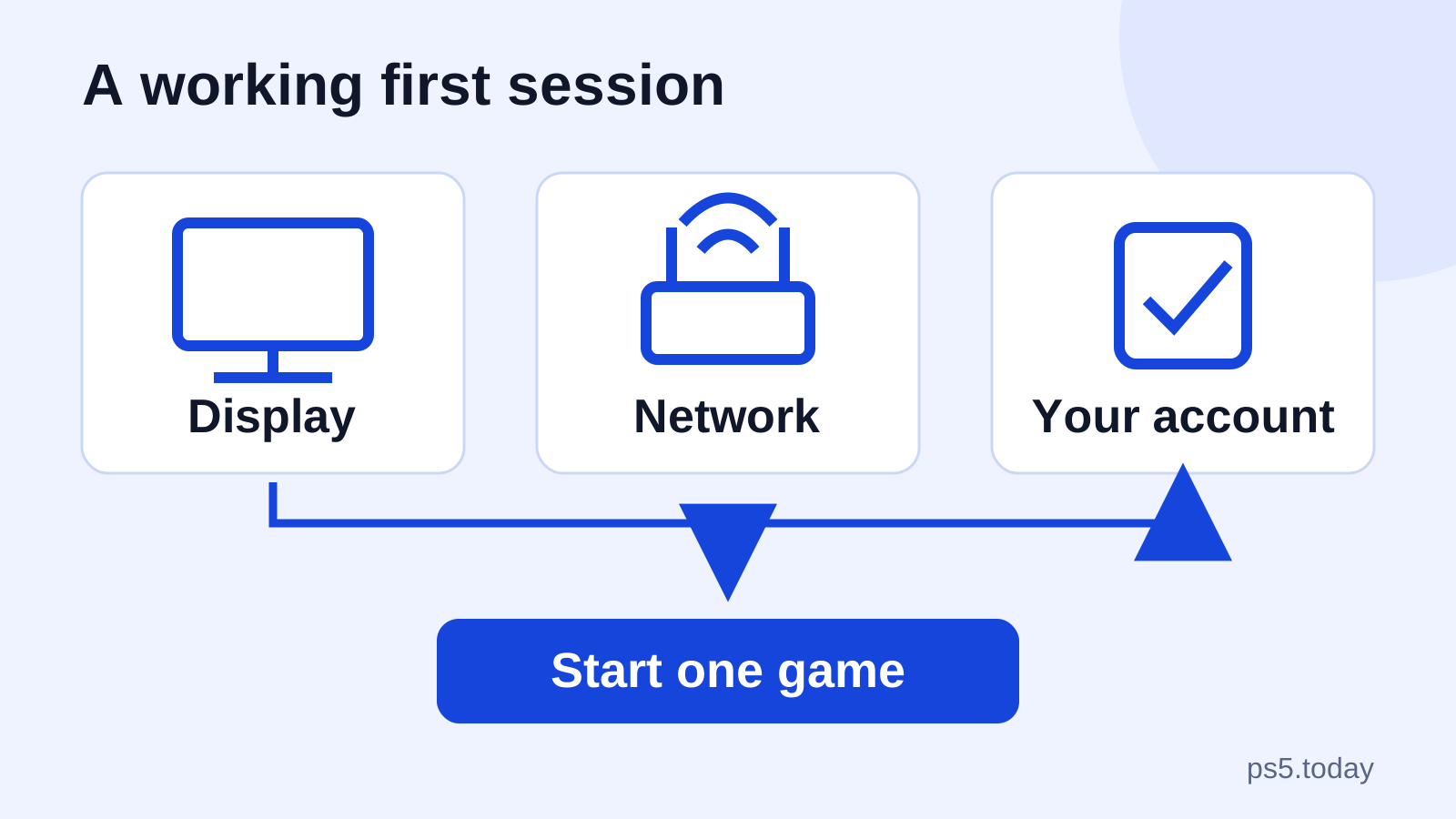
Set up a new PS5 by securing the correct base or feet, connecting it directly to your display, completing the on-screen setup, updating the system and signing in with your existing PlayStation account. Then install one game and check that your picture, sound and saved progress work before downloading the rest of your library.
The order matters more than buying extra equipment. A complicated television connection, a new account created by mistake and several large downloads at once can turn a straightforward evening into a long troubleshooting session. Start with a simple working arrangement and add the extras after you know what already works.
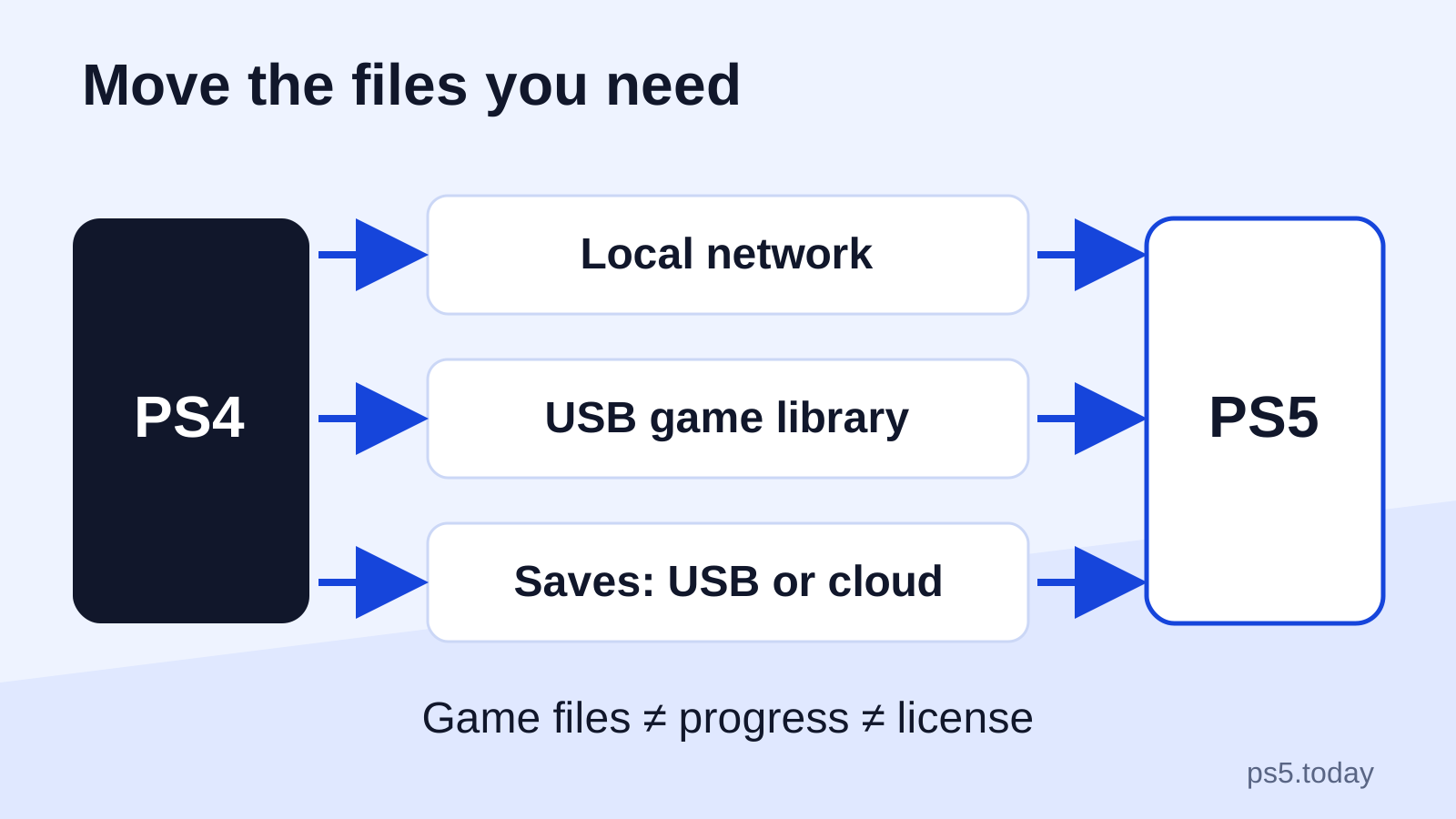
If the console is replacing a PS4, keep the old system available until you have checked your saves on the new one. Our PS4-to-PS5 transfer guide explains the different routes. You do not need to move every installed game before enjoying your first PS5 session.
Prepare the place before opening every accessory
Choose a firm, level surface where cables can reach without being pulled tight. Leave space to connect and disconnect plugs without bending them against the wall. A shelf that fits the console’s outer shape may still be a poor choice if its back traps warm air or blocks access to the connections.
Identify the console model before following a placement video. Sony uses different supports for different PS5 model groups. The original CFI-1000 group uses its base; the slim CFI-2000 and Pro CFI-7000 groups use the appropriate horizontal feet, with a separate vertical stand for upright placement. Follow the instructions for the exact unit you own rather than borrowing the support arrangement from another model.
Put spare parts somewhere you will find them again. Feet and covers removed when fitting a compatible disc drive are useful if the drive is later removed. A small labeled bag in the console box is more useful than an extra accessory purchased to solve a missing-parts problem. For ongoing placement questions, use our overheating and ventilation guide.
Make the first connection deliberately simple
Connect the included HDMI cable from the console’s rear HDMI OUT to an HDMI input on the television or monitor. Connect power, select that display input and follow the controller connection prompt. For initial setup, a direct display connection makes it easier to locate a problem than a chain involving an AV receiver, capture device and HDMI switch.
Write down which input you chose if the television has several. For example, “PS5 on HDMI 2” prevents someone switching the television to the wrong source and assuming the new console has failed. Once the direct arrangement works, introduce an existing sound system or switch one item at a time.
Do not replace a cable simply because the first screen is blank. Check the selected input, both ends of the cable and whether the display is powered on. Our PS5 no-signal guide separates a missing picture from later questions about HDR or high frame rates. Seeing a normal setup screen is the first milestone; maximizing every display feature can wait.
Use the account that already owns your games
An existing player should sign in with the same PlayStation account used on the previous console. That keeps the new machine connected to the relevant digital purchases, friends and account history. A local user name that looks familiar is not proof that you signed in to the right online account.
Before buying a game that seems missing, check the account and its library. A second account created during an impatient setup can make an owned game appear unavailable. Likewise, an installed game copied from another console does not establish that the current user owns its license. If the library is present but a title has a padlock, work through licenses and locked games.
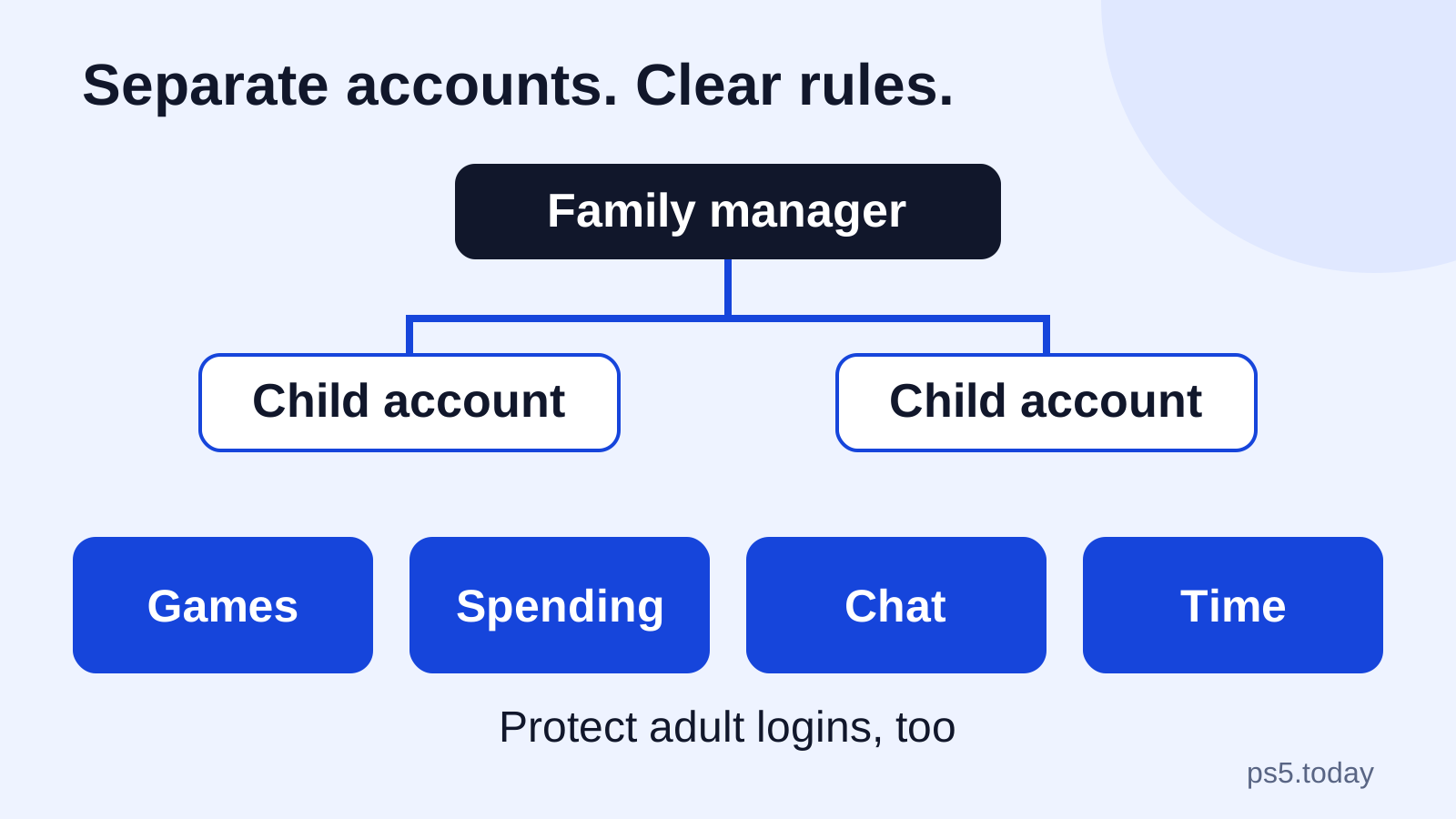
Set up account access while you still have your phone and email available. If you want a password-free sign-in method, our passkey and account security guide explains the decisions involved. For a family system, create the correct users now. Sharing one adult login makes later privacy, purchases and saved progress harder to manage.
Connect and update before judging a feature
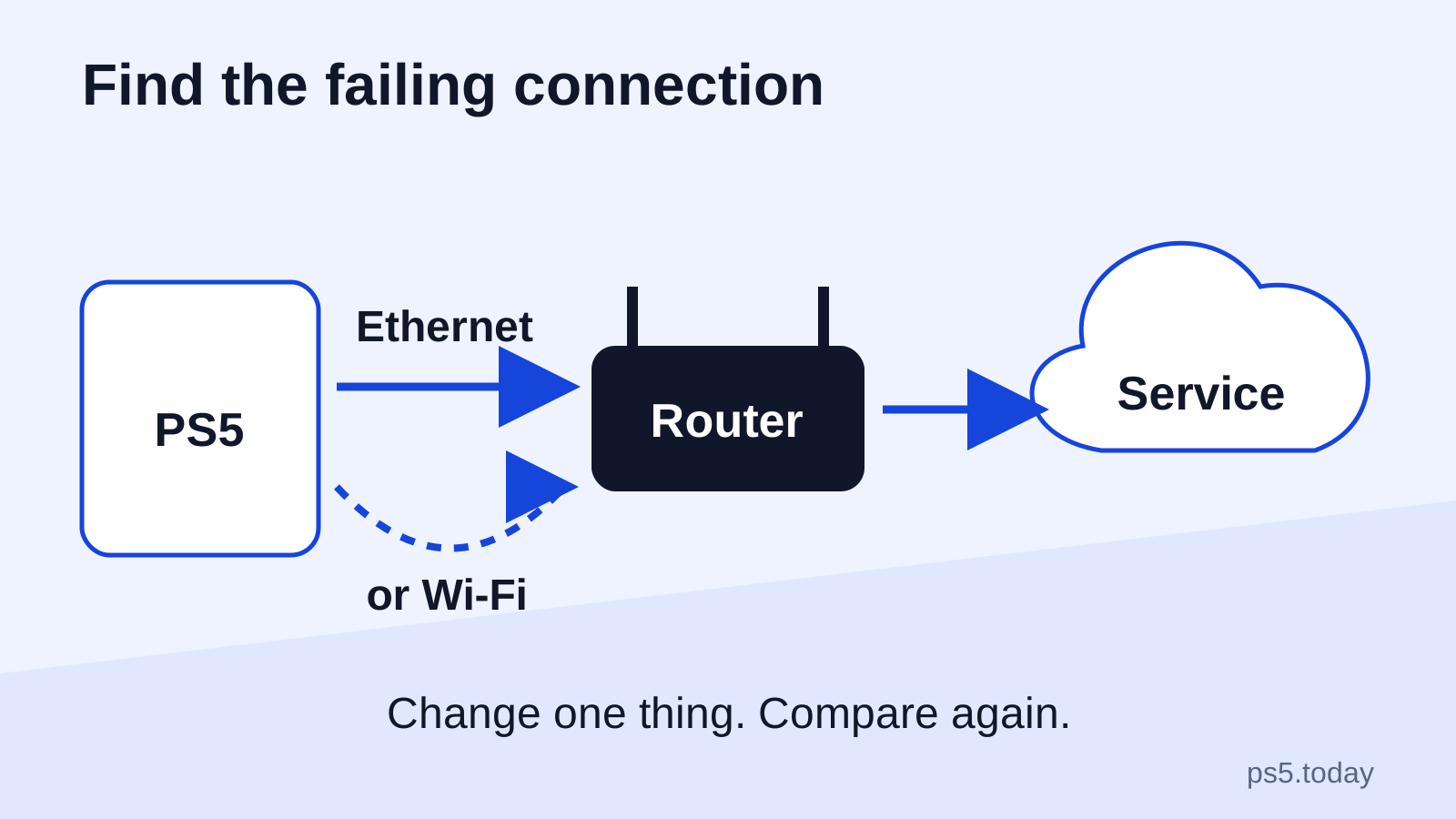
The setup flow offers an internet connection and display choices. For a wired connection, connect the console to your router and use the wired LAN option. For Wi-Fi, choose your household network and enter its network password, which is different from your PlayStation password. Our internet connection guide covers choosing between these routes and diagnosing failures.
Check system software through Settings > System > System Software > System Software Update and Settings. An update notification may also appear during setup. Leave the console powered and follow its instructions until it finishes. Avoid scheduling this part just before you need to leave or switch off the power strip.
A detachable disc drive adds another setup distinction. Sony’s compatible drive is intended for the CFI-2000 and CFI-7000 model groups and needs an internet connection for initial pairing. It cannot be added to an original digital-only CFI-1000 console. Verify the model before buying or fitting a drive; a similar white outer cover does not establish compatibility.
Choose a sensible first picture and sound
Start with the display settings offered by the console rather than copying every setting from a video made for another television. The useful goal is a readable picture with correct proportions, visible dark detail and comfortable brightness. A dramatic image that hides obstacles in a dark room is not a successful calibration.
Use the display’s game mode if appropriate for that model, then follow the console’s adjustment screens. Evaluate one familiar scene before changing multiple controls. If HDR looks wrong, our HDR calibration guide provides a focused path. If your question specifically concerns high-refresh output, the separate 120 Hz troubleshooting guide avoids mixing that issue with ordinary setup.
For sound, begin with the television or monitor’s known working output. Then connect your headset or audio system. A monitor without speakers will not produce sound simply because it shows a picture. Our headset compatibility guide explains why a plug shape or Bluetooth label alone is not a compatibility guarantee.
Install one game that proves the setup
Choose a game you actually want to play tonight. If you own several editions, check whether you are selecting the PS4 or PS5 version before installation. If it is a disc purchase, keep the relevant disc available rather than assuming the installation converts it to a permanently disc-free purchase.
One completed installation gives you useful information: the connection works, the account can access the game, the controller responds and the display is usable. Queueing your entire collection first makes a slow download harder to interpret and can leave you with nothing ready at the moment you want to play.
For example, someone replacing a PS4 could install a new PS5 game for the first evening and transfer a long-running PS4 adventure later. Someone sharing the console with children could instead begin with the family game, verify each user’s access and then continue the adult’s downloads. Both plans are better than treating “everything installed” as the definition of ready.
Finish the choices that affect tomorrow
Review Rest Mode according to your household routine. Decide whether you want background connectivity and controller charging rather than accepting settings without understanding them. Our Rest Mode settings guide connects those options to practical situations such as overnight downloads and a console attached to a switched outlet.
Check who will play on this machine. Console Sharing and Offline Play matters when another household user wants access to eligible purchases. Family and parental controls matter when a child should have separate restrictions. These are related decisions, but enabling access to games does not set an appropriate spending limit or communication rule.
Finally, verify progress before retiring the previous console. Open the game, load the expected save and check that the character, chapter or career is correct. If you use a subscription for saved-data storage, our cloud-save guide explains why an upload setting and a verified current save are different things.
What deserves an accessory purchase now?
Buy for a demonstrated obstacle. A second controller may be useful for a supported local multiplayer game. A longer cable may help when the console cannot safely reach its intended display. Additional storage may help once you know which games need to remain installed. None is a mandatory first-night bundle.
Before expanding space, read PS5 storage explained: a USB archive and an internal M.2 expansion solve different problems. Before replacing a working television, identify the specific display feature you need and whether the game supports it. A more expensive item does not fix the wrong input, account or edition.
Your first setup is complete when your intended users can start the right game, hear it, see it clearly and preserve their progress. That is a practical finish line. Everything you add afterward should improve a particular part of that working arrangement.
Sources and references
Written by PS5 Today.
Something changed? Send a correction →