To connect a PS5, open Settings > Network > Settings > Set Up Internet Connection, then choose your Wi-Fi network or select Set Up Wired LAN for an Ethernet cable. Use a direct wired connection when it is practical; use Wi-Fi when it gives you a reliable connection in the console’s actual location. Neither choice guarantees that every game server or download will perform well.
When something fails, identify the stage: the console joining your home network, that network reaching the internet, signing in to PlayStation, downloading content or connecting to a particular game. Changing every router setting at once makes these separate problems harder to distinguish.
Start with the equipment you already have. A temporarily connected cable or a carefully compared test can answer more than buying a “gaming” router before locating the problem. This guide builds a simple diagnosis that you can repeat without guessing which change helped.
Understand the route your game takes
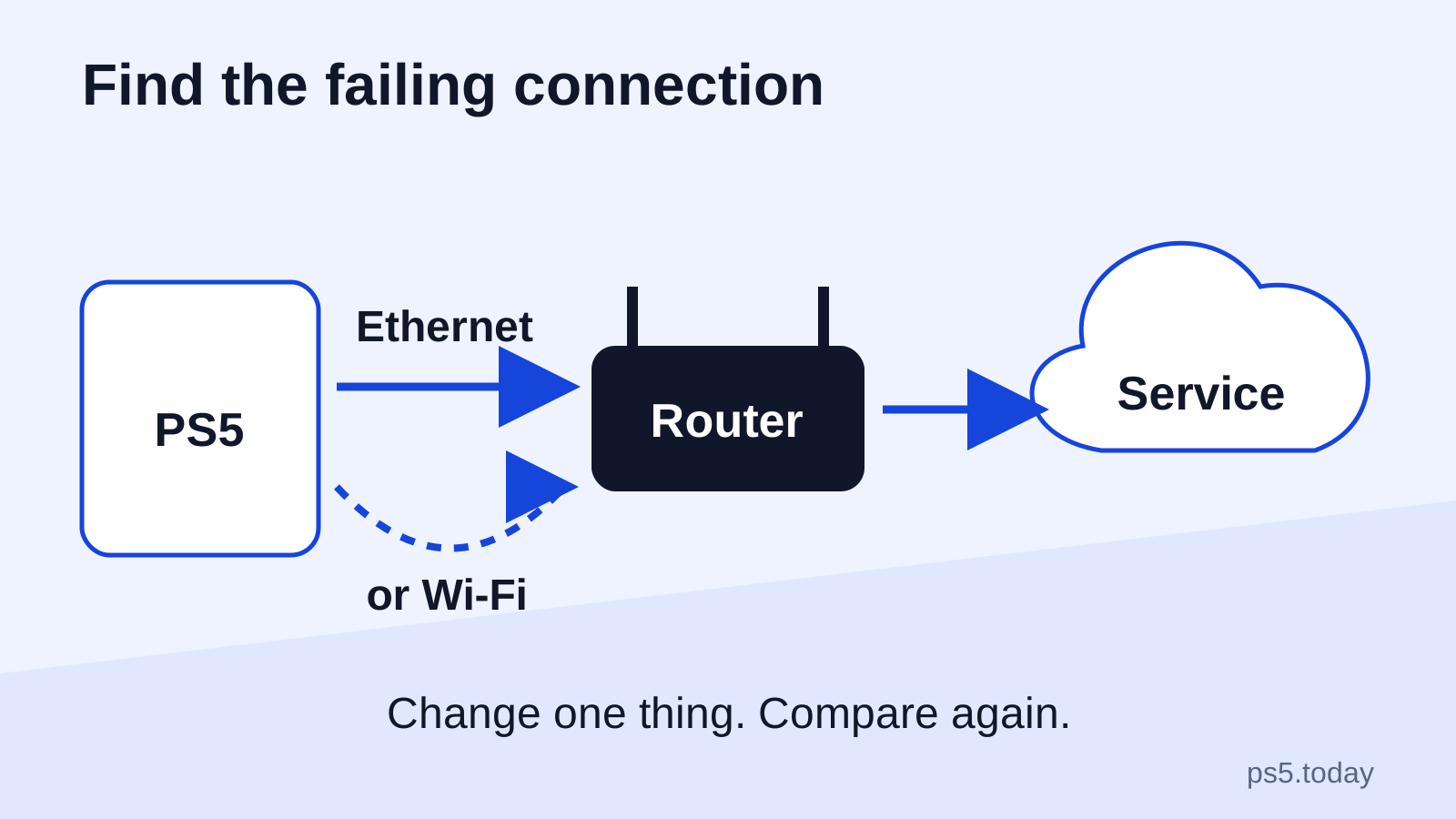
Your console first communicates with the home router. The router connects through your internet provider to services outside the home. A failure anywhere along that route can appear as “the PS5 internet is broken,” but the practical fixes are different.
A wrong Wi-Fi password prevents the first step. A provider outage affects the route beyond the house. A PlayStation service problem can block sign-in while an unrelated website still works on your phone. A publisher’s game server can have trouble while the console’s own network test succeeds.
Write the symptom as an observation. “The network name appears, but the password is rejected” is useful. So is “the store loads, but one game disconnects during matchmaking.” “Bad Wi-Fi” is only a theory until a comparison supports it.
Set up Wi-Fi with the correct household network
Choose the intended network from the connection screen and enter its Wi-Fi password. This is the router’s network password, not your PlayStation sign-in password or the router’s administration password. Check capitalization and avoid confusing a guest network with the main household network.
If the name does not appear, verify it on another device in the same room. Sony also provides a manual setup route for networks that need it. Do not keep creating variations of a saved connection while the router itself is unavailable. Confirm the basic access point is running first.
For a shared building, dormitory or managed network, use the connection information supplied by the administrator. An extra sign-in page, device approval or restriction may be part of that network’s setup. Changing random console values is unlikely to substitute for permission that the network requires.
Once connected, test the use that matters. Opening a store page proves something different from completing an online match. Try a normal session in the place where the console will stay, including at the time of day when the household commonly uses the connection.
Use Ethernet as both a solution and a comparison
Connect an appropriate Ethernet cable from a router LAN port to the console’s LAN port, then select the wired setup option. Check that you are using the router’s local-network connection rather than an unrelated socket whose purpose you have not identified.
A wired connection avoids the radio link between console and router. It can therefore be useful when Wi-Fi is inconsistent through walls or furniture. It does not bypass your internet provider, increase the speed of your subscription or repair a remote game server.
A temporary cable is especially useful for diagnosis. If the same console behaves consistently better through Ethernet during a comparable session, investigate the wireless part of the route. If both behave badly in the same way, look beyond Wi-Fi before buying another access point.
Do not create a trip hazard to keep the cable permanently. Consider the actual route around doors and walking areas. A neat, safe installation can be worth more than a short cable stretched across the room. Where safe wiring is impractical, improving access-point placement may be the better household choice.
Read a network test as a snapshot
Use the console’s connection-status tools to identify what passed and what failed. Note the time, connection type and exact error rather than keeping only the headline speed. A test result describes that moment and route; it is not a lifetime performance rating for the console or your router.
Download speed concerns how quickly a quantity of data arrives. Online responsiveness also depends on delay and consistency. A connection can download quickly yet feel uneven in a game, while another can download slowly but still deliver an acceptable session for that title.
Avoid comparing a phone beside the router with a PS5 behind a television as if only the device changed. Location, network band, background activity and test destination can differ. For a meaningful comparison, change one factor where possible and record what happened.
For example, compare the same PS5 over Wi-Fi and Ethernet without moving the rest of the setup or starting several additional downloads. The result will not isolate every possible cause, but it is much more useful than unrelated tests performed on different days.
Slow downloads need a different investigation from lag
Check Downloads/Uploads to see what is actually happening. A queued item, an installation stage and active downloading are different states. If several items are competing, prioritize the game you intend to play so the result is easier to judge.
Look at household activity before changing hardware. Another device transferring large files can use the same internet connection. Ask for a quiet comparison period, then see whether the symptom changes. This is a practical experiment, not proof that another household member is always responsible.
If one download is slow while normal services work, retry at another reasonable time and note whether the issue follows that item. Do not assume a faster advertised internet plan will remove a limitation elsewhere in the delivery path.
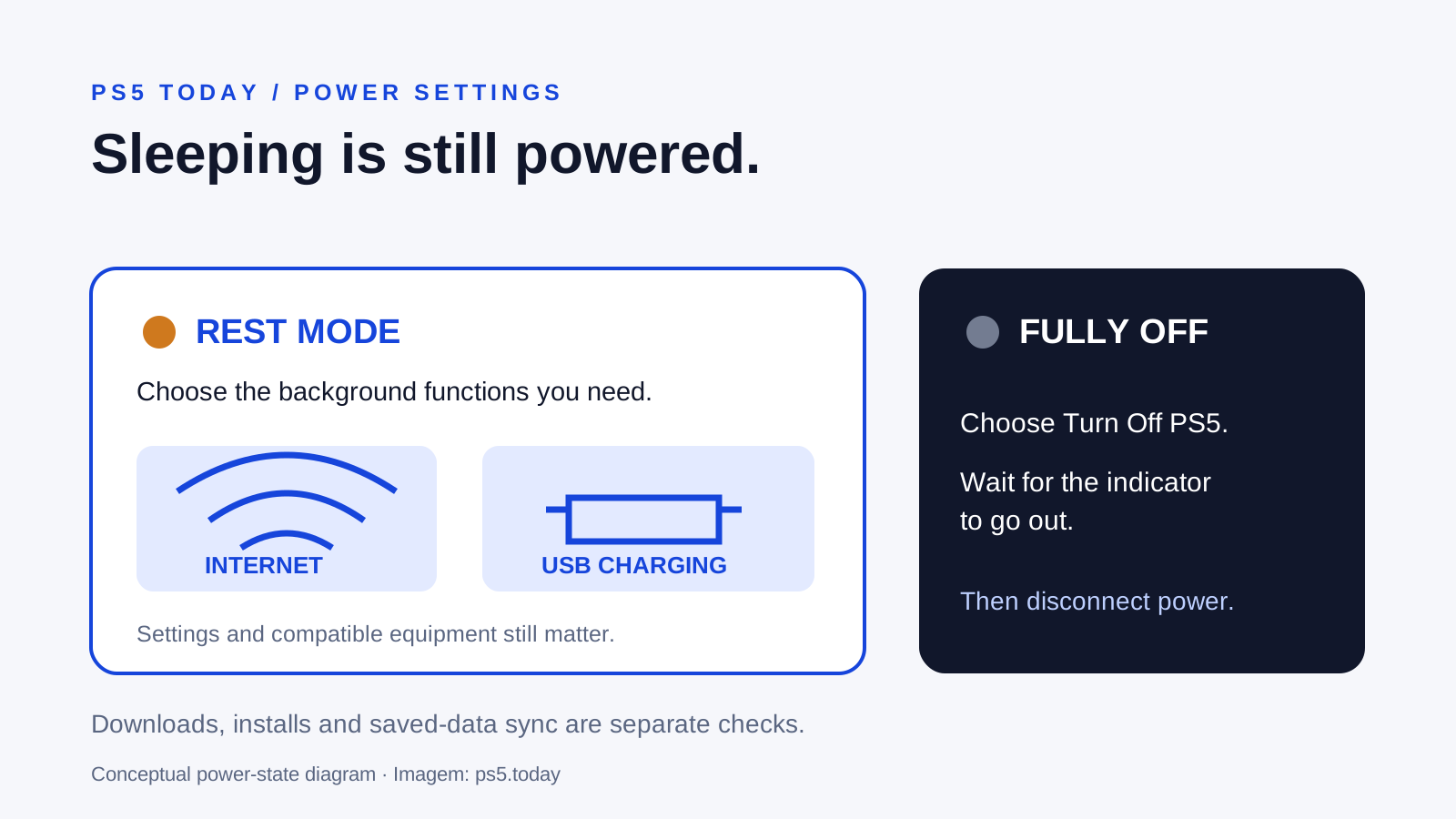
For background downloads, inspect Rest Mode connectivity settings rather than assuming any sleeping console stays online. If the real obstacle is a full drive, solve that through storage management; network changes do not create installation space.
If PlayStation sign-in fails
Check the official PlayStation service-status page before changing a working household network. A service incident may explain why sign-in or store access fails while another internet activity works. During a known incident, keep the existing configuration and follow the service’s updates.
If the service appears operational, confirm the console has internet access and inspect the actual sign-in error. A rejected credential or account-access problem is different from a failed network connection. Our passkey and account security guide helps keep those two paths separate.
Do not create a new account to work around a temporary sign-in problem. That new identity will not simply inherit the purchases, friends and progress of the old one. If games are present but locked, use the licenses guide to investigate entitlement after account access is restored.
If only one game has trouble
Identify whether the failure occurs at launch, login, matchmaking or during play. Check that the game is updated and consult its publisher’s service information. A console-wide network change deserves stronger evidence when other games and services work normally.
Also compare the exact versions used by friends. A generation or edition restriction can prevent a group from playing together even when everybody has a healthy connection. For GTA, see PS4 versus PS5 game versions before treating a failed invitation as a router fault.
Where a game reports a network restriction, follow that publisher’s specific guidance and the router manufacturer’s instructions. Record the original settings before making a targeted change. Avoid stacking port-forwarding rules, a DMZ setting and manual network values together just because each appeared in a different tutorial.
Keep advanced settings tied to a reason
Sony exposes options such as IP address, DNS, MTU and proxy configuration, but the existence of a setting does not mean it improves performance when changed. DNS helps locate services; an arbitrary new DNS value is not a universal remedy for a poor radio connection or busy game server.
An IP address that conflicts with another device can create a fresh problem. An unsuitable MTU or proxy setting can also interfere with a previously working route. Start with automatic configuration unless your provider or network administrator has given you a specific requirement.
Sony notes that PS5 supports IPv6 connections but not an IPv6-only network. If the router has been deliberately configured that way, consult its current instructions or your provider about an arrangement that includes IPv4. Do not disable unrelated security features in an attempt to force a connection.
PS5 Pro has a model-specific Multi-Link Operation option for compatible access points. It is not a feature to expect on every PS5 or every router. Sony suggests comparing it enabled and disabled when troubleshooting an affected Pro connection. The useful question is whether that particular pairing works reliably, not whether the newer-sounding label must always be better.
Decide whether new equipment would solve the identified problem
If Ethernet works well but Wi-Fi does not, consider access-point position, distance and obstructions before replacing the console. A router hidden inside furniture may be convenient to look at but poorly placed for the route it needs to serve. Test a practical location change if you control the equipment.
If both wired and wireless devices across the household fail, contact the provider with the times and symptoms you recorded. If only the PS5 fails on more than one known working connection, use PlayStation’s troubleshooting or repair route with the model and error details ready.
Buy an accessory only when you can explain the missing function. A safely routed Ethernet cable addresses a wireless segment; a suitable access point can address coverage. Neither promises to fix every online game. Your finished setup should support ordinary sessions reliably, with a short record that helps locate the next problem without rebuilding the network from scratch.
Sources and references
Written by PS5 Today.
Something changed? Send a correction →