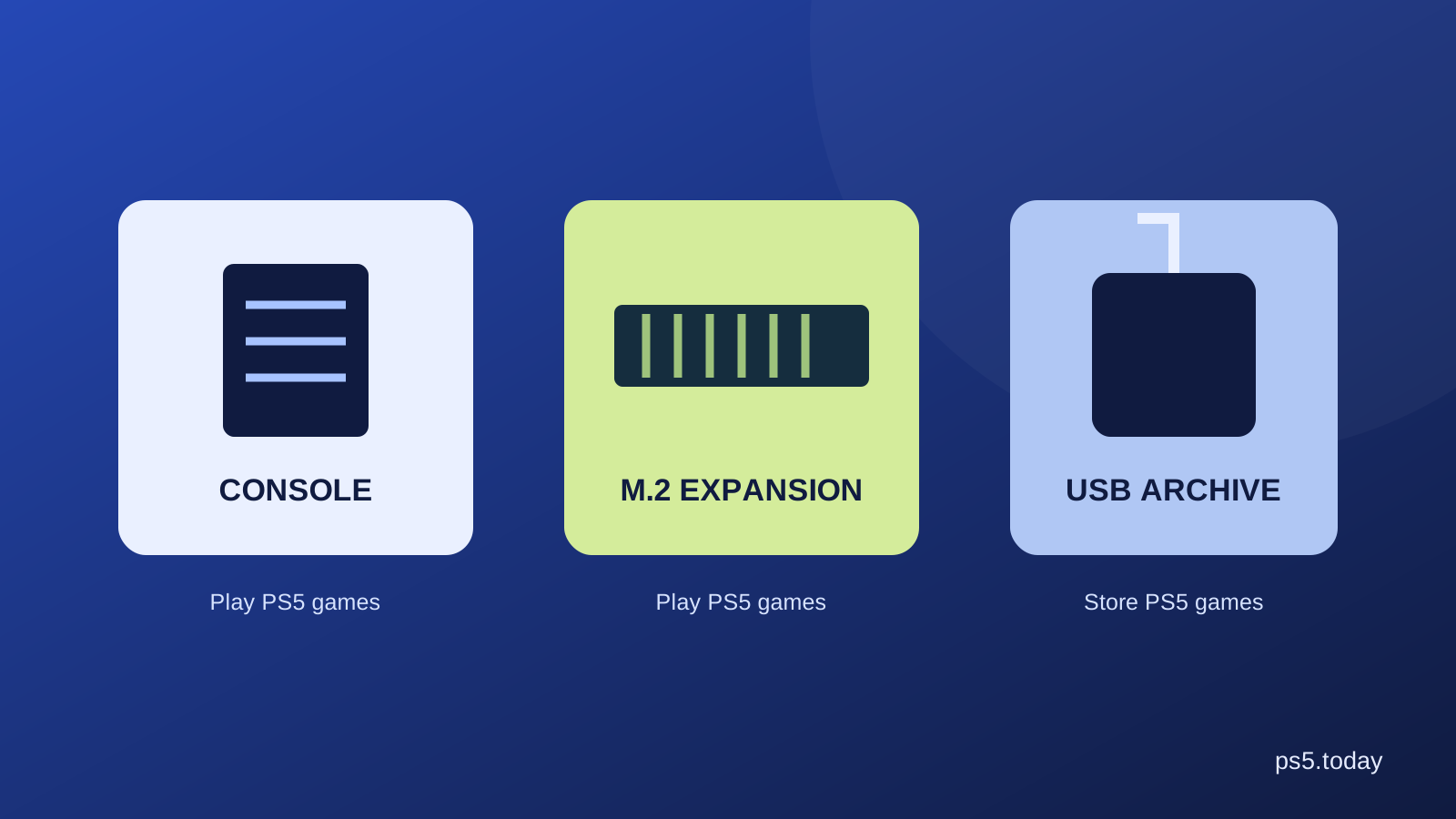
PS5 games run from the console’s built-in storage or a compatible installed M.2 SSD. A USB extended-storage drive is useful for keeping PS5 games off the internal drive until you need them again, but you must move those games back to compatible playable storage before launching them. Supported PS4 games can run directly from USB extended storage.
That is the central distinction. Buying more capacity is easy; buying capacity that solves the right problem takes a little care. An external drive that looks like a bargain can be frustrating if you expected it to expand the space from which you immediately play PS5 titles.
Start by opening the console’s storage screen and identifying what is actually using the room. Games, captures and saved progress serve different purposes. If the main problem is clearing a game while keeping your progress, go straight to deleting a PS5 game without deleting saves.
The three places games can live
The built-in drive is the normal location when you first set up the console. A compatible M.2 SSD adds another internal location after installation and formatting. USB extended storage connects outside the console and offers a different combination of convenience and limitations.
Sony’s USB extended-storage instructions make the PS5 and PS4 distinction clear. Think of USB as a shelf for PS5 installations and as a playable library for supported PS4 titles. Think of a compatible M.2 as more immediately usable space for your PS5 library.
This does not mean one option is always better. Someone with many PS4 games may gain a lot from USB. Someone who changes between several large PS5 games every evening may value an M.2 much more. The right comparison begins with what you play, not how many terabytes are printed in large letters on the packaging.
Decide whether you need more hardware at all
Open Settings, then Storage. Look at games and apps, Media Gallery and other categories before ordering anything. A collection of long video captures can occupy space you intended for games. Removing captures you do not need may solve the immediate problem without another purchase.
Next, identify games that you genuinely intend to play soon. A useful installed library is different from a complete collection. If you have finished a game and are unlikely to return for months, keeping its installation ready has a real convenience cost in storage space. Your account library and your installed games do not need to be identical lists.
For example, a household might keep one shared game, one long single-player game and one current online game ready. Everything else can wait in the library or archive. Another household may need a larger ready-to-play selection because several people use the console independently. Neither approach is wrong; they create different storage needs.
M.2 expansion is about compatibility, not just speed
M.2 describes a physical storage format. It is not by itself a promise that a drive works inside PS5. Sony specifies the supported interface, capacity range, dimensions and cooling arrangement. A similar-looking drive intended for another purpose can fail one of these requirements.
Read the current official M.2 requirements and compare the exact drive model, including its heatsink. Our M.2 buying guide explains the checks in detail. A retailer’s search result title is not a substitute for the manufacturer’s specification.
Installation also involves opening the appropriate console cover and fitting the drive correctly. Follow the instructions for your console model and let the console cool before working on it. If you do not feel comfortable doing the installation, include professional installation in your cost comparison. The saving from buying a bare drive may disappear if you still need a suitable cooling solution or help fitting it.
USB storage can still be a very useful purchase
USB makes sense when moving a stored installation back is less inconvenient than downloading it again. This is especially relevant with a slow connection, a data cap or several games you return to occasionally. You are paying for a local archive that can save future downloading, rather than unlocking direct PS5 play from that drive.
Consider the routine, not an abstract speed claim. If you finish one long game before starting another, a move before the next session may be perfectly acceptable. If you jump among five large PS5 titles every night, repeatedly moving them will feel more restrictive. A more expensive internal expansion may then buy useful convenience.
Do not assume every USB port, cable or enclosure combination is suitable just because the connector fits. Check the official drive requirements and the device instructions. Avoid formatting a drive that contains files you still need. Formatting prepares it for the console’s storage role and can erase its existing contents.
Game data and saved progress are separate
An installed game contains the files the console needs to run it. A save contains progress such as where you stopped in a campaign. Online games may also keep important progress on their own services. These categories are related to the same game, but managing one does not automatically mean managing the others.
Before removing anything, read the name of the storage section. Deleting a game installation is a different action from deleting Saved Data. If several people share the console, confirm whose account and files you are managing. A large game tile should not send you hunting through another person’s save files for tiny savings.
Backup is another separate question. An archive of the installation is not proof that your saves are protected. Verify your own supported backup or cloud synchronization arrangement before a reset, repair or move to a new console. Read the console’s prompts carefully when choosing between a local and cloud copy.
Leave room for the next change
Installation sizes are not fixed forever. Updates, language files, optional modes and expansions can change the space a game uses. A storage plan that leaves the drive almost completely full after every install creates repeated interruptions, even if each individual game technically fits.
Instead of promising yourself that a particular number of games will always fit, keep some flexibility. Review the list when you complete a game or before a large new release. A short decision about what stays installed is more effective than repeatedly deleting random small items just to clear the next download message.
For GTA VI, use the size shown by the official store or console when it becomes available for your purchase. Do not buy an SSD solely because somebody has posted a supposed final file size. Our GTA VI PS5 guide separates confirmed information from details that need a current product-specific check.
Match the purchase to a household routine
A single-player household with a good connection may be happy with the built-in space for a long time. A household with a large PS4 collection can place suitable PS4 installations on USB. A household that wants several PS5 games instantly available has a stronger reason to consider M.2 expansion.
There is also a mixed approach. Keep frequently played PS5 games on built-in or M.2 storage and use USB for less frequent games and supported PS4 titles. This does not require buying both devices at once. Start with the bottleneck you actually experience and expand only when another limitation becomes annoying.
Compare the full cost: drive, enclosure if needed, appropriate cooling for M.2 and any installation help. Then compare that cost with the inconvenience it removes. Avoid buying a complicated collection of adapters when a simpler compatible drive would serve the same purpose more reliably.
When storage behaves unexpectedly
If a moved game does not start, first check where it is stored and whether the installed version is PS4 or PS5. If a drive is not recognized, check its connection and compatibility before assuming the game is corrupted. Change one thing at a time so you know what fixed the issue.
Do not disconnect storage in the middle of a move, installation or other operation. Follow the console’s safe removal procedure. If the system asks to repair storage after an interruption, read that prompt rather than immediately formatting the drive and losing a useful archive.
The practical goal is a library that fits the way you play. Use internal expansion for more playable PS5 space, USB for the jobs it supports, and deletion for installations you do not need. For Sony’s current menu instructions, consult manage PS5 storage space.
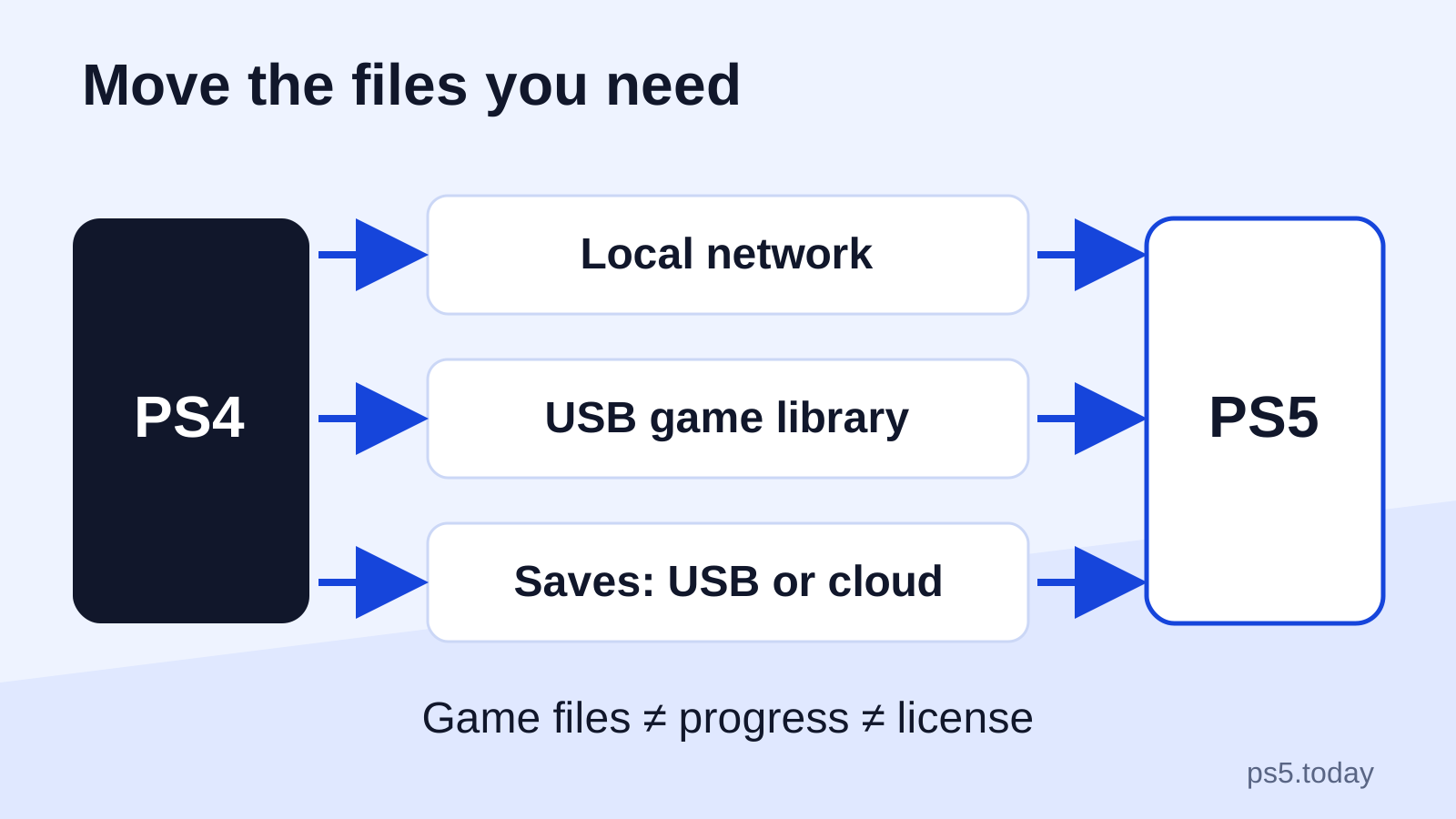
Moving from a PS4 introduces another decision: what actually needs to move now. Follow the PS4-to-PS5 transfer guide for games, profiles and saves, then use the cloud-save sync guide before replacing a local copy of your progress.
Sources and references
Written by PS5 Today.
Something changed? Send a correction →