To free space while keeping your progress, delete the game installation from Games and Apps, not the files in Saved Data. These are separate categories on PS5. You can later reinstall the game, provided you still have access to the right disc, purchase or subscription license. Keep your saved progress and check its backup separately.
Before confirming any deletion, read the heading of the screen you are on. The useful action is removing files needed to run the game. You are not trying to erase a character, remove a user account or reset the console. Those other actions can have very different consequences.
This distinction follows PlayStation’s storage-management guide. If several people use the console, make the decision together for shared installations. Removing a game can inconvenience another player even when their saved progress is left intact.
Identify what is taking the space
Open Settings, then Storage. Look at the categories before selecting an item. A large game is often the most obvious candidate, but videos in Media Gallery or duplicate installations may explain part of the problem. Start with files you understand rather than deleting small unfamiliar entries at random.
For Games and Apps, review the title and version. You may have both a PS4 and a PS5 installation of a game, each serving a different purpose. Do not assume one is redundant until you know which version you launch and whether you still need the other to play with friends or use existing progress.
Think about the next few weeks. A finished single-player game you do not expect to revisit is usually a more useful removal candidate than a shared game somebody starts every evening. Storage management is partly a scheduling decision, not merely a hunt for the largest number.
Remove the installation deliberately
Use the game’s options from the home screen or the Games and Apps area in storage settings, select the intended game and follow the Delete prompts. Check the displayed title, version and selected items before confirming. Menu wording can change with system updates, so let the current screen guide the final confirmation.
If the game offers separate components, decide which ones you use. Some games manage optional content through their own menus or installation options. Do not assume every title lets you remove every mode independently. Check what the specific product offers rather than following a video for a different game.
Allow the operation to finish. Then look at the free-space figure and decide whether you have solved the immediate problem. Avoid immediately repeating the process on several other games just because you are already in the menu. Remove enough to meet your actual plan and preserve convenience where it matters.
Leave Saved Data alone unless you mean to change progress
The Saved Data area is for progress, not the large installation you are normally trying to remove. Deleting something there can affect a campaign, settings or other game-specific information. A save is often far smaller than the installation, so it is rarely the sensible first target for a storage shortage.
If the screen mentions deleting saved data, stop and check your route. Back out if your intention was only to uninstall the game. Do not assume a confirmation prompt means the console has understood your broader goal. It confirms the action you selected, which may be the wrong one for that goal.
For a household console, make sure you are also dealing with the correct user. Saved progress can belong to different accounts even when everybody launches the same game tile. Never remove another person’s saves merely because you do not recognize a name in a list.
Verify backup before bigger changes
Uninstalling a game and preparing a console for repair or sale are different situations. Before a reset or replacement, confirm the supported backup arrangement for your important progress. A working old console is the easiest time to check which saves are present and whether cloud synchronization has completed.
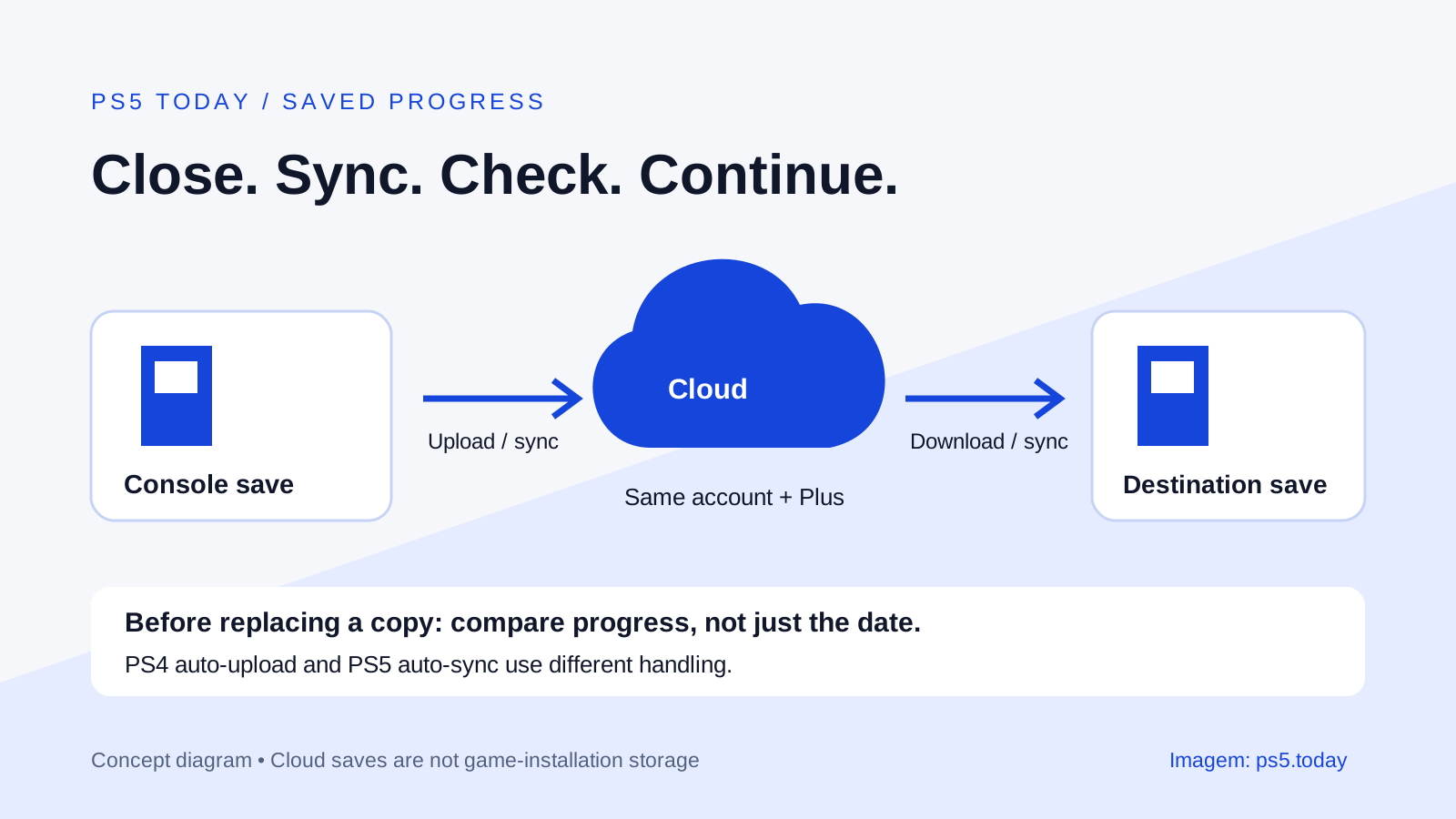
If you use PlayStation Plus cloud saves, inspect the status rather than assuming the subscription guarantees every recent session is already uploaded. If the console presents a conflict between local and cloud copies, compare the available information carefully. The newer-looking game tile does not tell you which saved-data copy is correct.
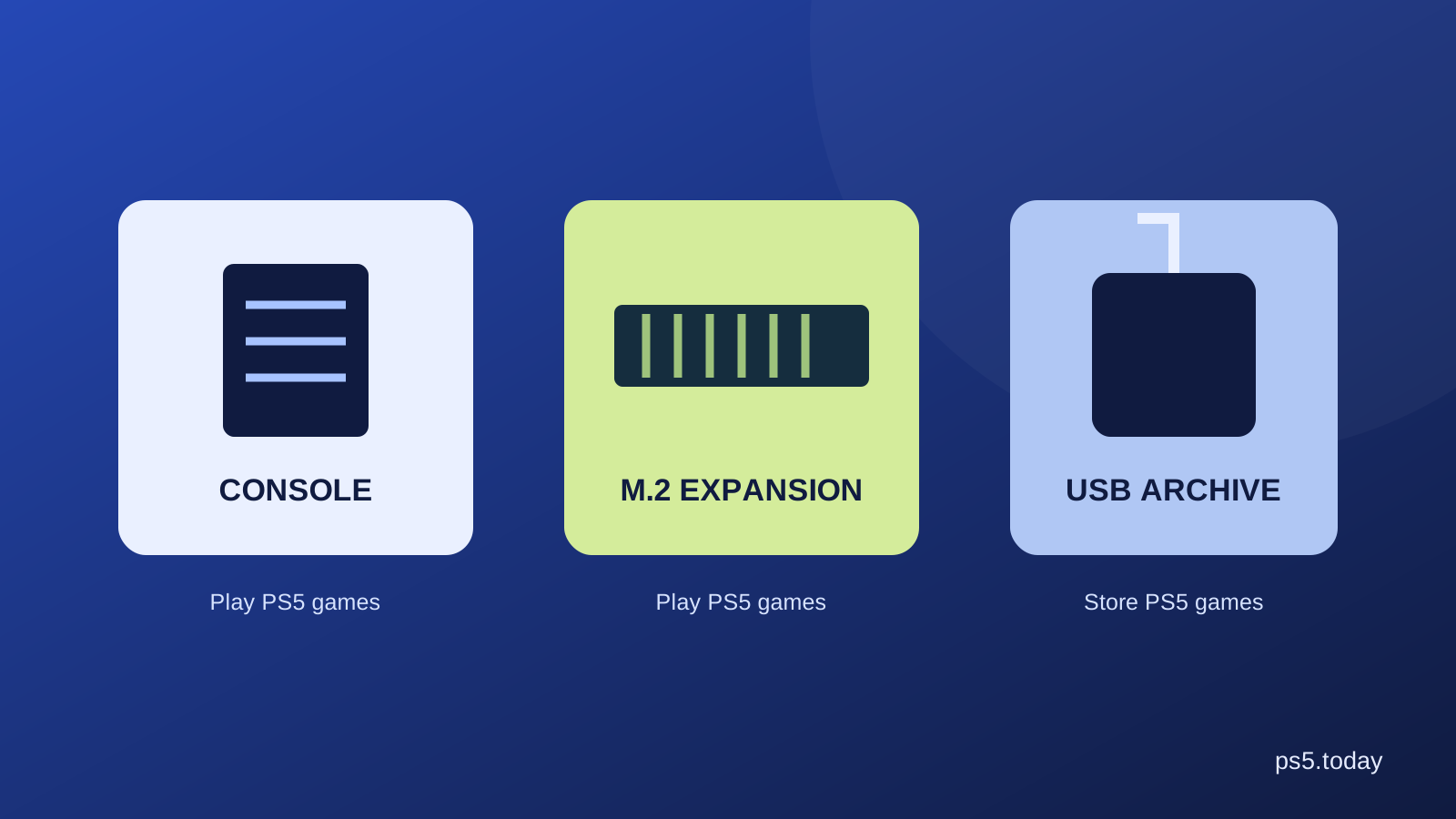
Keep a clear distinction between installation archives and save protection. Moving a game to USB may preserve the installation files for later copying, but it should not be treated as proof of a complete backup. Our storage guide explains the different jobs these storage locations serve.
Know how you will reinstall
Before deleting a game you want again soon, identify the access route. A digital purchase belongs to its purchasing account. A physical game may need the appropriate disc. A subscription game may depend on an active plan and continued availability under that plan. Reinstallation and the right to play are related but separate checks.
For example, downloading an old catalog game again will not solve a loss of catalog access. Similarly, an installation left on the drive is not a replacement for a missing disc when that disc is required. Keep the actual license arrangement in mind when deciding what to remove.
If a game is important and access is uncertain, investigate before deleting it. Look at your purchase history or the current subscription listing. Avoid buying another copy in a hurry until you know whether the issue is the account, version or entitlement. Our Plus guide helps distinguish catalog access from monthly games.
Reinstall the matching version
When returning to a game, choose the intended PS4 or PS5 version. A franchise name, sequel and remaster can look similar in the store while being different products. Check the edition and supported save behavior if you are changing versions rather than reinstalling the same one.
Do not assume that a PS4 save automatically appears in a native PS5 edition. Some games provide their own transfer or import process, and the details are product-specific. Follow the developer’s instructions for that game. Console-level file copying cannot be assumed to replace an in-game migration requirement.
GTA is a useful example of why names matter. GTA V and GTA Online have generation-specific arrangements, while GTA VI is a different game. See the GTA V PS4 and PS5 comparison before removing an older version used by your group of friends.
When moving a game is better than deleting it
If downloads are slow or limited, a supported USB archive can be more convenient than removing the installation entirely. PS5 games stored there must move back to playable console or compatible M.2 storage before you launch them. This trades a future local move for another internet download.
That arrangement suits someone who changes games occasionally. It is less convenient when you switch among several large PS5 titles during the same evening. More internal playable capacity may solve that particular frustration better, although it costs more than simply managing the existing library.
Compare the time you lose with the money you would spend. One inconvenient download every few months may not justify new hardware. Repeated moves that interrupt a household’s daily routine might. There is no requirement to buy storage before trying a more selective installed library.
If your progress is missing afterward
First check the user account, game version and save location. A missing Continue option is not by itself proof that uninstalling erased the save. You may have opened the wrong edition, signed into another account or reached a game-specific import step.
Avoid starting and saving a new game repeatedly while trying to recover an older one. Read the game’s prompts and the cloud-copy information before replacing anything. If the issue concerns an online character, use the developer’s account support rather than assuming a local installation can restore server-side progress.
The safest everyday routine is simple: remove the installation you no longer need, keep Saved Data intact, verify backups before major console changes and reinstall the correct product later. For a longer-term solution to a crowded drive, read M.2 SSD requirements before purchasing an expansion.
Before switching consoles or replacing a local save, follow the PS5 cloud-save sync guide. Deleting an installation is different from choosing between conflicting save versions; compare the timestamps and preserve the progress you intend to keep.
Sources and references
Written by PS5 Today.
Something changed? Send a correction →