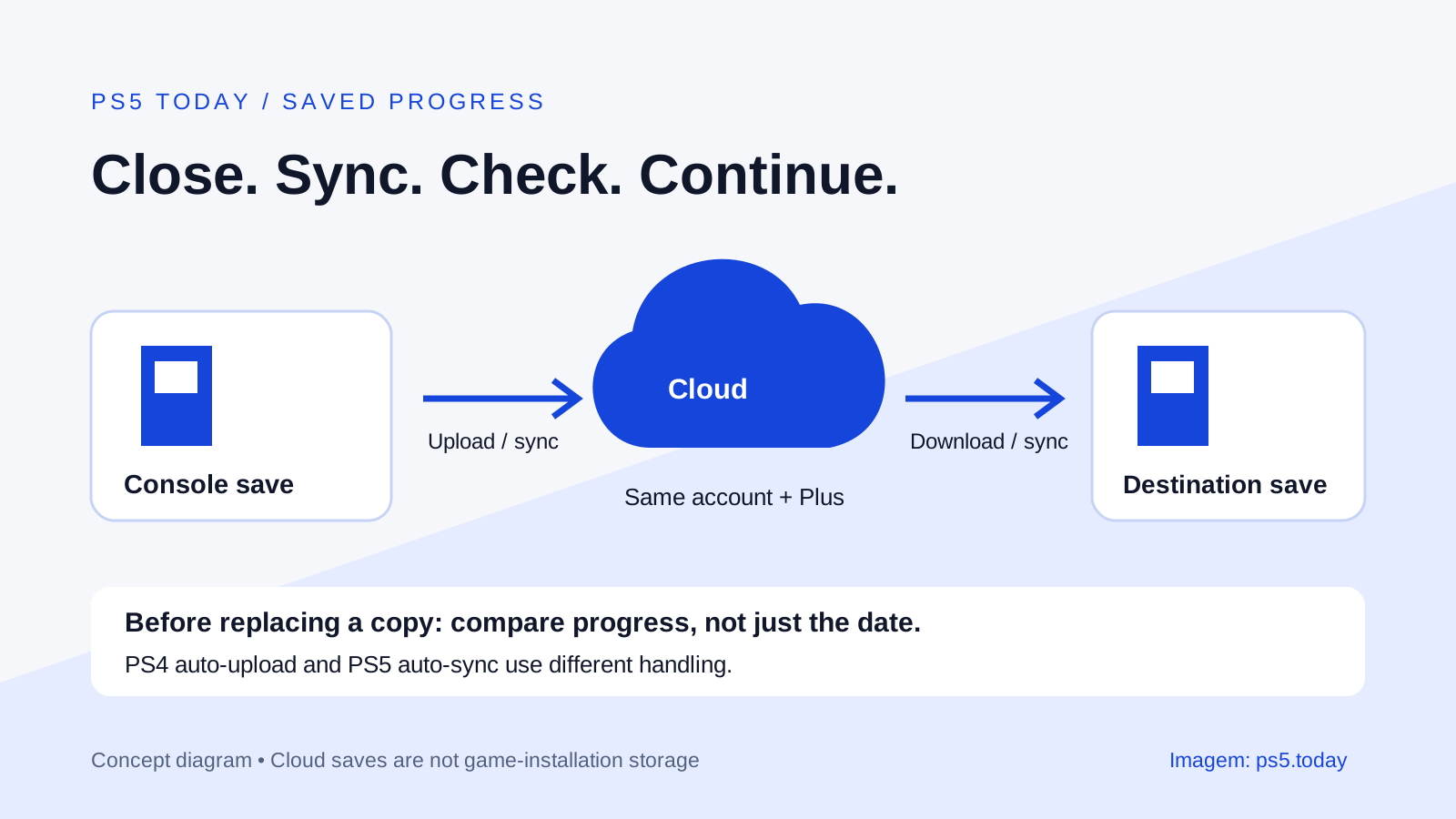
PS5 cloud saves require PlayStation Plus on the account whose progress you want to store. For PS5 games, enable Settings > Saved Data and Game/App Settings > Saved Data (PS5) > Sync Saved Data > Auto-Sync Saved Data. Before changing consoles or deleting anything, check that the cloud copy actually contains the progress you need. A setting being enabled does not prove the latest session has finished syncing.
PS4 games on PS5 use a different arrangement: their saves can automatically upload, but Sony says you must manually download them to PS5 console storage. Cloud saves also do not automatically convert a PS4 save into a native PS5 game’s save. That depends on the individual game’s transfer support.
The safest habit is to finish the session, close the game, check its sync status, and confirm the correct copy on the destination before continuing. That takes less effort than trying to reconstruct which console last held an important milestone.
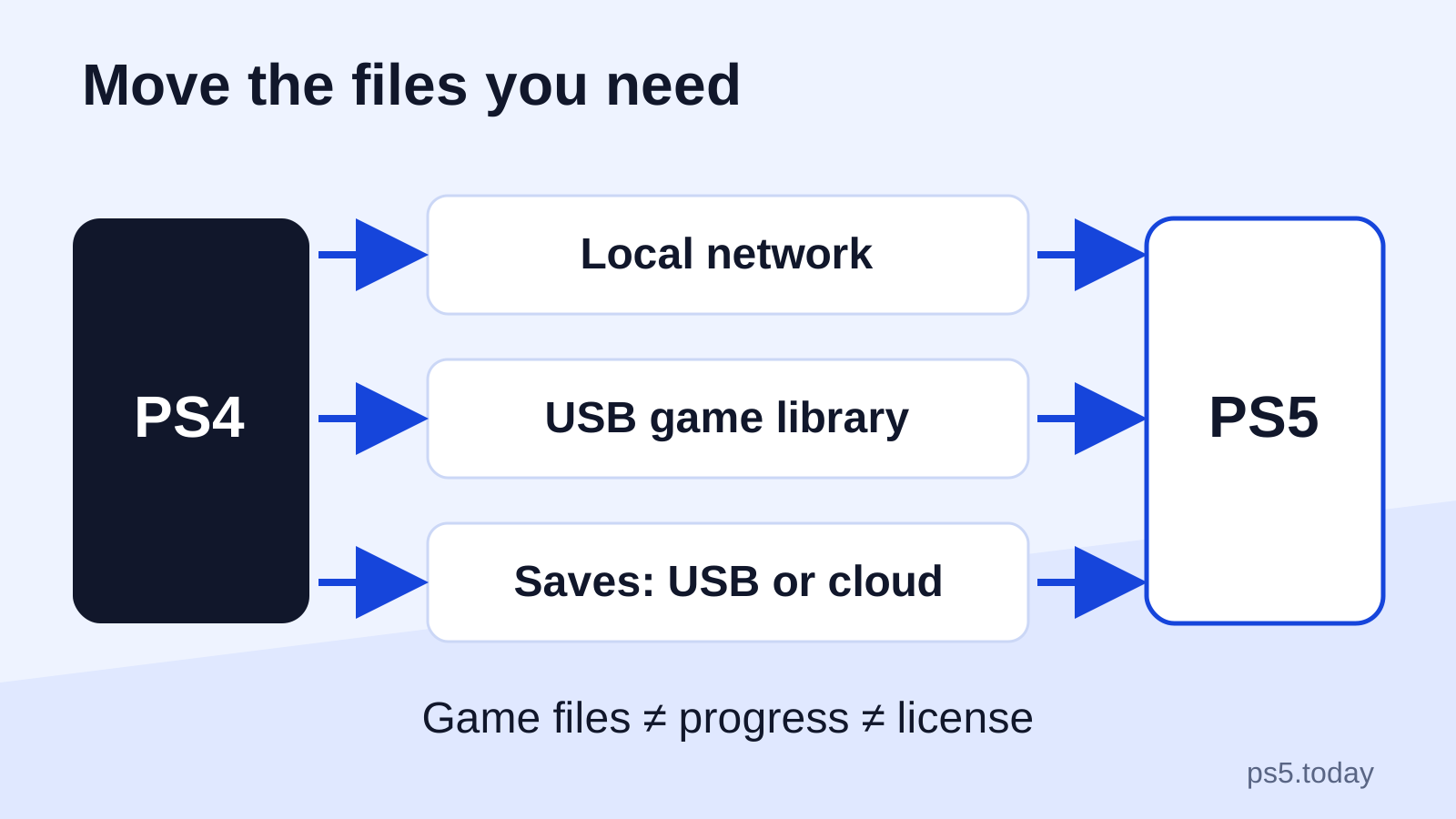
Separate the game installation from your progress
A game installation contains the files needed to run a game. Saved data records your progress and settings in that game. Screenshots and videos are another category again. Cloud saved-data storage does not mean your entire console, installed library and captures are mirrored online.
This matters when making room. Deleting an installation is different from deleting a save. Our guide to deleting games while keeping saves explains the menus to keep separate. Do not delete a saved-data entry just because a large game installation needs to go.
Likewise, downloading a game to a replacement PS5 does not prove its progress is present. You need the correct account, supported game version and saved data. A title opening successfully to a new-game screen tells you the software works; it does not establish that the old playthrough was transferred.
Imagine Robin finishes a difficult level on the living-room PS5 and then travels with a second console. Installing the same game on the second console is only part of the job. Robin must allow the first console’s latest save to reach the cloud and make sure the second uses that save before beginning the next session.
Check the account’s cloud access
Use the same PlayStation account that created the save, and verify that its PlayStation Plus subscription is active. Eligible shared games and online multiplayer do not give every household profile its own cloud storage. Sony lists online storage among the benefits that cannot be shared through console sharing.
For example, a parent may subscribe while a child plays a shared game under a separate profile. The child’s save belongs to that child’s playthrough. Do not assume it is backed up simply because the parent can see cloud storage on the adult account. Inspect the actual child’s account and its available options.
Our Console Sharing and Offline Play guide separates shared access from personal benefits. If the household is deciding whether another subscription is worthwhile, name the required feature first. Cloud protection for a particular account is a specific need, different from buying another subscription just because there are several users.
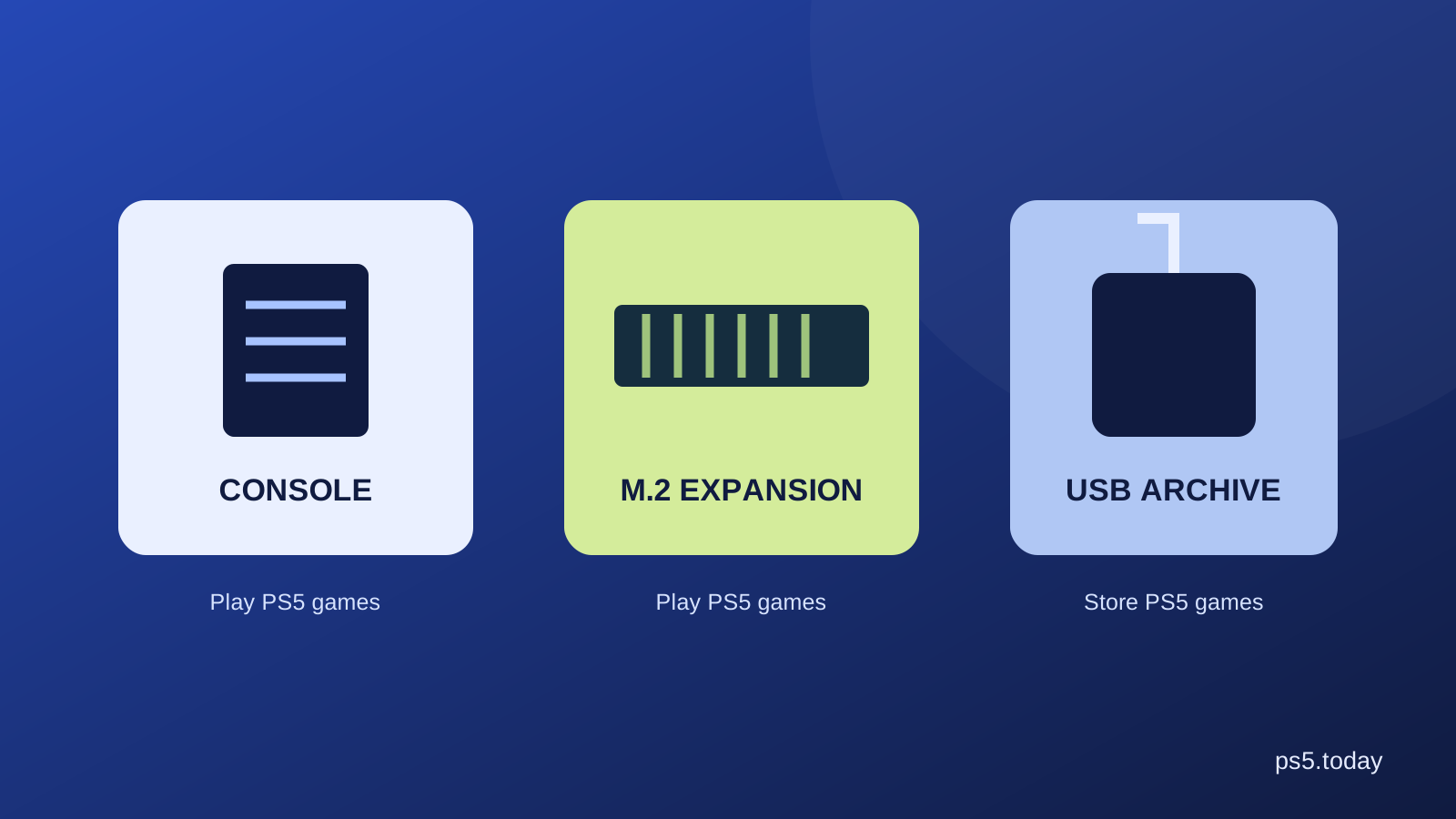
Sony currently provides separate allowances of up to 100 GB for PS5 saved data and 100 GB for PS4 saved data, with a limit of 1,000 PS4 saved-data files. These are save allowances, not extra space for installing PS5 games. For playable game storage, use our storage guide.
Enable the automatic path
For PS5 saves, use the Auto-Sync path at the beginning of this article and turn on Enable Auto-Sync. Inspect the per-game choices too. A global setting and a specific game being excluded can produce an unexpected result, so confirm the game you care about rather than stopping at the first switch.
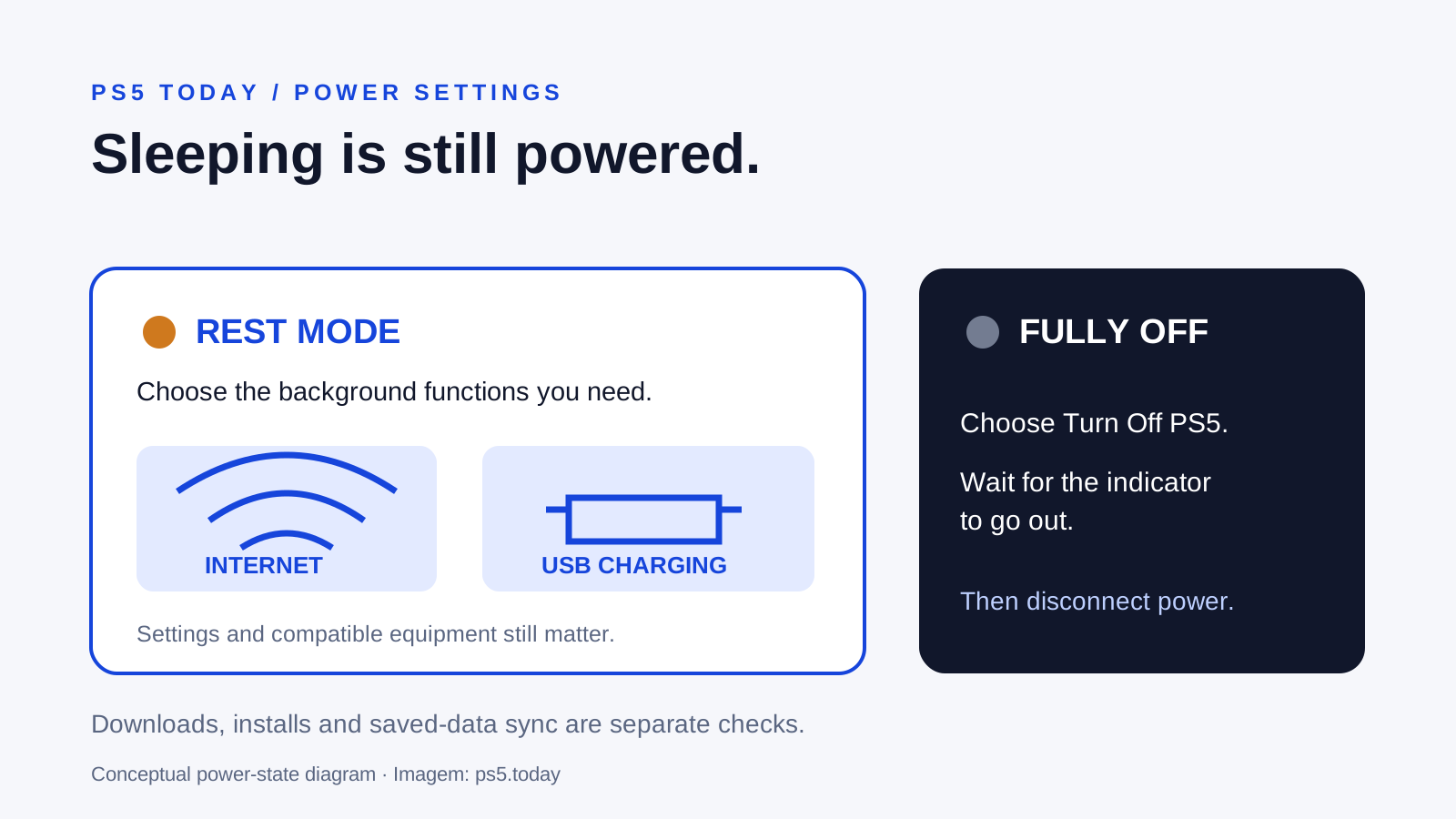
Sony also calls for automatic updates to be enabled for cloud synchronization. For rest-mode connectivity, open Settings > System > Power Saving > Features Available in Rest Mode and enable Stay Connected to the Internet. This gives the console a connection while resting; it cannot make a disconnected router or unavailable service work.
For PS4 saves on the PS5, open Saved Data (PS4) and configure Auto-Upload. Keep the distinction visible: Sony describes PS5 data as syncing to the most recent copy between console and cloud, whereas PS4 data automatically uploads and needs manual downloading to PS5 storage.
Use our rest-mode guide if you are deciding how the console should behave between sessions. Rest mode can support background work, but it is not the same as pulling the power cord. Let the console finish the relevant process and follow the normal shutdown instructions when disconnecting it.
Verify a completed session
After playing, close the game and give the console time to complete its connected work. For a PS5 title, highlight it on the Games home screen, press Options and choose Check Sync Status of Saved Data. You can also inspect individual games through Sync Saved Data > View Sync Status in Settings.
Treat that status as a checkpoint before a transfer, a trip or retiring a console. If it reports a problem, solve it while the current local progress is still available. Starting a new playthrough elsewhere and hoping the system later guesses your preference creates an unnecessary conflict.
On the destination, sign into the same account and confirm the correct version of the game. Download or sync the appropriate saved data before playing. Open the game and inspect a meaningful checkpoint, such as the expected chapter, character or save slot. The title screen alone is not enough verification.
For example, Lee has both a PS4 and PS5 edition installed. Lee checks the cloud entry for the PS4 version but launches the PS5 edition and sees no progress. That does not prove the cloud save failed. First identify the two versions, then check the publisher’s supported upgrade or import process.
Uploading and downloading manually
For a specific game on the Games home screen, press Options and look for Upload/Download Saved Data. In Settings, go to Saved Data and Game/App Settings, choose the correct PS4 or PS5 section, and inspect the upload or download tabs offered for that saved data.
Uploading sends console data toward cloud storage. Downloading sends cloud data toward console storage. Read the source and destination before confirming, especially if a warning says existing data will be replaced. The two buttons do opposite jobs even though they sit in the same general area.
When presented with competing copies, compare the date, time, console used and the progress you remember. A recent timestamp can belong to a new empty playthrough, so it is a clue rather than the whole decision. If the game offers meaningful save-slot information, use it to identify what you want to keep.
Pause if you cannot confidently identify the desired copy. Do not repeatedly alternate upload and download to see what happens. That can replace the very copy you meant to preserve. Keep the known-good console unchanged while investigating, and use official game or PlayStation support when the conflict is unclear.
Moving from PS4 or replacing a console
Cloud storage can help move supported saves to another console using the same account. It is one transfer route, not a universal conversion service. Follow the PS4-to-PS5 transfer guide to choose among the routes that fit the data and hardware you have.
For a PS4 game played through backward compatibility, the PS4 save remains part of that game version’s situation. For a native PS5 upgrade, the publisher may require an in-game import, its own account process or another specific step. Check the game before deleting the PS4 installation or disposing of the old console.
When replacing a working PS5, verify the important saves on the replacement while the original is still available. Start with the long-running game whose progress would be hardest to lose, then check other valuable playthroughs. Do not turn a successful transfer of one game into an assumption about every account and edition.
If you do not use PlayStation Plus, investigate Sony’s supported console-transfer or full-backup routes before resetting hardware. Do not assume an external drive used for game installations is automatically a separate backup of PS5 saved data. These tools have different jobs and should be chosen deliberately.
When syncing fails or progress appears missing
Check the actual account, subscription, game version, free cloud capacity and connection. Then inspect the individual game’s sync setting and status. If many online functions fail together, check PlayStation service status. If only the console’s internet fails, follow our network guide before changing saved-data choices.
An unavailable game is also different from an unavailable save. A subscription title leaving a catalog can stop the game launching while its save still exists. Conversely, owning a game does not establish that its progress has reached cloud storage. Keep entitlement and saved-data troubleshooting separate.
Cloud syncing is useful protection and a convenient way to continue elsewhere. It is not a promise of unlimited historical versions or recovery from every mistaken overwrite. The strongest protection is checking the correct account and latest meaningful progress before a move, a deletion or a new session on another machine.
Sources and references
Written by PS5 Today.
Something changed? Send a correction →