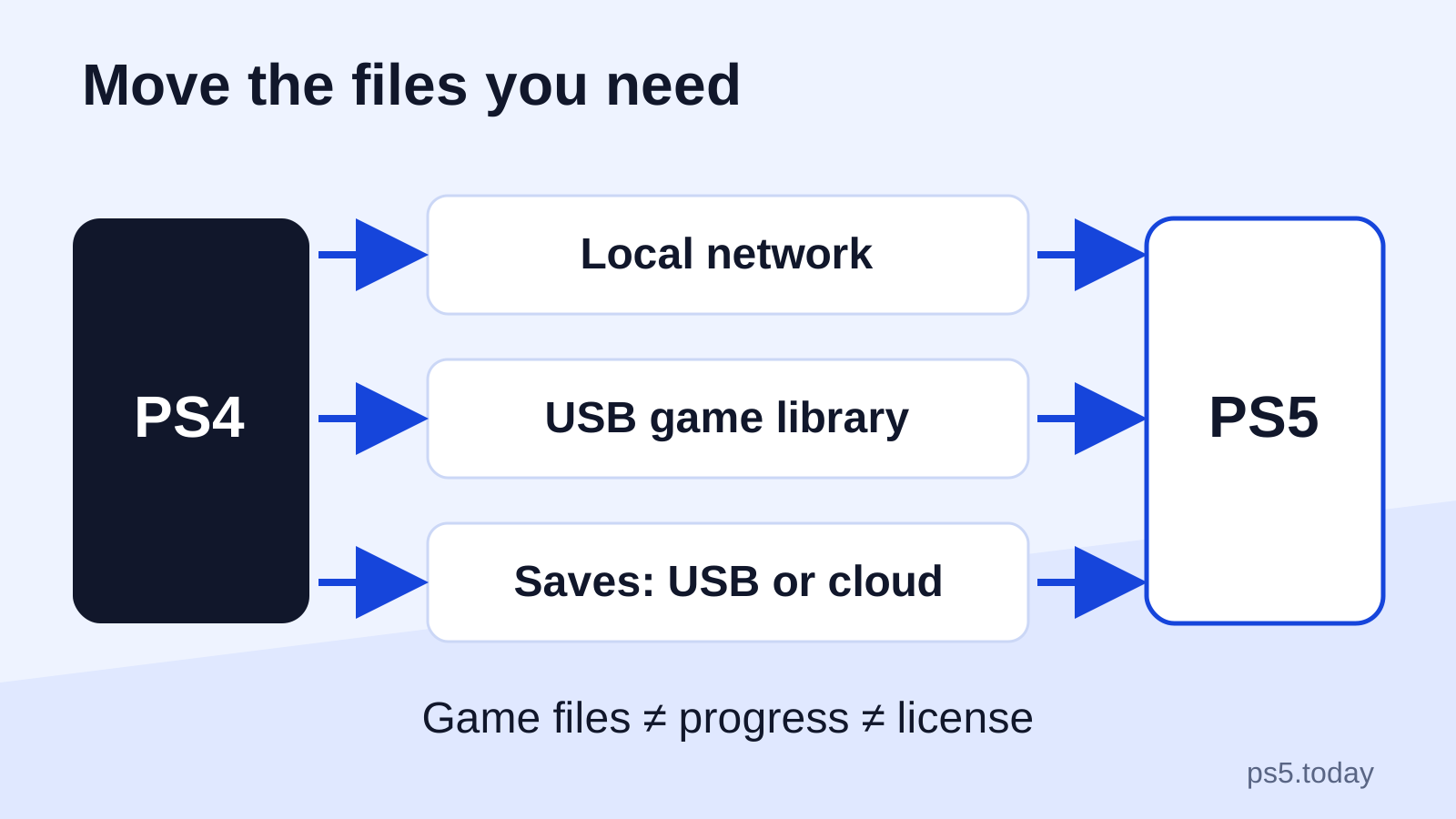
You can move from PS4 to PS5 without buying your digital games again: sign in with the account that owns them, install the supported games and bring across their saved data. Use Sony’s console-to-console Data Transfer when both machines are available, reconnect a compatible PS4 USB extended-storage drive for installed games, or copy PS4 saves through USB or PlayStation Plus online storage.
The crucial distinction is between a game installation, its saved progress and the right to play it. Copying an installation does not create a license, and downloading a game does not necessarily bring its latest save. A PS4 save also does not automatically become a save for the separate PS5 edition of that game.
Keep the PS4 intact until the important games load the expected progress on the new console. A transfer completion message is useful, but opening your actual career, campaign or family save gives you the confirmation that matters. This guide explains how to choose a route without turning the move into an unnecessary full-library project.
Choose what you need to move
Make a short list of games you want to continue immediately. Beside each one, note whether it is a disc or digital purchase, whether you intend to keep playing the PS4 version, and where the latest save exists. This takes less effort than copying a large archive and later discovering that the one campaign you cared about still starts from the beginning.
For a household, make the list per user. Two people playing the same installed game can have different saved progress. An adult’s successful move does not prove that a child’s save came across, and one account’s subscription storage does not establish that another account’s files are protected.
Separate screenshots you want to retain from progress you need to continue. A screenshot of a completed level is a memory; it is not the game data that allows you to resume there. Treat those as different jobs rather than assuming every file type follows the same transfer route.
When console-to-console Data Transfer makes sense
Data Transfer is a sensible starting point when both consoles are working and accessible on the same home network. Sony describes it as copying data, so the move does not by itself erase the source. Update both systems, use the same account and synchronize trophies before beginning. On the PS5, the path after setup is Settings > System > System Software > Data Transfer.
The timing changes what transfers from a PS4. During initial PS5 setup, Sony includes eligible user information, saved data, games and console settings. After initial setup, PS4 user information and settings are not included, and the saved-data transfer applies to the user who is signed in. This is a reason to plan the users, not a reason to reset an already working PS5.
Follow the displayed prompts and leave both consoles powered and connected. Do not change the network or run connection tests while transfer is active. The PS5 can restart before all game copying finishes; check Downloads/Uploads rather than assuming the restart means everything is done. Choose a quiet period when nobody needs to unplug either machine.
A practical transfer plan for two players
Imagine one player wants a long single-player adventure while another wants a sports career. Start by identifying both accounts and their latest saves. If the PS5 has already been configured, handle each user’s saved progress deliberately instead of expecting one signed-in transfer to resolve the entire household.
Move the games needed first and leave rarely used installations for later. The benefit is not a promised speed increase; it is a clearer result. Each person can verify the game that matters to them, and a missing file is easier to spot among a small set of known priorities.
Reconnect existing extended storage for PS4 installations
A compatible USB extended-storage drive already used with the PS4 can be connected to the PS5 to access its game installations. Sony says an existing extended-storage drive does not need reformatting for this move. Formatting is a different action that erases the drive, so do not accept a format prompt casually when the device contains the library you are trying to keep.
Supported PS4 games can run from USB extended storage on PS5. That makes an existing drive useful for keeping older installations separate from the space used by native PS5 games. It does not mean the drive also carries every user’s saved progress; handle saves separately.
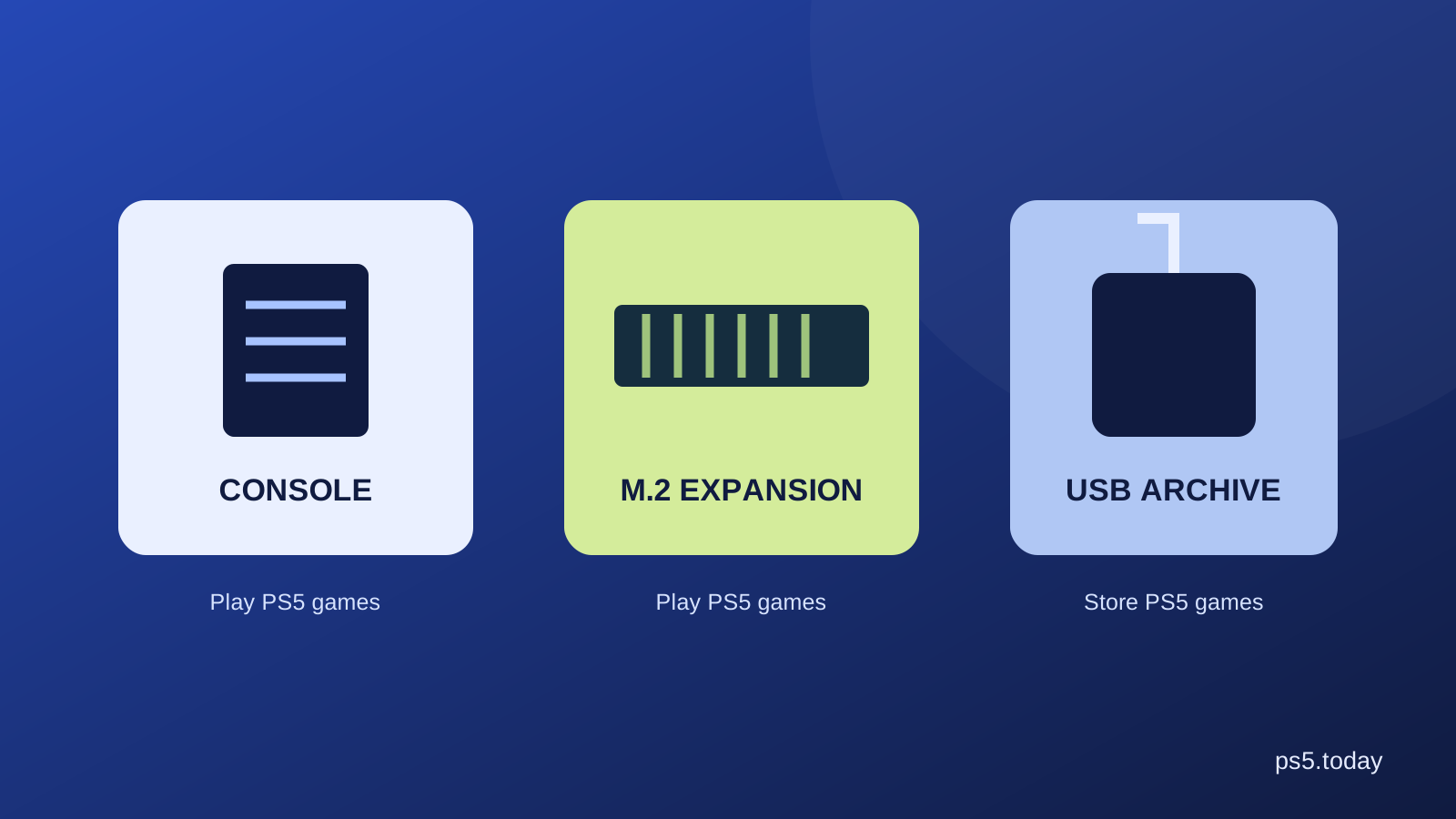
Before buying a new drive, check whether the one you already have serves this purpose. Our PS5 storage guide explains the different roles of USB and internal expansion. Buying an M.2 drive is not a requirement for transferring a PS4 campaign, and moving a PS4 USB library is not a method for directly playing native PS5 installations from USB.
Copy PS4 saved data with a USB device
On the PS4, use Settings > Application Saved Data Management > Saved Data in System Storage > Copy to USB Storage Device. Select the game and the relevant files. This is a saved-data copy operation; it is different from formatting a drive as extended storage for installations.
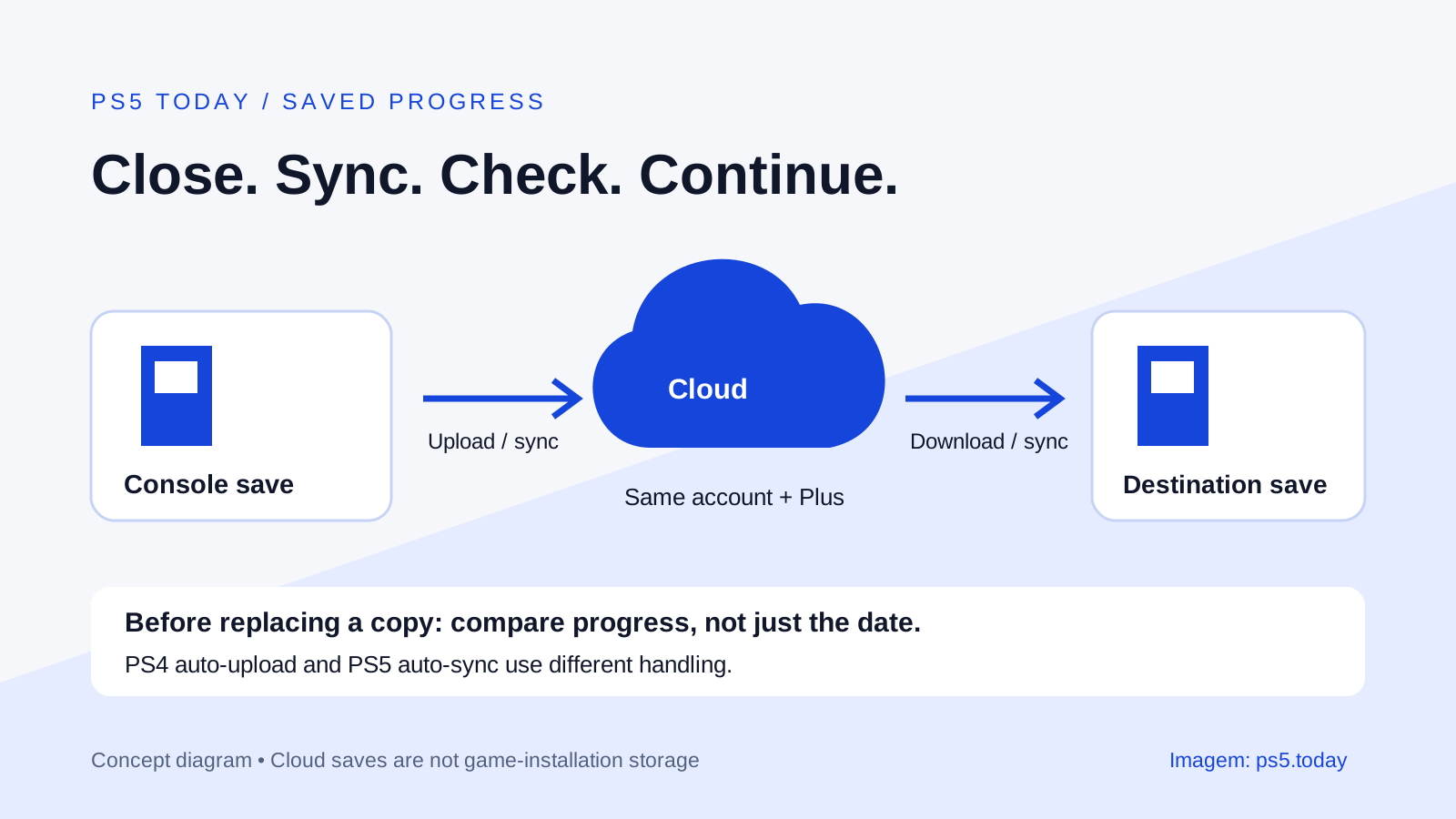
Sign in with the matching account on PS5 and use the PS4 saved-data controls to copy from the USB device into console storage. If the same game already has a save there, read any replacement message carefully. A new file created during an unsuccessful test might be more recent by date but contain less useful progress than the campaign you intended to move.
Keep the USB copy until you have loaded the intended save. Name a simple note with the game, user and meaningful milestone, such as “chapter before the mountain, evening of the 26th.” A timestamp helps compare files, but an in-game landmark helps confirm you selected the correct run.
This USB method concerns PS4 saves. Sony does not provide the same individual-save USB copying route for native PS5 saved data. Our cloud-save and sync guide explains the PS5 distinction so you do not build a future backup routine around the wrong generation’s feature.
Use PlayStation Plus online storage when it is already available
If the relevant account has PlayStation Plus, upload the intended PS4 save from the old system and download it on the new one through the PS4 saved-data section. Confirm the upload’s date and the account before treating the online copy as current. Automatic upload settings are convenient, but a setting being enabled does not tell you which file is actually stored.
This can be a convenient route when you only need a few saves and plan to download the installations again. It can also help if both consoles cannot sit beside each other. It does not remove the need for a supported game and an appropriate license on PS5.
For example, a player with one unfinished PS4 game might copy only that save and install that one title from the library. Moving every game first adds work without improving the immediate result. Conversely, someone with a slow household connection and many existing installations may prefer the local or USB routes for those large game files.
Keep a PS4 edition and a PS5 upgrade separate
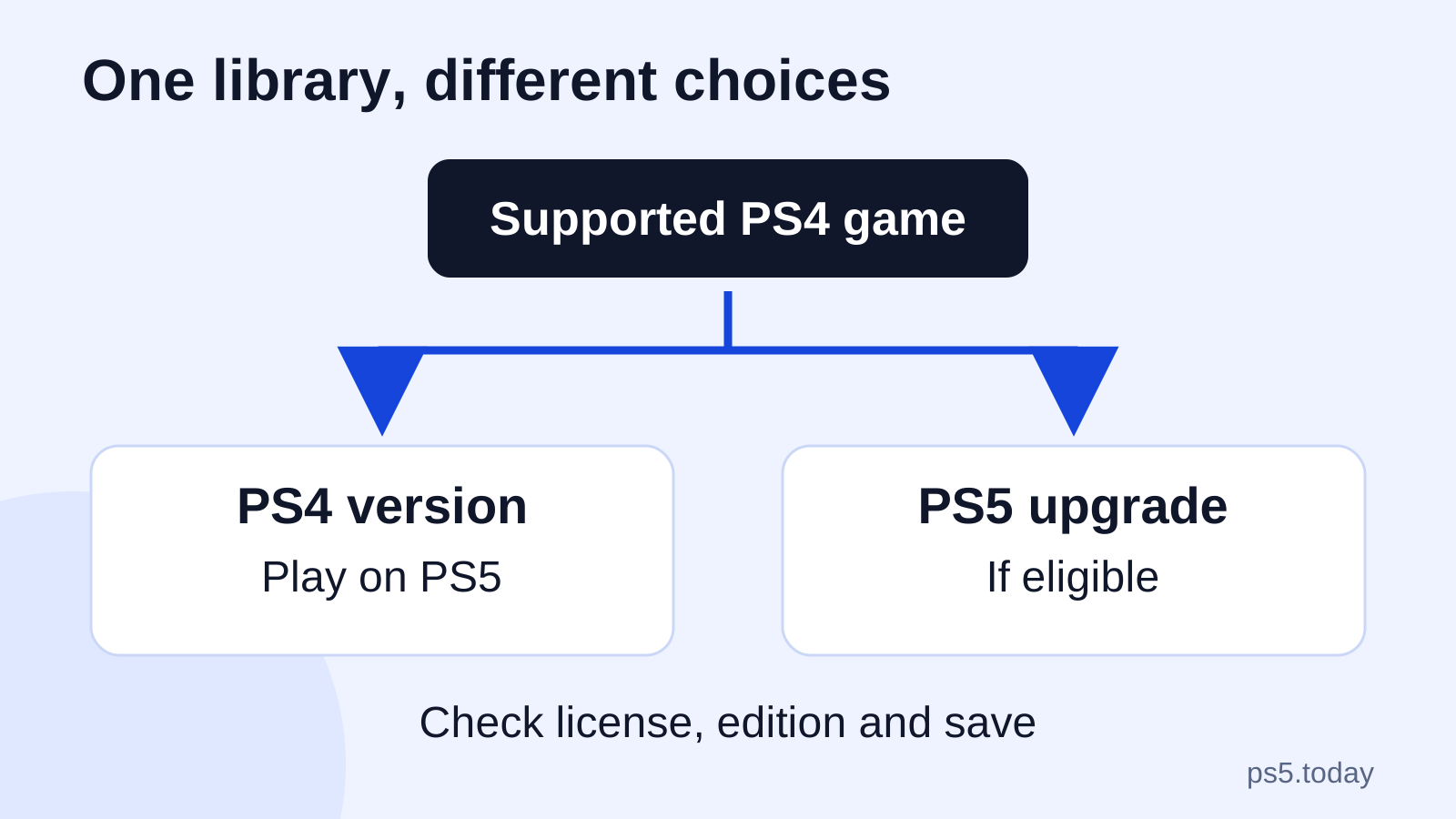
Backwards compatibility means running a supported PS4 game on PS5. An upgrade means obtaining a distinct PS5 version under that game’s offer. The second route may have different costs, eligibility and save-import steps. Check the publisher’s instructions for the particular title before deleting the old version or its save.
An eligible disc-based upgrade still requires the PS4 disc in a compatible PS5 disc drive when playing. A console without the necessary drive cannot prove that disc entitlement just because you copied the installation. Digital purchases should be retrieved through the owning account rather than a new account created during setup.
For GTA specifically, use our PS4 versus PS5 versions guide instead of assuming a general console transfer settles the game’s generation-specific choices. For the wider library, PS5 backwards compatibility explains what to check before paying for a replacement edition.
Diagnose the missing piece before repeating everything
If the game is absent, check the owning account and library. If it is installed but locked, investigate licenses and access. If it launches with no progress, check the user, game version and save location. These symptoms point to different parts of the move.
If the old console is not discovered, confirm both systems are on the intended home network and revisit the connection arrangement before starting over. Our network guide helps isolate local connectivity from internet-service trouble. Do not diagnose transfer networking while a transfer is already underway.
Only retire the PS4 after each important user has opened their game and confirmed the expected progress. Keep any separate save copies you made. The successful outcome is a playable, verified continuation on PS5, with the old data still available while you settle in.
Sources and references
- PlayStation Support: transfer data from PS4 or PS5 to PS5.
- PlayStation Support: PS4 storage and USB saved-data copies.
- PlayStation Support: USB extended storage on PS5.
- PlayStation Support: PlayStation Plus online storage on PS4.
- PlayStation Support: download owned games and add-ons.
- PlayStation Support: upgrade eligible PS4 games.
Written by PS5 Today.
Something changed? Send a correction →