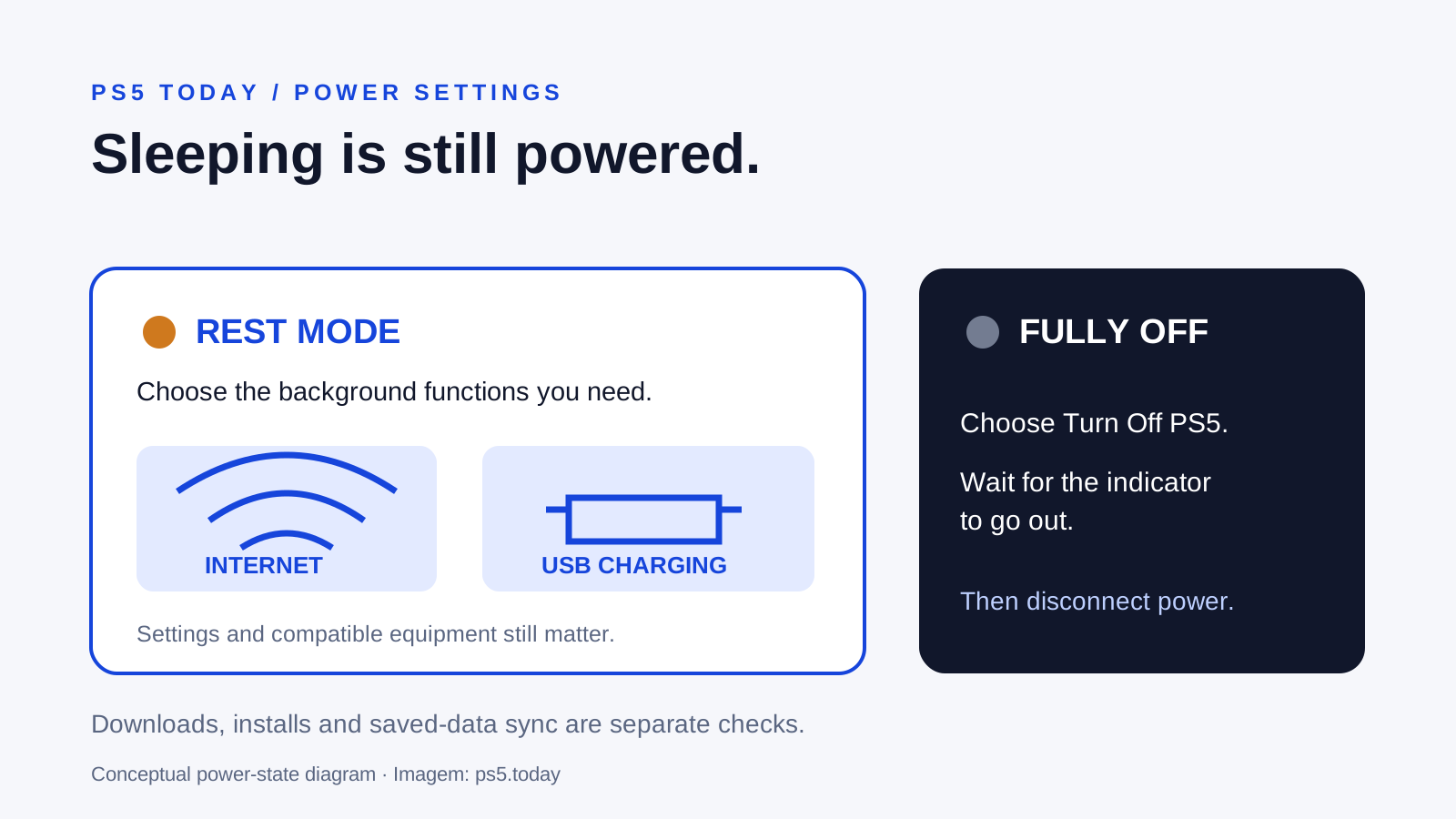
PS5 rest mode keeps selected background functions available while the console uses less power than when fully on. To choose those functions, go to Settings, System, Power Saving, Features Available in Rest Mode. Enable internet connectivity for background downloads and the appropriate USB power option for charging. To unplug or move the console, choose Turn Off PS5 and wait for its power indicator to go out instead.
Rest mode is useful when its features match your routine. It is not a guarantee that every game will be updated, every accessory will charge or an online session will remain connected. A little setup makes it much more predictable and can avoid leaving the console fully on just to prepare tomorrow’s session.
Start by deciding what you actually want it to do: download while you are away, charge a controller, become available for Remote Play, or simply sleep after inactivity. These are related choices, but they have separate settings and requirements.
Understand on, rest mode and off
When the console is on, you can use its full interface and applications. Rest mode is a reduced-power state with optional background functions. Off ends ordinary operation and is the state you need before disconnecting power. A dark television does not tell you which of those states the console is in.
Press PS to open the control center and select Power, Enter Rest Mode when you want the background functions to remain available. Choose Power, Turn Off PS5 when you need a full shutdown. Wait for the indicator to finish its transition. Sony specifically warns against disconnecting the AC power cord while the indicator is lit or blinking because data or the system can be damaged.
For example, a television’s power button may leave the PS5 operating, depending on your HDMI settings and equipment. Do not assume that switching off the screen made the console safe to unplug. Check the console itself before moving furniture, disconnecting a power strip or packing it for travel.
A restart is another useful distinction. It turns the console off and starts it again. If a feature behaves strangely, a proper restart may be a sensible first test. Repeatedly entering and leaving rest mode is not the same troubleshooting step.
Set an inactivity timer that fits the household
Open Settings, System, Power Saving, Set Time Until PS5 Enters Rest Mode. Choose the inactivity behavior that suits how you use games and media. Read the choices on your own console rather than copying another household’s preferred timer.
A short timer can be helpful if you often leave a game menu open and walk away. Someone who uses the console during longer media sessions may need a different setting. Selecting the option that prevents automatic rest mode leaves the system on and consumes more power when forgotten.
Do not treat the inactivity timer as a save feature. Save your progress through the game whenever possible. An online match can end or lose its connection when you stop actively using the system, regardless of whether a suspended application later appears ready to resume.
In a shared household, tell other users what the timer does. A child who sees the screen disappear may think the game has crashed when the console has merely entered rest mode. Family play limits and account restrictions serve a different purpose; use the parental-controls guide for those decisions.
Enable the internet functions you need
In Features Available in Rest Mode, turn on Stay Connected to the Internet for background network activity. If you intend to wake the console through the network, also check Enable Turning On PS5 from Network where available. The network must remain operational: a sleeping console cannot download through a router that has been switched off.
This is useful if you buy a game using PlayStation App and want it downloaded before you reach home. Check that you have selected the intended console in the app, that the console has enough storage and that its connection works. Rest mode does not remove the time needed to transfer a large download.
Try one small practical check before relying on the setup for a long trip. Start an appropriate remote download and later confirm that the expected item reached the console. If it does not, investigate the actual download status rather than repeatedly toggling all power settings.
For Remote Play, the setting is only one part of the arrangement. Account access, Remote Play configuration and both networks still matter. Follow the Remote Play guide for that complete journey. For a console that struggles online even while fully on, use the internet-connection guide before blaming rest mode.
Separate system updates from game updates
PS5 system software and individual games have different automatic-update controls. For the system, open Settings, System, System Software, System Software Update and Settings. Review Download Update Files Automatically and Install Update Files Automatically. Internet connectivity in rest mode must also be enabled for the background process you expect.
For games and apps, go to Settings, Saved Data and Game/App Settings, Automatic Updates. Sony provides Auto-Download and Auto-Install in Rest Mode. The distinction matters if you care about retaining a suspended game: Sony recommends enabling only Auto-Download when you do not want the automatic installation to close it.
Imagine finishing a long evening in a game that you have not yet saved at a convenient stopping point. It is better to save properly than to depend on suspension indefinitely. If preserving the suspended application matters, understand the install setting and still allow for updates, a power interruption or a game that requires a fresh connection.
An automatic-update setup also does not prove that an untouched game is ready months later. Open the game before a planned session with friends and allow time for any required download. A little preparation is more dependable than assuming that every item in a large library was maintained in the background.
Choose USB charging intentionally
Open Settings, System, Power Saving, Features Available in Rest Mode, Supply Power to USB Ports. Sony documents Always and 3 Hours, and supported consoles may also offer Adaptive charging. Use the option present on your model and follow its USB-port and accessory instructions.
Always keeps the selected supply behavior available throughout rest mode. The timed choice is useful when you want a normal charging period without leaving USB power supplied indefinitely. Adaptive charging, where supported, adjusts charging behavior for compatible equipment; it is not a promise that every device connected by USB will charge correctly.
Connect the controller before entering rest mode and check the result. While the console is on, the control center’s Accessories screen shows the battery level and a charging animation. Use an appropriate USB cable in good condition. A connector that fits does not establish compatibility with every accessory’s charging requirements.
If a controller is still empty the next morning, compare the same cable and port with the console fully on. That separates a basic cable or connection problem from a rest-mode configuration problem. If charging works while on, revisit USB power settings and the time at which you connected it. If it does not work in either state, investigate the cable, port or controller rather than changing internet settings.
Choose convenience without pretending it is free
Sony explains that enabling more rest-mode features increases consumption. There is no single power figure that describes every combination of console, accessories, settings and background tasks. Decide which benefits you need, and leave unnecessary functions disabled rather than copying a maximum-convenience preset.
A daily player who downloads purchases remotely may reasonably keep network features enabled. Someone leaving the console unused for an extended period may prefer a full shutdown. A household with unstable power should not rely on a suspended game as its only record of progress.
Keep the console properly ventilated even when it seems inactive. Do not cover it with fabric or seal it into a cramped storage space because the screen is off. Our placement and overheating guide explains what to check before buying extra cooling accessories.
If you are going to disconnect the console, first end downloads or updates appropriately, save and shut down. Rest mode remains a powered state. The same rule applies when a switched power strip makes it easy to cut electricity to the entire entertainment unit.
Troubleshoot the missing function, then verify it
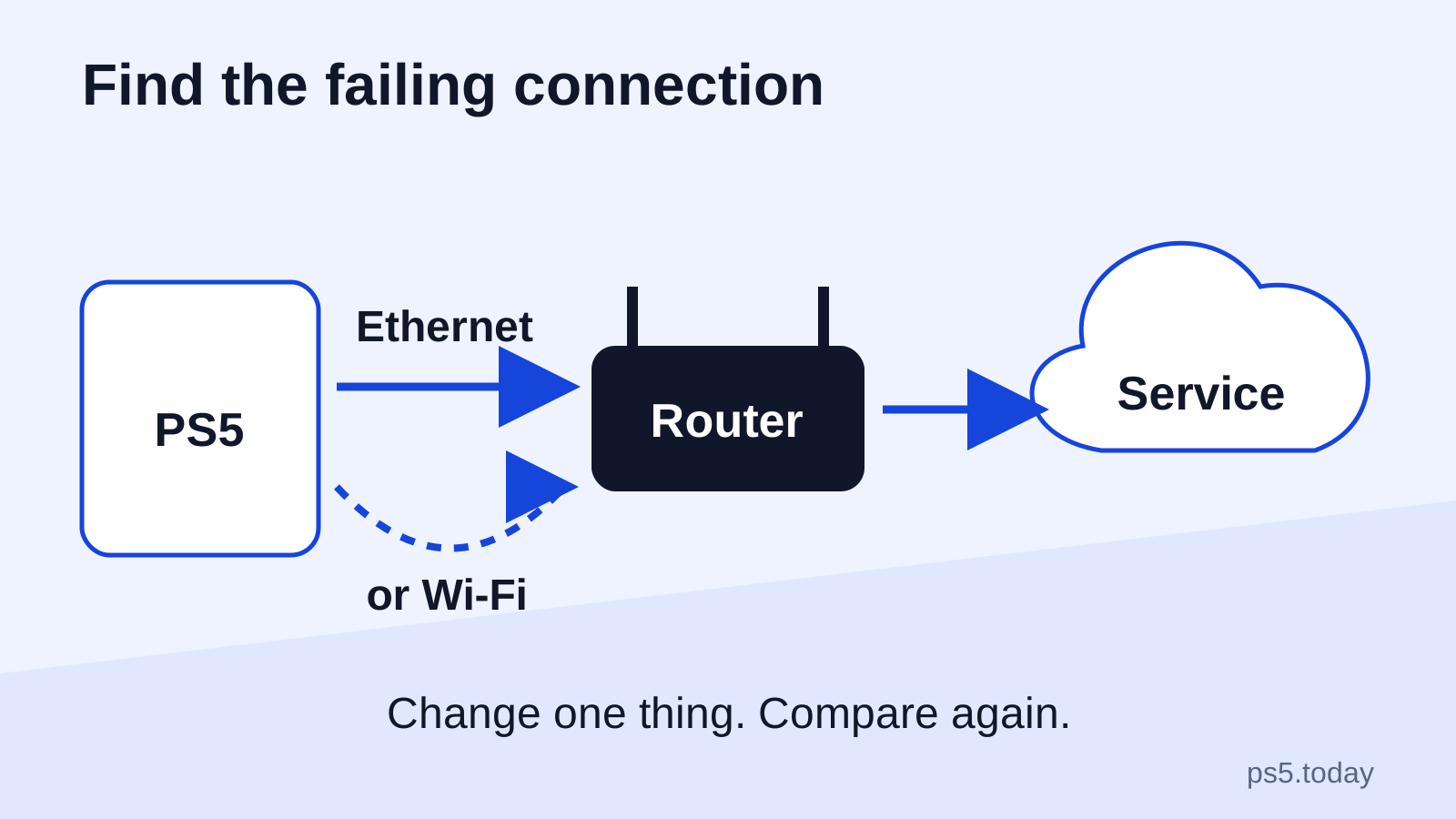
For missing downloads, check the console’s internet connection, available space, automatic-update controls and download queue. For remote waking, check the network-wake setting as well as the relevant app configuration. For charging, focus on USB power, port, cable and the connected device.
If the console reports an improper shutdown on return, consider whether power was interrupted while it was sleeping. Record any repeated error and perform a proper restart. A recurring startup problem can require Safe Mode troubleshooting, but a reset is not a normal rest-mode setup step.
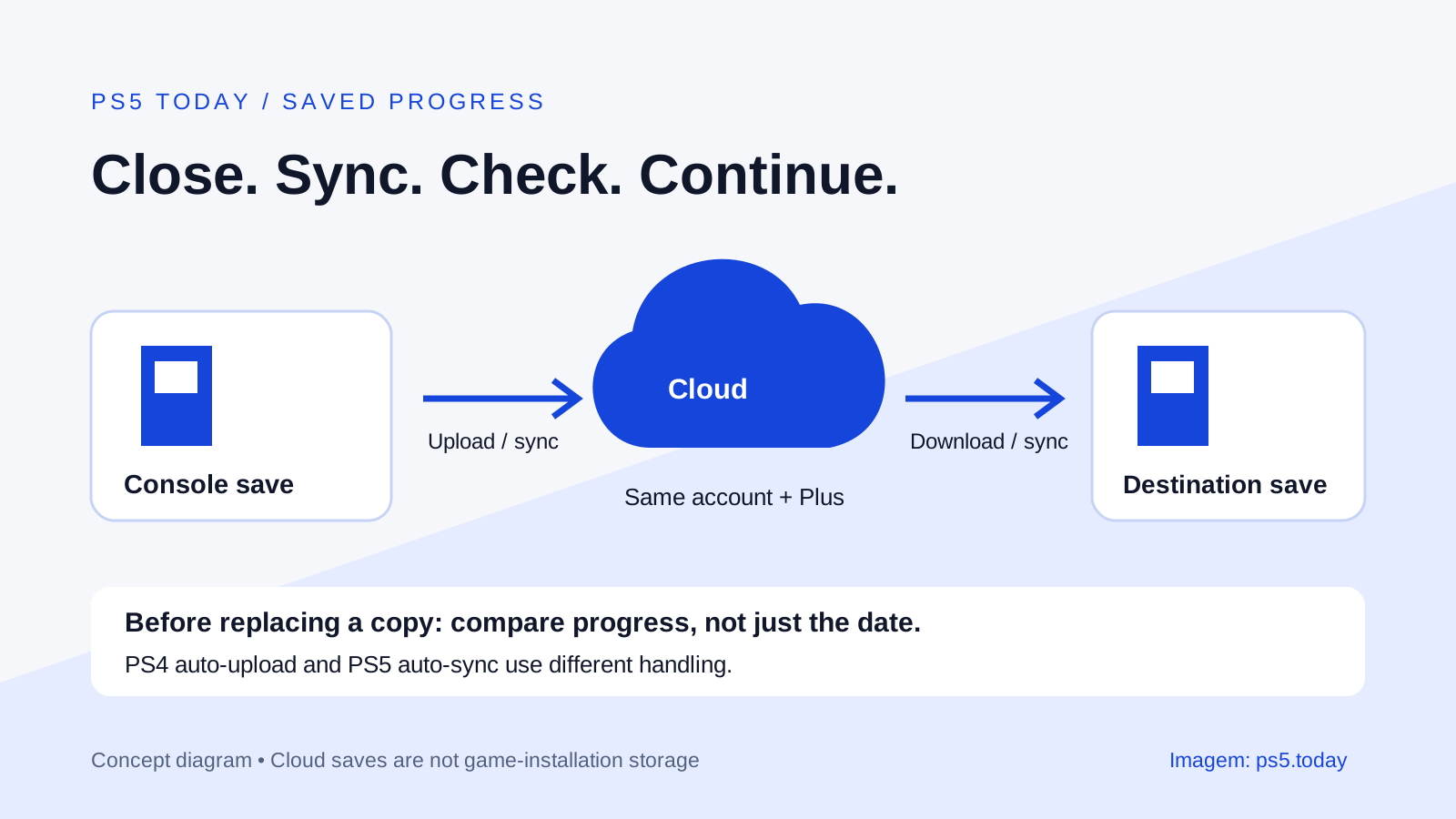
Check save synchronization separately when progress matters. A successful game download proves that a game installation arrived; it does not prove that a saved-data upload completed. Confirm the relevant saved-data status before switching consoles or undertaking repair.
Finish with a small, observable test of the feature you changed. Charge the controller, verify a download or try waking through the intended device. Once that works, you have a setup you can trust for that use. Leave a note of the settings if several people use the console so the next change is deliberate rather than mysterious.
Sources and references
Written by PS5 Today.
Something changed? Send a correction →