To enter PS5 Safe Mode, start with the console fully off. Hold its power button and release after the second beep, about seven seconds after the first. Connect your controller by USB and press the PS button. You should then see the troubleshooting menu. Choose a tool for the problem you have; do not assume every option is a harmless restart.
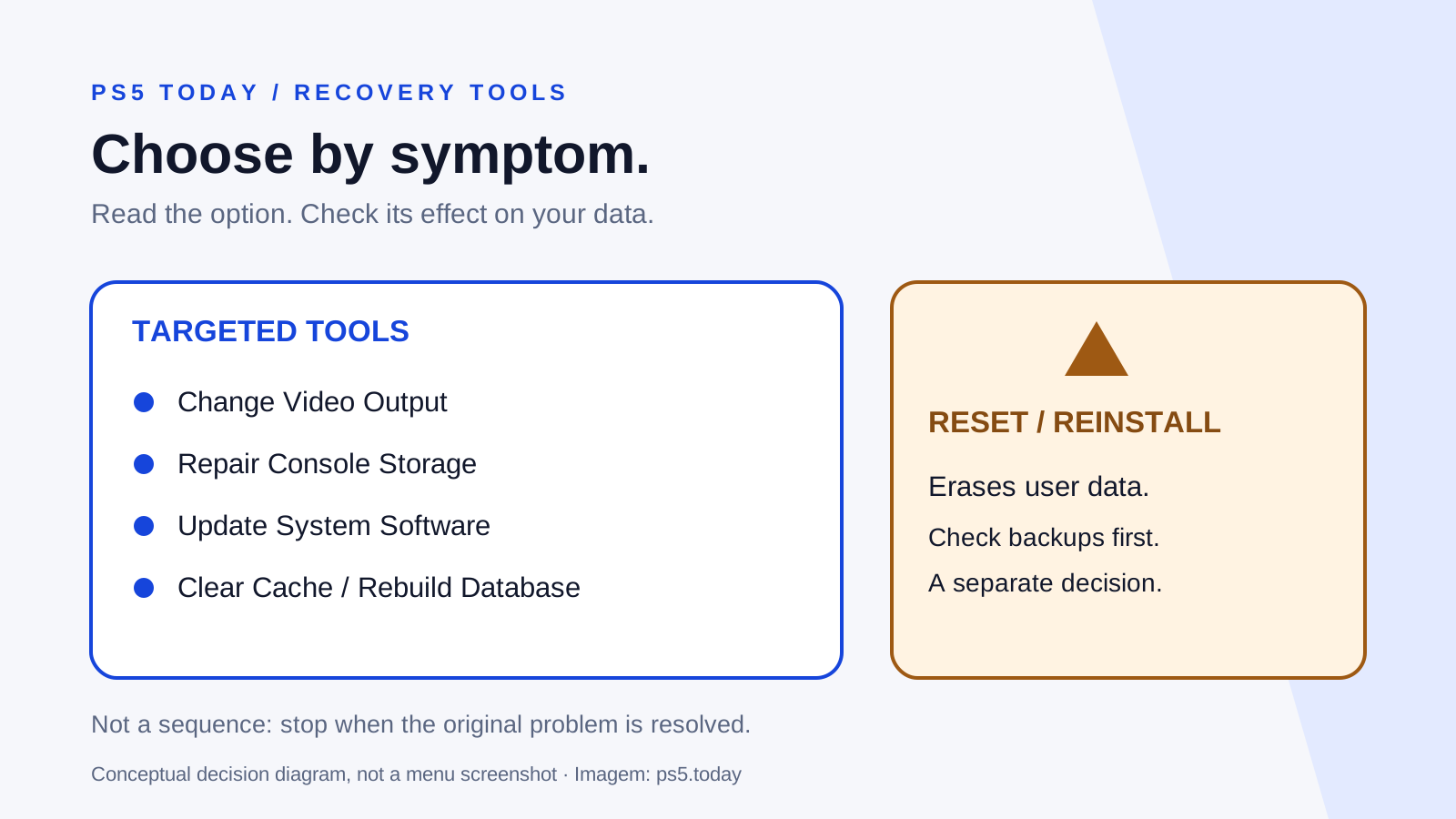
The crucial distinction is between repair or configuration tools and the two reset choices. Reset PS5 deletes user data. Reset PS5 (Reinstall System Software) also removes the system software. Neither belongs at the beginning of a routine attempt to fix a missing picture, stale icon or update problem.
Safe Mode can help you regain control of a console that does not start normally. It is not a general performance upgrade, a game cheat or proof that the hardware is healthy. The best result is a targeted fix with your progress preserved, followed by a normal startup that you can verify.
Decide whether Safe Mode fits the symptom
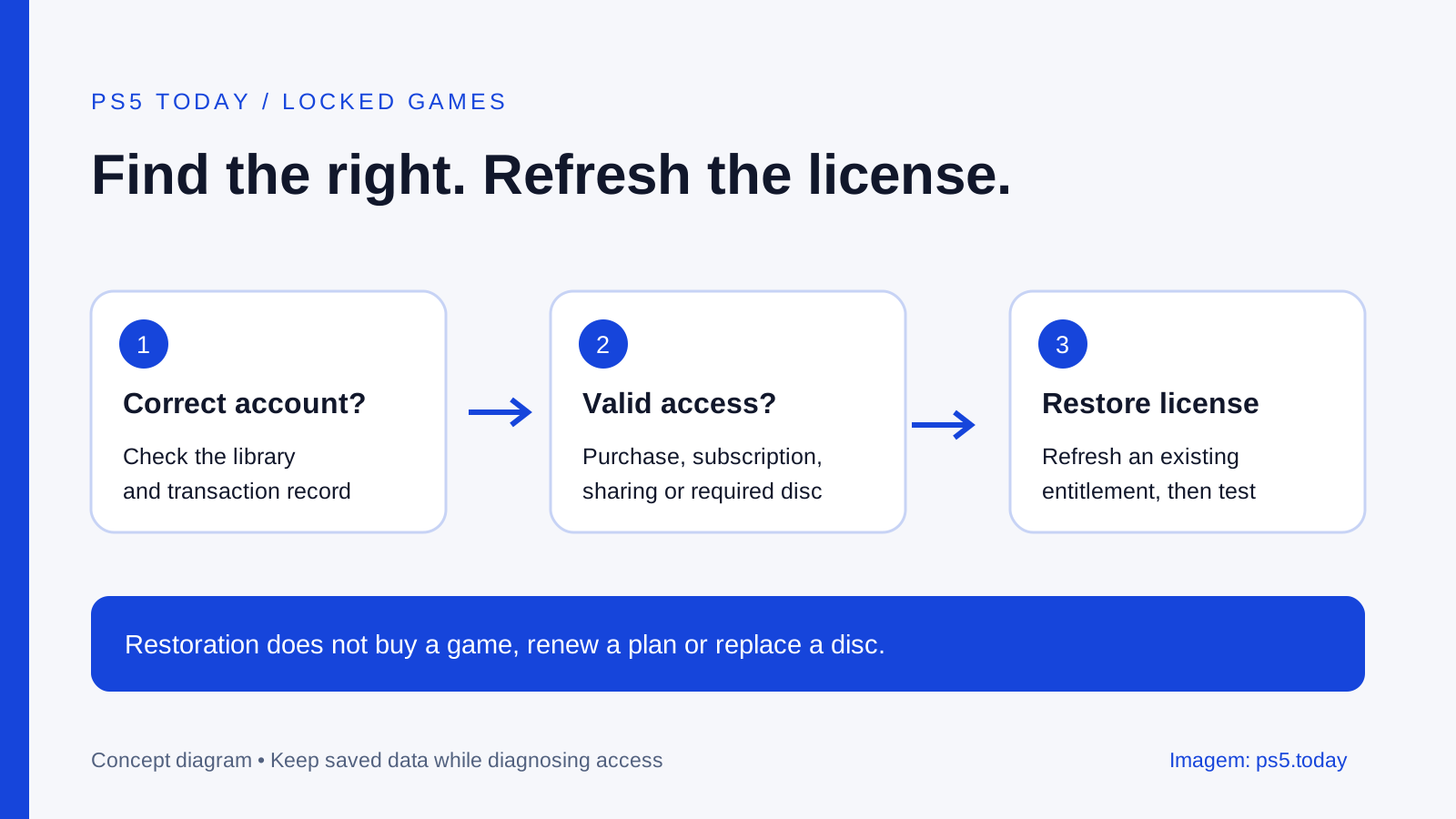
Write down the actual failure before entering the menu. A PS5 that starts but has no picture raises a different question from a console that shows an error while updating. A game with a padlock may have a license issue rather than a storage-database problem. A controller that cannot connect may prevent you using the menu at all.
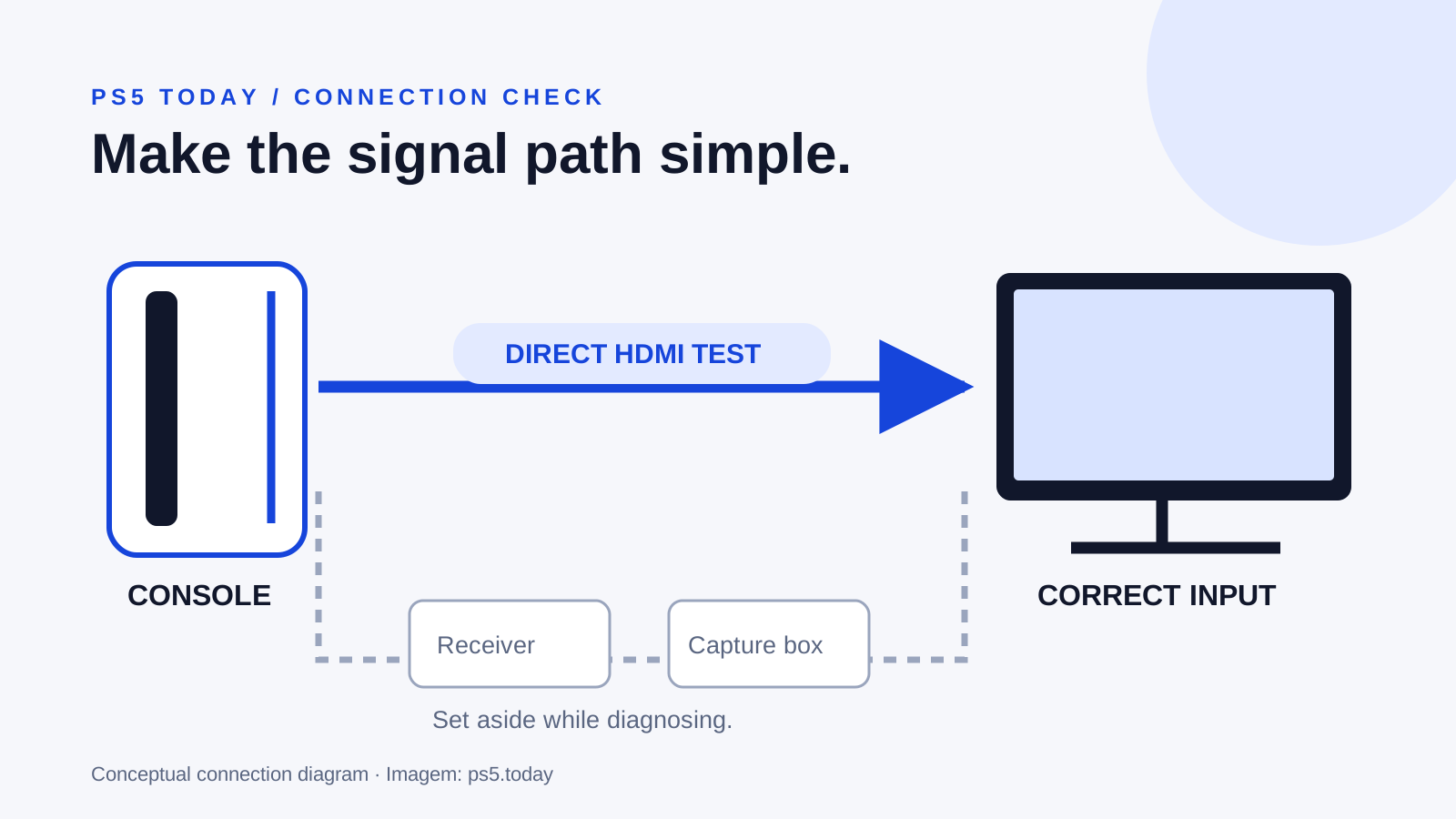
Start with the simpler path where it fits. For a padlock, follow license restoration and ownership checks. For missing video, work through the HDMI connection checks. For a controller problem, use DualSense connection troubleshooting before assuming that Safe Mode itself has failed.
Consider an example: you deleted a game but its icon still remains on Home. A tool aimed at the console’s content database has a plausible connection to that symptom. By contrast, erasing the entire console simply to remove an icon destroys useful data before you have tried the narrower remedy.
Prepare before you press the power button
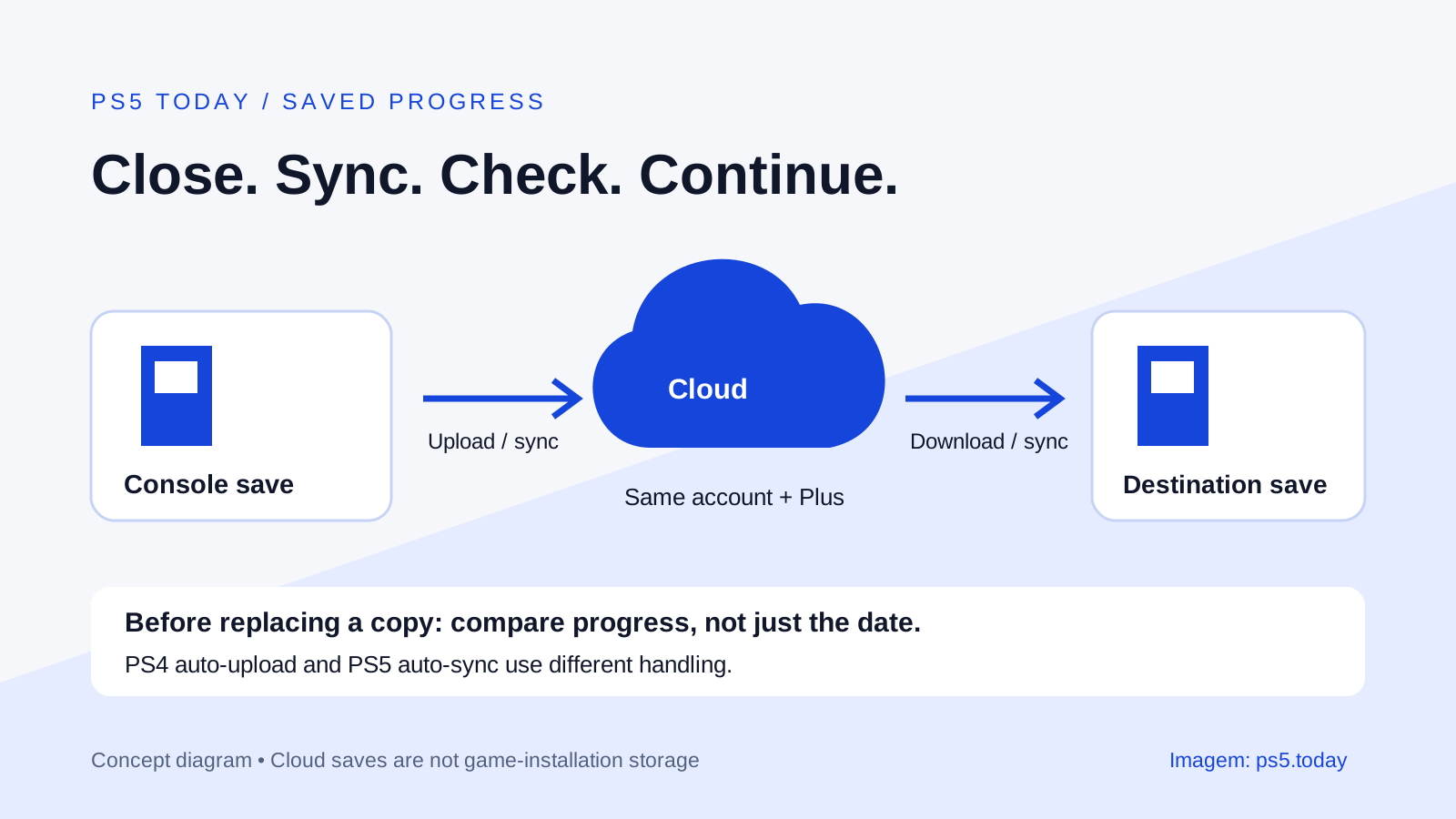
If the normal menus still work, save your game and check your backups first. Do not rely on “I have PlayStation Plus” as evidence that the latest save has uploaded. Check the relevant saved-data screen and timestamps. Our cloud-save guide explains how to avoid replacing newer progress with an older copy.
Make sure you have a USB cable that carries data and a controller you can connect directly. Charging alone does not demonstrate that a cable can carry the controller connection needed here. Keep the console connected to stable power and allow time for any operation you start to finish.
Note your account sign-in details and recovery arrangements without putting passwords in a troubleshooting note shared with others. A later service or reset may require signing in again. If your account needs attention, resolve passkey and account recovery access while you still have a working trusted device.
Remove distractions from the screen and read every confirmation. If someone else is helping over a call, you should still read the option yourself rather than accepting “press down six times.” Menu labels and context matter more than memorized positions.
Enter the menu from a fully off console
Wait until the console’s power indicator has turned off. Rest mode leaves the system in a powered state and is not the starting condition for this procedure. Then hold the power button through the first beep until the second beep, release it, connect the controller by USB and press PS.
If the console only starts normally, check whether you released the button at the first beep. If the screen remains blank, confirm the display input and try a direct HDMI connection. A missing picture is not evidence that a reset option should be selected without seeing it.
If the controller will not operate the menu, try another appropriate data-capable USB cable and a direct console port. Do not add a USB hub while trying to simplify the connection. A cable borrowed from a charging-only accessory can create the impression that the console is ignoring the controller.
If you still cannot display or control Safe Mode after basic connection checks, use Sony’s support path. Repeating the same entry attempt many times without changing anything does not provide new information.
Understand the tools before choosing one
Sony’s PS5 menu currently includes the following choices. Read the full label on your screen; PS4 instructions use different names and should not be substituted.
| Option | What it is for |
|---|---|
| Restart PS5 | Return to normal startup |
| Change Video Output | Adjust resolution or HDCP for picture problems |
| Repair Console Storage | Address startup or storage issues without erasing data |
| Update System Software | Install an update from the internet or USB |
| Restore Default Settings | Return settings to defaults while retaining stored content |
| Clear Cache and Rebuild Database | Troubleshoot system features or the content listing |
| Reset PS5 | Erase user data and reset the console |
| Reset PS5 (Reinstall System Software) | Erase user data and remove system software |
The table is a map, not a sequence. You are not supposed to work from the top to the bottom until something happens. A destructive option remains destructive even if all earlier options failed.
Restore Default Settings can still create work: you will need to check the preferences you had previously chosen. “Does not delete games and saves” is different from “nothing changes.” Photograph a relevant settings screen beforehand if you need a record, keeping private account details out of the picture.
Match one operation to one observed problem
For a display problem, Change Video Output is more directly relevant than rebuilding a content listing. If it recovers the picture, return to ordinary video settings and establish a stable output before enabling additional features. The television’s actual supported input modes remain part of the answer.
For a console that does not start properly or reports storage trouble, Repair Console Storage is a targeted option. For system-feature problems, cache clearing or database rebuilding may be relevant. Do not advertise these as guaranteed speed boosts or as a way to increase the console’s hardware capability.
For an interrupted or unsuccessful system update, use Update System Software with the method Sony documents for your situation. A USB update file and a reinstallation file serve different procedures. Download from the official PlayStation support site, follow its folder and filename instructions exactly and do not substitute an unofficial archive because its name looks similar.
After each chosen operation, attempt normal startup and check the original symptom. If the problem is gone, stop. Running additional tools merely because you have reached the menu creates more changes to explain without a clear benefit.
Treat a reset as a separate decision
A reset deserves a pause to check what would be lost, how it would return and whether it addresses the evidence. Your ability to redownload a purchased game does not replace a missing save. Screenshots, locally stored clips and another household member’s progress may also matter.
Ask every regular user of a shared console about local data before erasing it. Verify the backups that actually exist; do not assume that every account has the same subscription or synchronization settings. If the console cannot start, acknowledge that some local data may be inaccessible rather than promising recovery through a reset.
If PlayStation Support directs you to reinstall system software, follow that specific procedure and its current warnings. Confirm that you have the reinstallation file rather than the ordinary update file. Do not interrupt the process or remove the USB device while it is in use.
Resetting is not a way to repair a physically damaged HDMI port, improve a weak Wi-Fi signal or make an unsupported game version compatible. A severe action is only useful when it fits the fault. For network trouble, start with the connection guide instead.
Check the result and know when to stop
Once normal startup returns, open the game or feature that failed before. If you repaired a content-listing problem, confirm both the icon and the actual installed content. If you restored default settings, check display, audio, accessibility and power preferences that affect your everyday use.
Record the option used, any error code and the result. “Rebuild Database completed, but the same startup error returned” gives support a clearer starting point than “I tried everything.” Do not erase your notes when the problem temporarily disappears; the pattern may matter if it returns.
A console that repeatedly falls back into Safe Mode, fails the same operation or cannot display the menu after basic cable tests needs further diagnosis. Use the official repair process rather than cycling through resets. Preserve access to your account, keep the data you can recover and provide the exact symptom history. The point of Safe Mode is to make the next step clearer, even when the eventual answer is professional service.
Sources and references
Written by PS5 Today.
Something changed? Send a correction →