If your DualSense will not connect to PS5, begin with a direct USB connection using the official cable or a known compatible data cable, then press the PS button. A cable that supplies power is not necessarily carrying the data needed for pairing. This simple check is worth doing before buying another controller.
If pairing still fails, separate the possible problems: no power, no USB communication, a controller paired elsewhere or a continuing hardware fault. Each needs a different response. Repeatedly pressing the PS button without changing the conditions gives you very little information about which problem you have.
Sony’s DualSense troubleshooting instructions provide the official reset route. Work through ordinary connection checks first, then use the supported reset and reconnect procedure. Avoid opening the controller or spraying substances into it as a first response to a pairing problem.
First, describe what the controller does
Does it show a light when connected? Does it work while wired but fail wirelessly? Does the console respond to another controller? Is the same controller still working with a phone or computer? These observations help separate a controller fault from a cable, console or pairing issue.
Write down the simplest description in your own notes: for example, works with this cable but not another, or charges but never controls the console. A specific observation is useful if you later need support. Saying that the controller is broken can hide the clue that makes the problem easy to resolve.
Do not interpret a single light pattern in isolation from what you were doing. Charging, searching for a connection and being connected are different states. Use the official instructions for the operation you are attempting instead of relying on a remembered color description from a different device.
Test a known data-capable USB cable
Connect directly to the console rather than through an unknown hub or a chain of adapters. If available, use the supplied official cable. If you use another cable, make sure it supports data as well as charging and is suitable for the controller. Inspect it for visible damage without bending the connector aggressively.
A practical test changes one part at a time. Keep the same controller and console port, then try a cable known to support the intended connection. If that works, the first cable becomes the likely suspect. If you change the cable, port, console and controller all at once, you may restore operation without learning which item needs attention.
You do not need an expensive cable sold with dramatic gaming claims to perform this check. You need the correct connection, intact connectors and dependable data support. A useful replacement solves those requirements rather than promising that decorative packaging will improve gameplay.
Check whether the controller was used elsewhere
Using a controller with another supported device can change the connection you expect when returning to the console. Reconnect it to PS5 through the supported pairing method. If a nearby phone or computer is part of the confusion, stop its controller session while checking the console connection.
This is especially relevant in a household that moves one controller between devices. The controller itself may be working normally while your expectation of its current connection is wrong. Agree on where it is being used before assuming a wireless fault.
If you have a second controller, use it to navigate the console and inspect the relevant accessory settings. That is a diagnostic convenience, not a reason everyone needs to own a spare. The aim is to re-establish the intended console relationship using the supported controls.
Use the official reset procedure when needed
Sony instructs users to turn off the PS5, disconnect the controller and find the small reset opening on the rear near the Sony logo. Press the reset button with a suitable pin or similar tool for at least five seconds. Reconnect using the official USB cable and press the PS button.
Keep this action precise. The reset button is not an invitation to push into any opening or apply force to a port. Check the official illustration if you are unsure of the location. Work with the controller disconnected as instructed and avoid damaging the shell or connector.
After the reset, test a basic console action before launching a game. If you can move through the home screen, you have established an initial connection. You can then investigate whether an issue occurs only in one game, only wirelessly or only after a period of use.
Update software once you can control the console
When you have a working connection, check the current system and controller software through the normal console settings. Follow the on-screen update instructions and allow the process to finish. Do not disconnect the controller or interrupt power during an update that tells you to keep the connection in place.
Updates are one part of troubleshooting, not a guarantee that every physical fault disappears. A damaged port, failing cable or worn battery may still need attention. The point is to remove an avoidable software mismatch before concluding that hardware replacement is necessary.
If the problem began after a change, note what changed. That might be a different cable, another device, a system update or a new game. A clear sequence helps support identify whether the symptoms are specific and reproducible. Avoid changing many settings merely because they appear in a long online troubleshooting list.
Distinguish pairing from charging
A controller that connects successfully but loses power quickly has a different issue from one that never pairs. Check charging arrangements and test with an appropriate working cable. A loose connector or power source that is not doing what you expect can make the battery look worse than it is.
Consider the circumstances in which the problem appears. Does it happen after the controller has been unused for a long time? Does it work normally after a full supported charge? Does movement of the cable interrupt the connection? These observations are more useful than assigning a fixed battery lifetime based on somebody else’s session.
Do not attempt battery repair while you are still establishing whether the cable and charging route work. If there is physical damage, unusual heat or another concerning symptom, stop using the affected item and follow the manufacturer’s support route. A cheap improvised repair is poor value if it damages otherwise working equipment.
Distinguish connection trouble from in-game controls
If the controller navigates the console but one game does not respond as expected, inspect the game’s selected user, input settings and current state. A game waiting for another account or showing a disconnected-player prompt is different from the console never seeing the controller.
Likewise, stick drift is not a pairing problem. Drift describes unintended input, such as the camera moving when you are not touching the stick. A reset may be part of basic troubleshooting, but restoring connection does not establish that a worn stick has been repaired.
Test another game or the home screen to narrow the scope. Avoid deleting saves or resetting the whole console to solve a controller symptom you have not yet isolated. Those actions can create much more work than a targeted accessory check.
When replacement becomes reasonable
If official pairing, reset, cable and software checks fail, contact PlayStation Repairs or the relevant support channel for your region. Keep the model, purchase details and short description of the tests you performed. A clear report can reduce repeated troubleshooting.
Compare repair or support options before buying a replacement. If you do choose another controller, a standard DualSense may meet your needs without a premium upgrade. Extra buttons or specialized adjustments should solve a preference you actually have, not simply become the most expensive response to a cable fault.
Once the controller works again, keep a dependable data cable where you can find it and note which connection solved the issue. For choosing other equipment without unnecessary spending, see our PS5 headset guide and which PS5 to buy. A small known-good accessory can save both money and another evening of guessing.
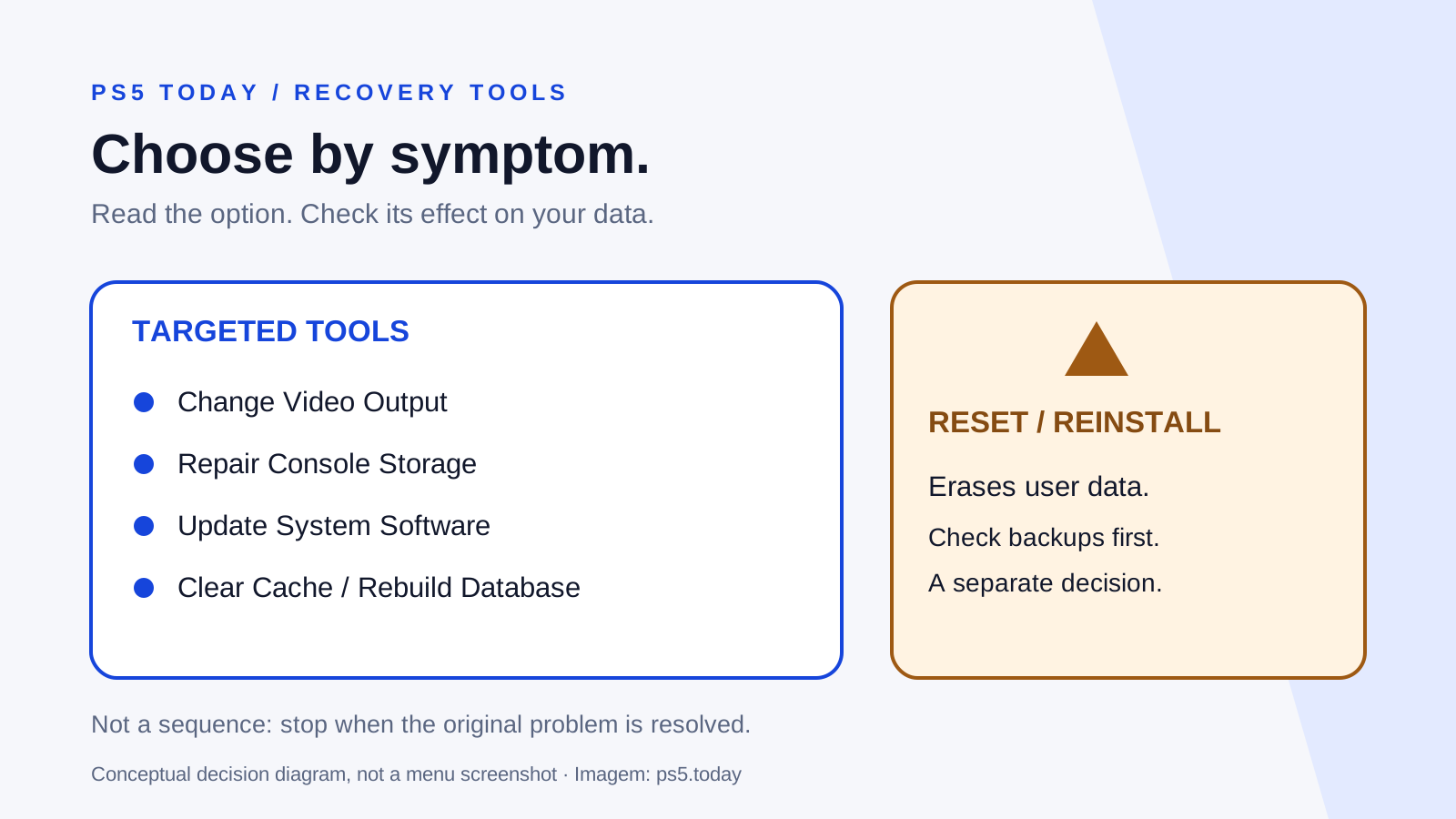
If a USB-connected controller works but the console cannot reach its normal menus, use the Safe Mode guide to identify the next supported recovery option. Read the difference between repairing, restoring settings and resetting before selecting anything that can remove data.
Sources and references
Written by PS5 Today.
Something changed? Send a correction →