To use a passkey on PS5, open Settings > Users and Accounts > Account > Security > Sign in with Passkey, scan the console’s QR code with your device, and complete the setup. A passkey replaces the account password with a sign-in handled by a compatible phone, computer or password manager. Plan how you will regain access if that device is lost before you finish the change.
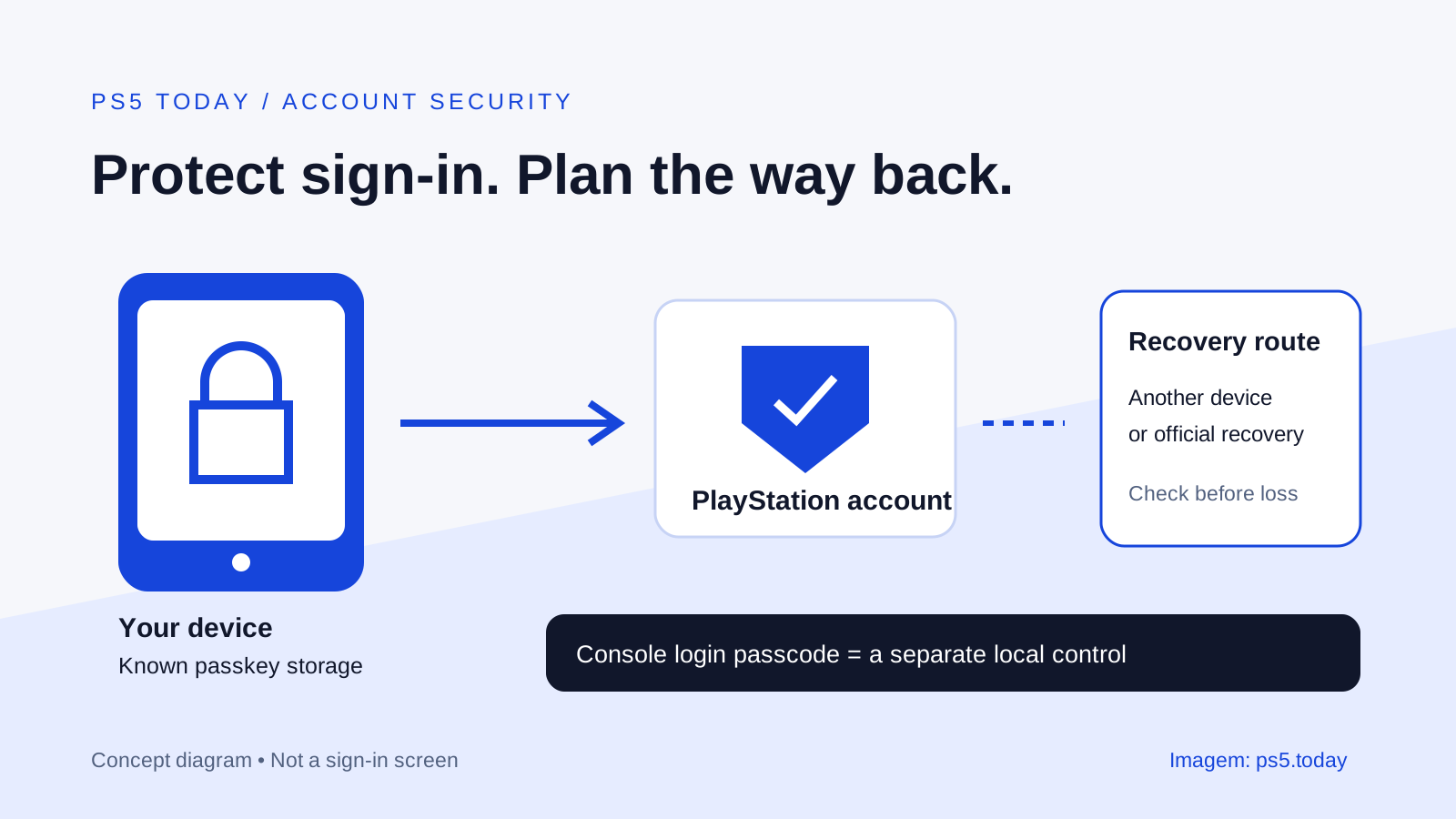
A passkey and a console login passcode solve different problems. The passkey protects signing into your PlayStation account. A login passcode helps stop someone in the room opening your profile on the console. A shared household may need both, along with separate profiles for the people playing.
You do not need to buy another controller, console or game to improve account security. The valuable item is the account itself, including its purchases and access to progress. Start with a device you control and an email account you can still open.
What changes in everyday use
With a password, you enter a secret that can be reused if somebody obtains it. With a passkey, your device or password manager handles the credential, and you approve sign-in using its supported unlock method. That can make signing in easier while reducing reliance on a typed password.
The important practical question is where the passkey will be stored. A phone may offer a synced password manager, while a computer may offer a different location. Read the creation prompt instead of tapping through it. Know which service holds the credential and how you normally access that service on another device.
For example, Alex uses one phone and one personal laptop. If Alex creates the passkey in a manager available on both, losing the phone may leave another route to sign in. If Alex selects a storage location available only on the phone, the recovery plan is different. The word “passkey” alone does not tell Alex which situation applies.
That is why a working sign-in is only half of the setup. The other half is knowing which controlled device can approve the next sign-in. Record the name of the manager or platform in your own private account notes, not the secret credential, and keep those notes away from public screenshots.
Prepare before switching
Check that you can access the email address associated with PlayStation. Secure that mailbox through its own settings, because account-recovery messages may go there. If you are signed in on PS5 but have lost access to the email account, solve that problem before depending on a new sign-in method.
Update the device and browser you will use. Sony lists support on most devices running iOS 16 or later or Android 9 or later, and recommends current Safari, Chrome or Edge for browser use. Compatibility concerns the whole sign-in path, including the browser and manager, not simply the age printed on the phone’s box.
Choose a quiet moment when you can complete and check the process. Changing security settings five minutes before a multiplayer session creates avoidable pressure. Keep the console screen visible and use your own device so you can recognize the sign-in you are approving.
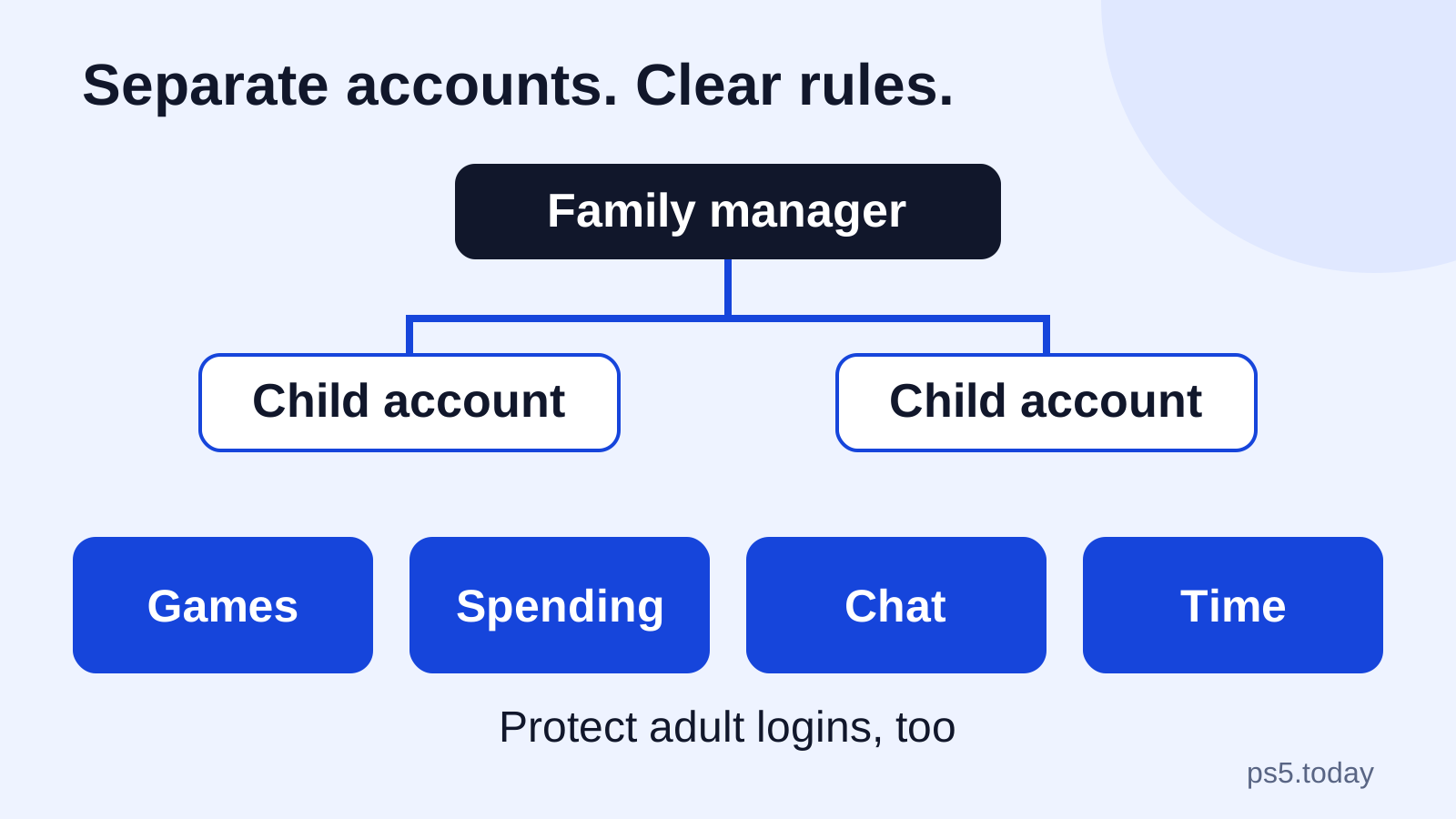
For a child’s account, work through the family’s account arrangement rather than saving that child’s credential into an unrelated person’s device by accident. Our family controls guide explains the structure. A shared console is a reason to be clear about who controls each account, rather than giving everyone one login.
Create the passkey and verify it
You can begin from the PS5 path at the top of this guide, or through Security in PlayStation Account Management. Enable Sign in with Passkey, choose Create a Passkey, and follow the device’s prompts. Check that the account shown is the one whose security you intend to change.
When a QR code appears, use the code generated by the sign-in process you started yourself. Do not substitute a code sent in a message by somebody claiming to help. The QR step is part of authorizing access; it is not proof that the person who sent a code is trustworthy.
Sony sends a confirmation email when creation is complete. Afterward, check a sign-in using the saved passkey on a device you control. Keep an already working route available while you verify the new one. Confirm that the correct account and storage location work together, rather than merely that the setup screen disappeared.
Review the passkeys listed in Account Management. Sony lets you add another through Security > Manage Passkeys > Create a Passkey. An additional controlled device can be useful, but adding a shared work computer or another person’s phone may give the wrong person lasting access. More credentials help only when you control them.
Make a lost-phone plan
Ask yourself what you would do if the phone failed tonight. Can another personal device use the same synced credential? Can you access the password manager that stores it? Is its recovery process understood? Is your email accessible without the missing phone? These questions reveal dependencies that a successful PS5 sign-in cannot show.
Do not assume that having a tablet means the passkey is available there. Check the relevant account and manager configuration. Devices in different ecosystems may use different storage services, and merely connecting both to the same Wi-Fi does not establish shared access to a passkey.
A practical plan might be a personal phone with a synced passkey, a protected laptop that can use the same manager, and an email account with its own recovery options. Another person might use two separately registered passkeys. Neither arrangement needs an expensive accessory if existing devices already provide a dependable route.
If access is lost, use Can’t Sign In with Passkey on the sign-in screen and follow Sony’s available email or QR route. If recovery does not work, contact PlayStation Support. Do not send recovery messages or approval prompts to a stranger offering to unlock the account.
Protect the profile on a shared PS5 too
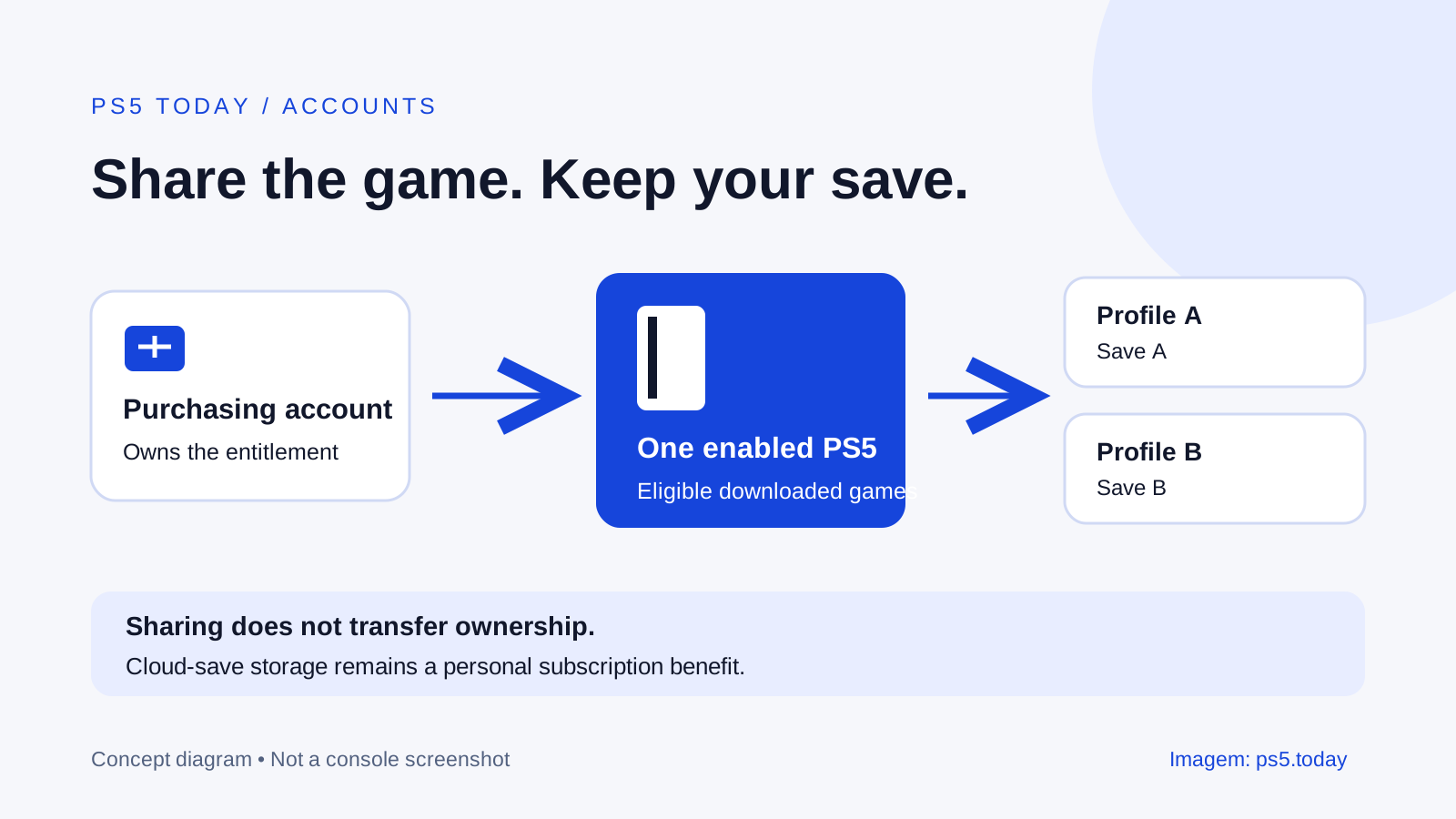
Someone sitting at an already signed-in console is a different situation from someone attempting an internet sign-in. Set a login passcode if other people should not open your profile freely. Let household players use their own profiles through Console Sharing and Offline Play rather than giving them the purchasing account’s sign-in.
Review how purchases are authorized too. Sony notes that Require Password at Checkout is not compatible with an account using passkeys. Do not assume the old checkout password prompt still protects purchases after changing the sign-in method. Inspect the current account and console controls, and decide who can access the adult purchasing profile.
For a child, use the actual child-account spending controls. A spoken rule about not buying anything is less dependable than an account setting matched to the family’s decision. Keep adult profiles protected and verify the child’s experience from their own profile.
Think of these measures as separate doors: account sign-in, local profile entry, purchase authorization, and child spending. Closing one does not automatically close the others. That separation makes security easier to understand because each control has a clear job.
When a passkey will not sign in
Start with the path that failed. Does the device offer the expected saved credential? Is the browser current? Is the correct password manager selected? Can that account sign in on another controlled device? A missing credential in one browser is not evidence that the PlayStation library disappeared.
Sony documents potential issues between some Android and Windows devices and provides the Can’t Sign In with Passkey route. It also advises switching back to password sign-in for certain Remote Play on Mac problems. If your main use is Remote Play, verify that workflow after the change too.
You can revert through Account Management by disabling Sign in with Passkey under Security and creating a password. If you do, choose a unique password and review other available security protections. Reverting is a compatibility decision, not a reason to reuse a password from an unrelated website.
If a sign-in request appears unexpectedly, stop and inspect it. An unsolicited message promising a free game, beta invitation or urgent account rescue should not decide which link you open. Go to PlayStation’s official service directly and inspect your account there. A calm, repeatable habit protects the library better than rushing through an unfamiliar approval screen.
Sources and references
Written by PS5 Today.
Something changed? Send a correction →