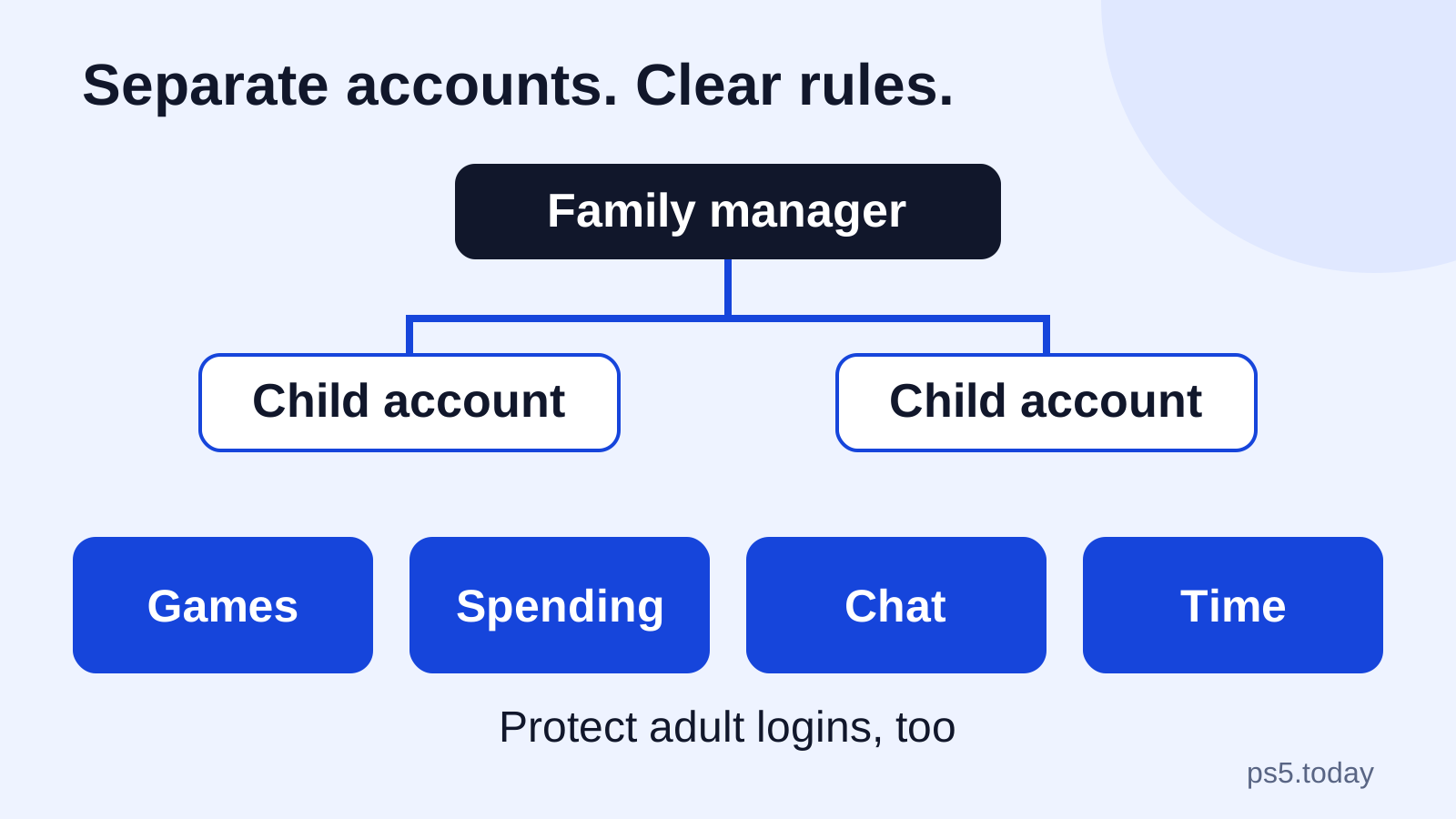
For a shared PS5, give each child their own child account inside your PlayStation family, then configure game access, spending, communication and playtime for that account. Protect adult logins and console restrictions as well. A carefully configured child account does little if the child can simply choose an unrestricted adult user instead.
Start on the console at Settings > Family and Parental Controls > Family Management, or use PlayStation’s online Account Management or the PlayStation Family app. The family manager and appointed parents or guardians handle the appropriate controls. You are choosing several independent rules, so do not assume one age preset resolves every decision.
The aim is a usable household arrangement: the right games open, purchases follow an understood rule, and everyone knows when a session ends. Set it up while you have time to test it with the child present, rather than discovering a restriction just as friends start a game.
Keep identity separate from access to games
A child should not need to use an adult’s account to enjoy the console. Separate accounts keep progress, friends and restrictions connected to the right player. Use the child’s correct details when creating their account, and follow the family-creation prompts rather than entering an adult birth date to get past a screen.
If your household already has PlayStation accounts, identify them before creating replacements. A new account with the same visible name does not inherit another account’s purchases or progress. For a family moving from PS4, our transfer guide explains why each user’s saves need attention.
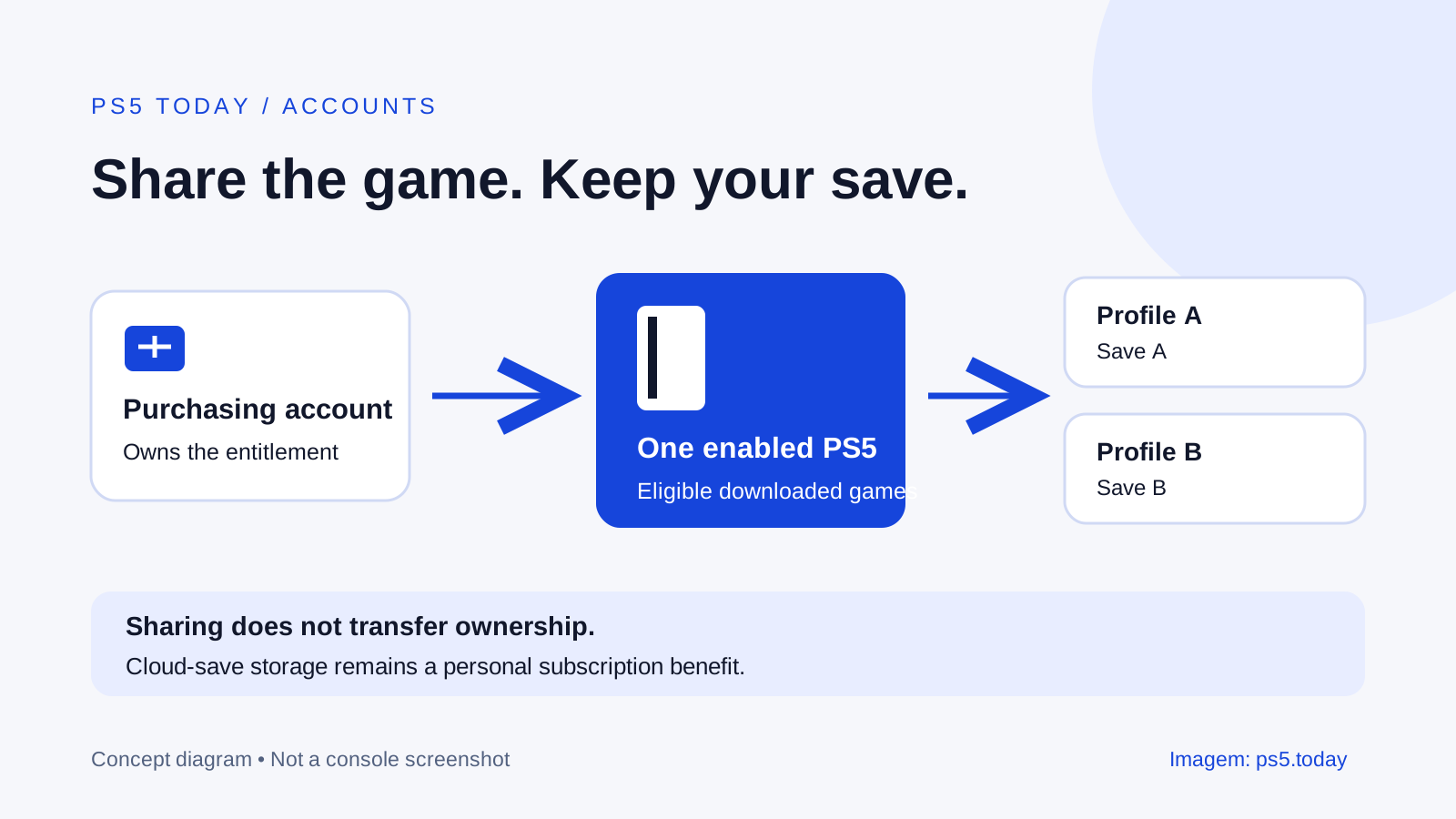
Access to eligible household purchases is another setting. Console Sharing and Offline Play can help other users on the designated console play supported purchases, but it does not replace family controls. A child may be entitled to launch an installed game and still be blocked because the game exceeds their allowed rating. That is a separate decision to resolve.
Set up the family before adjusting restrictions
Sign in with the adult account that will manage the family. Online Account Management provides a Family Management area for adding a child and following the account-creation process. The PlayStation Family app also provides a family setup route and ongoing controls. Use whichever interface is easier to manage reliably.
Check that the child is actually signed in to the intended account on the PS5. Sony also calls out completing email verification for controls to work effectively. Do not treat a family member’s name appearing in the manager’s screen as confirmation that the console is currently using that account.
For a household with two responsible adults, decide whether the second needs parent or guardian permissions. Keep both people aware of changes. Otherwise, one adult may believe a rule is still in force after the other has adjusted it to allow a particular evening’s activity.
Choose games by content and by the actual session
Age ratings provide a useful starting point, and the platform can restrict access accordingly. Read the game’s rating information and content descriptions before granting an exception. A colorful cover does not establish that every mode, story or interaction fits your household’s choices.
Also consider how the game will be played. A local cooperative session with an adult beside the child presents different practical questions from an online session with open voice chat. The same game can contain both. Review communication separately instead of deciding that permission to play automatically means permission for every social feature.
When a restricted game is appropriate for a particular child, use its request and Allowed Games process rather than disabling the entire age restriction. A specific exception is easier to understand later. Write down why you allowed it if several adults manage the console, especially when a game has modes with very different content.
For example, a family might allow an older-rated sports title for supervised local matches while retaining a separate communication restriction. Another might decline a game because its central content is unsuitable. The important point is that the exception should match the intended use, not simply make a blocked screen disappear.
Give spending its own rule
Open the child’s parental controls and inspect the monthly spending limit. Sony says purchases made by a child account use the family manager’s wallet and that the default monthly limit is zero. Check the actual setting rather than relying on the default, particularly on a console that has been used before.
A zero limit is a clear arrangement when every purchase should involve an adult. If you allow an amount, explain whether it is a budget for games, optional content or both. A limit is not the same thing as a judgment that every available item is good value.
Use examples the child can recognize. Buying a complete game, adding a character and paying for in-game currency are different decisions even though each may use the store. Discuss what is being purchased, whether it is permanent and which account receives it before approving. Do not assume a payment creates a transferable household item.
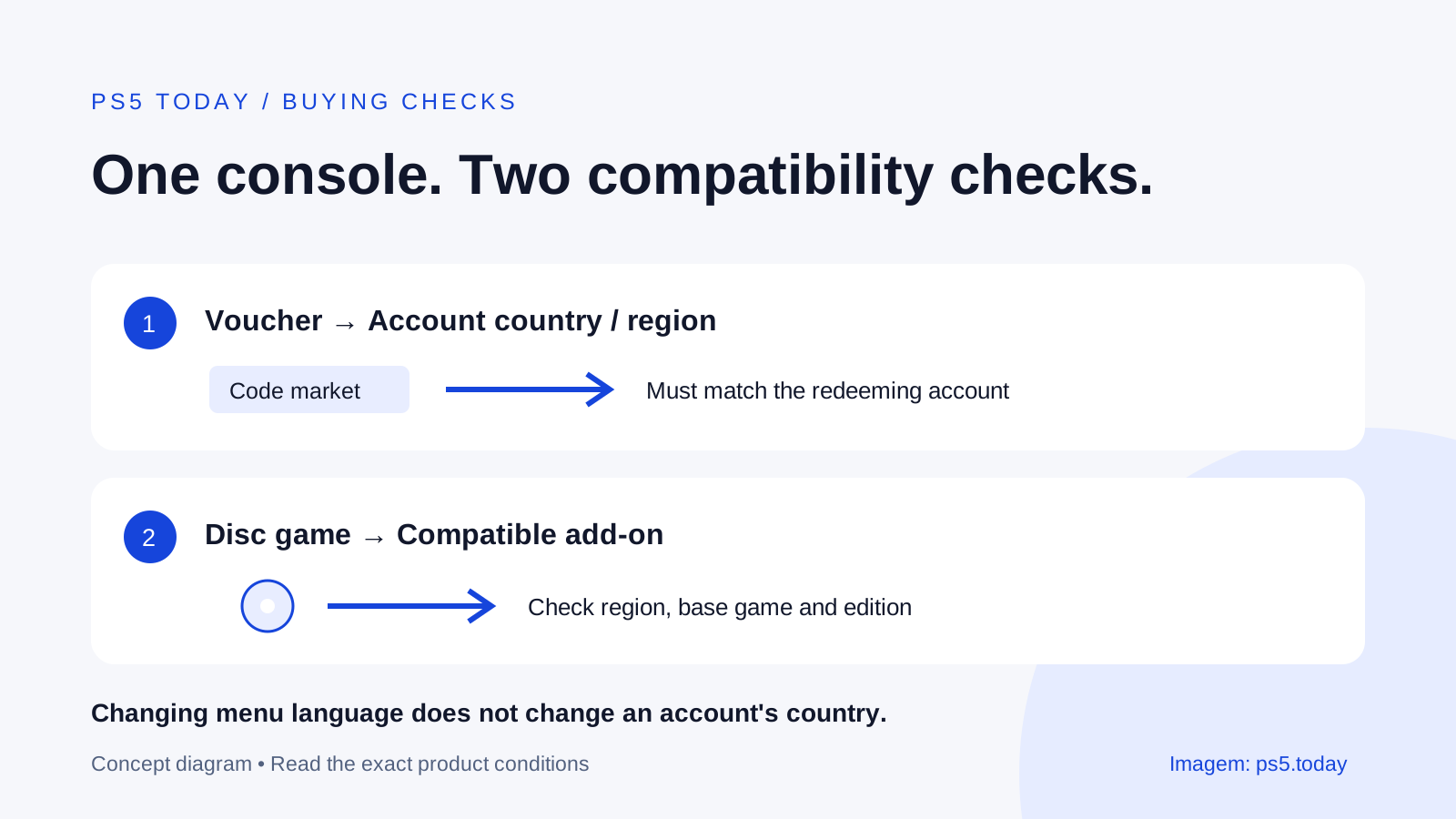
After a purchase, check the account and transaction rather than buying again when content is hard to find. Our licenses and locked-games guide helps with access questions. Account regions and codes covers why a gift code bought in the wrong market may not be usable for the intended account.
Review communication, shared content and privacy
Communication controls concern interactions and user-created material, not only whether a game’s basic installation can run. Think about messages, voice, shared screenshots and other players’ contributions as separate from the game’s professionally rated content. Permission for one does not settle the other.
Choose who can change the child’s privacy settings. Sony provides a choice between parent or guardian management and child management, with options described in Family Management. Discuss what information should be visible and who the child expects to interact with. A recognizable online name can still be different from someone the family knows personally.
If a communication restriction blocks a desired feature in one game, investigate the game-specific exception before relaxing the whole account. A request from the child is useful because it identifies the activity they are actually trying to use. Ask what the screen is for and decide that specific case together.
Do not promise that a console setting can supervise every interaction outside PlayStation. A separate phone, website or third-party account is its own context. Keep the conversation practical: explain how to leave an uncomfortable session, when to tell an adult and why account secrets should remain private.
Choose a playtime rule that matches the household
Playtime controls distinguish how long a child can play from the hours when play is allowed. They also let you choose a notification or logout when time ends. Set the child’s time zone correctly before choosing the schedule, then confirm it against your actual evening routine.
A notification can work where the family expects the player to finish and stop independently. A logout is a stronger boundary, but plan for games that save only at certain points or have matches that cannot pause. A ten-minute warning is more helpful when everyone understands what they should do after it appears.
For example, a child with half an hour remaining should avoid starting a match likely to exceed that window. An adult can help choose a shorter activity rather than relying on an argument at the deadline. The system can enforce time, but it cannot decide whether the next mission is a sensible commitment.
Use the available daily adjustment when circumstances warrant it instead of repeatedly dismantling the normal schedule. Keep an extension connected to a clear reason. If the child uses both PS4 and PS5, remember that the account’s playtime restrictions apply across those consoles rather than creating an unrelated allowance on each.
Close the adult-login and guest gaps
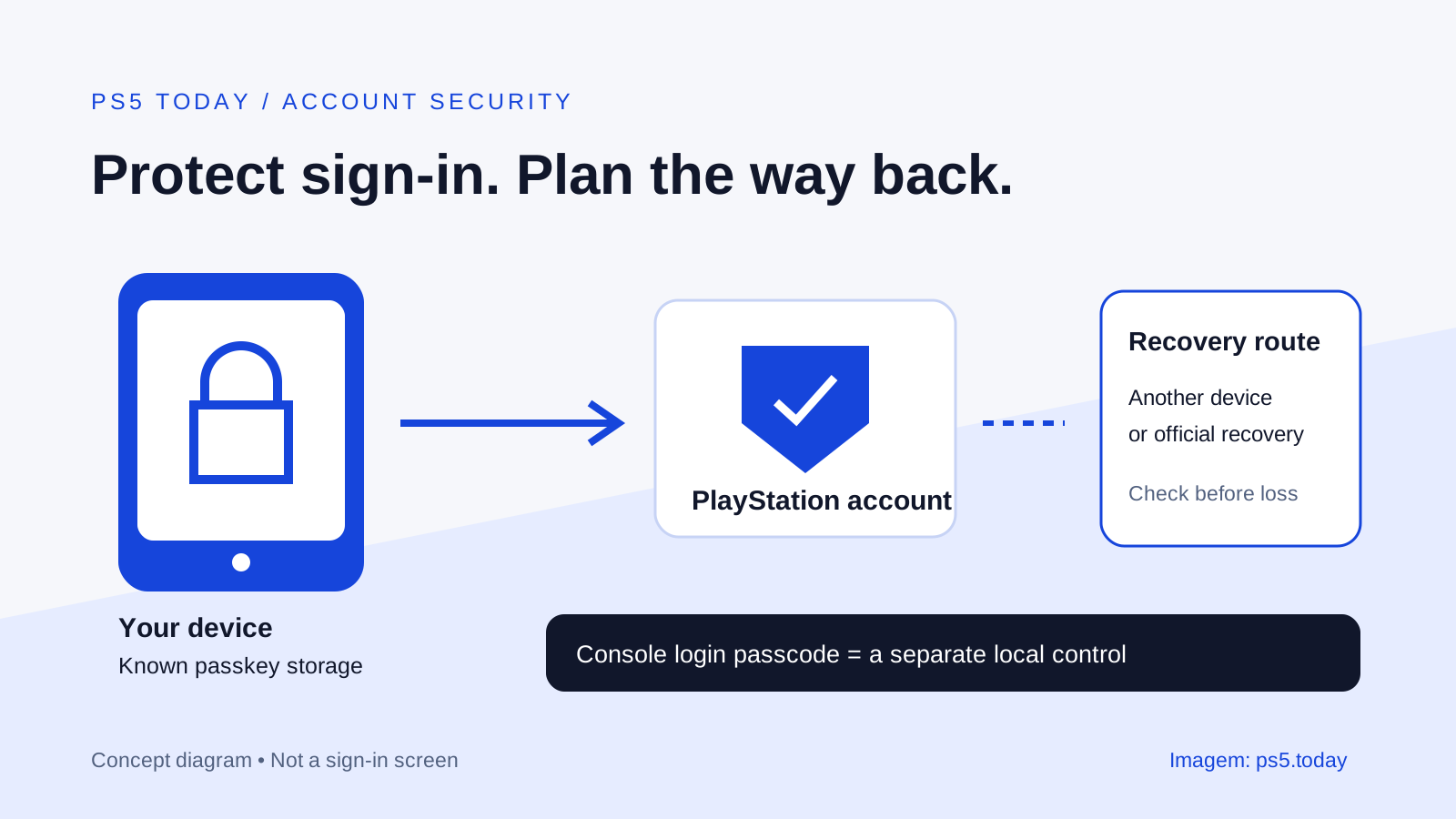
Set a login passcode on adult PS5 users through Settings > Users and Accounts > Login Settings. This is separate from the console restriction passcode. One protects entry to a local user; the other protects restricted console settings. Keep both private and stored safely enough that the responsible adult can recover the information.
In PS5 Console Restrictions, change the original restriction passcode if it has never been changed. Sony’s documented initial value is not a suitable household secret. Avoid a number a child can easily infer from a birthday or routinely watches you enter.
The same restrictions area can prevent new user creation and guest login. That closes the simple route of avoiding the configured account. Think through visiting friends first so you know how an adult will handle a legitimate guest without leaving unrestricted access enabled indefinitely.
Our passkey and security guide covers online account access. A passkey for remote sign-in and a PS5 local login passcode serve different purposes; using one is not evidence that the other has been configured.
Test the arrangement as the child will use it
Sign out of the adult user and enter the child’s account. Start an allowed game, check an intentionally restricted action and confirm that the expected request or block appears. This is a functional test, not a reason to buy something merely to see whether spending works.
If changes do not appear while a game is running, have the child sign out and back in as Sony instructs. Check the active account before repeatedly changing rules. Keep the adult close during the first session so an unexpected permission screen can be understood rather than bypassed in frustration.
Revisit the arrangement when a new game, accessory or household routine changes the actual use. Keep useful settings that still fit. The goal is not to keep adjusting menus every week; it is to establish clear access and predictable limits that let the family enjoy playing.
Sources and references
Written by PS5 Today.
Something changed? Send a correction →