PS Remote Play lets a supported device control your own PS5 over a network connection. It can be useful when the main television is occupied or you want to play in another suitable location. The game still runs on the console; Remote Play sends the picture and sound to the device and returns your controls.
Before buying a dedicated handheld or another screen, test the official Remote Play app with a compatible device you already own. That helps answer the important question: does this way of playing work well enough on your actual connection and in the places you intend to use it?
Sony’s mobile Remote Play guide gives current device requirements and setup instructions. Remote Play is not the same as downloading a PS5 game onto a phone, and it should not be confused with a separate cloud-streaming service.
Understand the path your game takes
The PS5 runs the game and sends a live stream to the receiving device. Your input travels back to the console. That creates more steps than holding a controller in front of the directly connected television, so connection quality and responsiveness matter.
The practical result can vary with the network, interference, other traffic and the receiving device. A fast advertised broadband package does not describe every part of this path. At home, the wireless connection between a room and the router may be the weak point. Away from home, both the console’s connection and the remote location matter.
This is why a small test is valuable. If you want to play in a bedroom, test there. If you want to use a different household’s connection, test that actual route when practical. A successful session beside the router does not prove the same experience everywhere else.
Prepare the console and account
Update the console through its normal system settings. Enable Remote Play under Settings, System and Remote Play for the intended user. Sign into the app with the same account used on the console, following Sony’s current instructions rather than creating a new unrelated account for the test.
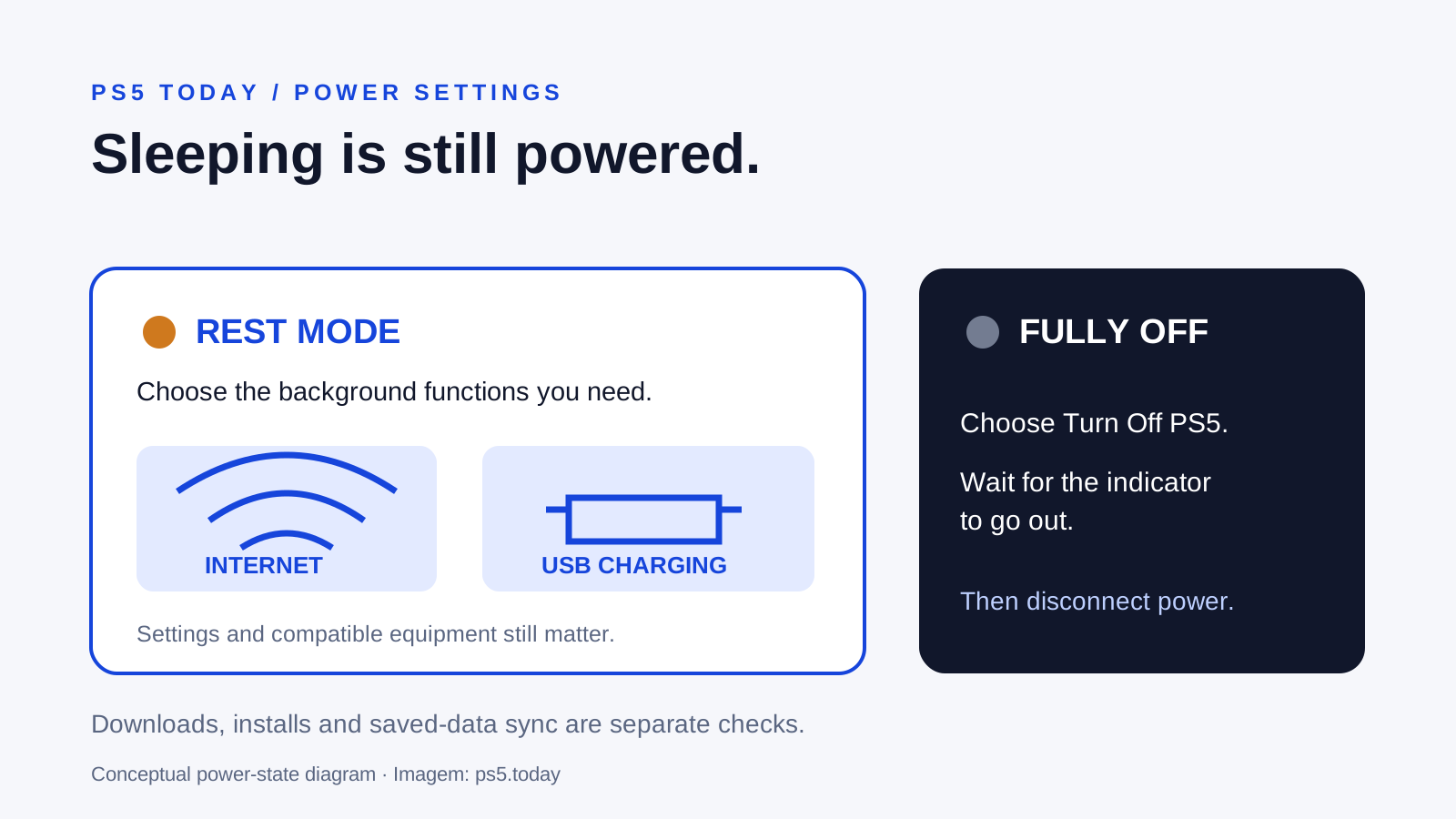
If you want the console reachable from rest mode, configure the supported network and wake options described in the official guide. Test waking it before leaving home. Discovering that the console cannot be reached after you have travelled is harder to resolve than checking the setting while standing beside it.
Keep account security in place. Use your own trusted device, protect its lock screen and avoid leaving an active session on a device you do not control. Do not share account passwords with somebody who offers to configure the connection remotely as a shortcut.
Prepare a supported receiving device
Install PS Remote Play from the official app store for your device and verify the current operating-system requirements. A phone being powerful enough for ordinary video does not automatically establish support for every controller or app feature. Check the device and controller combination you will actually use.
Touch controls can be useful for establishing the connection and simple navigation, but they may not suit the game you want to play. A supported physical controller can make the experience more comfortable. Test that arrangement before buying a mount or carrying accessory around it.
Screen size matters too. A game interface designed for a television may have small text on a phone. A larger supported tablet could be more comfortable in one situation, while a smaller device may be easier to hold in another. Judge readability during ordinary gameplay, not just on the console home screen.
Network speed is only the beginning
Sony recommends at least 5 Mbps upload and download as a standard and at least 15 Mbps for best performance in its mobile guidance. These are connection recommendations, not guarantees that every session at those speeds will feel identical. Stability and delay still matter.
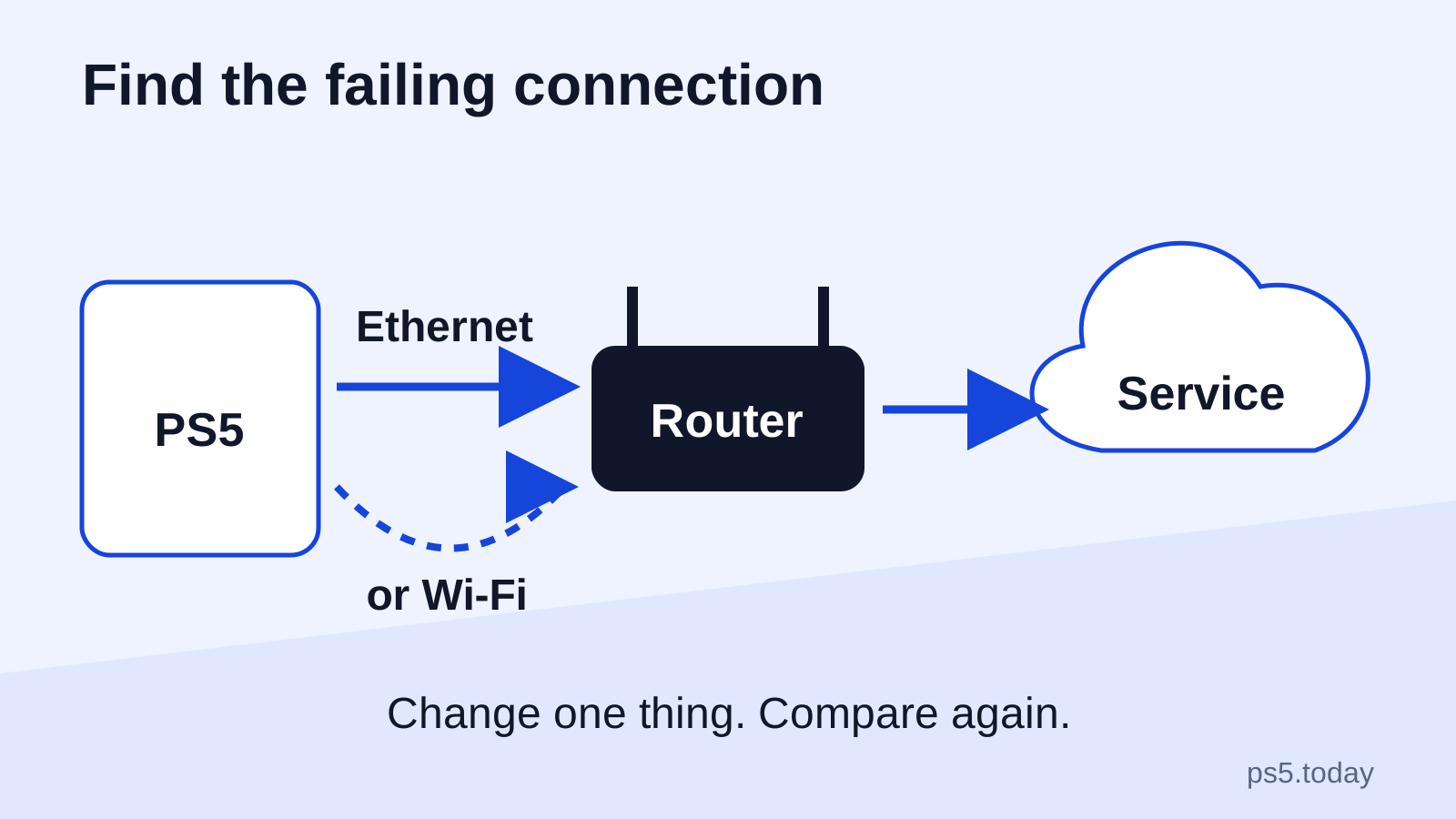
If possible, give the console a dependable connection to the router. A wired connection can remove one wireless link from the setup. For the receiving device, test in the intended room and avoid assuming that a strong-looking signal icon proves the stream is consistently stable.
Watch for competing activity. Large downloads, uploads and other household use can affect the experience. Rather than blaming the handheld immediately, test at a quieter time and compare. If that changes the result, you have learned something useful about the network routine.
Test with a familiar game
Choose a game you know well enough to recognize changes in control and presentation. Begin with a short ordinary session. Notice whether inputs feel consistent, whether the picture remains readable and whether sound interruptions occur. A connection completing successfully is only the start of the test.
Different activities tolerate delay differently. A slower menu-driven decision and a fast timing-sensitive action place different demands on the connection. The useful question is whether Remote Play suits the game you want to play this way, not whether someone can demonstrate any game launching at all.
Do not use a competitive match with other people as your first network experiment if avoidable. Establish basic reliability in a less consequential setting. That gives you room to change conditions without frustrating teammates or confusing network symptoms with an unfamiliar game mode.
Use mobile data deliberately
Sony warns that Remote Play can use substantial mobile data. Check your plan and the app’s current mobile-data settings before using it away from Wi-Fi. A successful connection can still be an expensive or inconvenient one if it consumes a limited allowance.
Do not assume a hotel, public hotspot or workplace network permits the required connection. Captive sign-in pages, network restrictions and unstable coverage can interfere. Treat access on a new network as something to verify, not a promise attached to the device.
When travelling, keep another activity available if Remote Play is the only route to your console. This is a practical planning choice, not a reason the feature is unsuitable. Network-dependent play is simply less under your control than a fully local game already installed on a portable system.
Remote Play and cloud streaming are separate
Remote Play uses your own console. Cloud streaming uses a different service arrangement and can have separate subscriptions, regions, supported titles and device requirements. A device may offer more than one kind of access, but the conditions should be checked separately.
If you are considering PlayStation Portal or another dedicated device, identify which route you intend to use. Ask whether your plan depends on the home PS5, a supported cloud feature or both. A product’s marketing can mention several capabilities without making them interchangeable in your account market.
Our PlayStation Plus guide explains how to think about subscription tiers. Do not upgrade a subscription to solve a Remote Play setup issue until you have confirmed that the feature you actually want requires that change.
Troubleshoot in a useful order
Check that the console is reachable and configured, then verify the account, app and device support. Test close to the router and compare with the intended location. If one condition works and another fails, keep that difference clear instead of changing every setting at once.
For controller trouble, establish whether the controller works with the receiving device and whether the app recognizes the intended input. A controller paired to another device can create confusion even when the stream itself works. See DualSense connection checks for the console-side version of that problem.
If the stream is unstable, reduce competing traffic and simplify the path where possible. Follow Sony’s current troubleshooting guidance for the actual error. Avoid random router changes or disabling security features simply because a forum post suggests them for a different network.
Decide whether dedicated hardware adds value
After testing, list the remaining inconvenience: holding the phone, reading small text, battery use or switching controllers. Dedicated hardware is valuable when it addresses a real repeated inconvenience and still works on your network. It cannot guarantee away every connection problem.
If the test already gives you an enjoyable occasional session, you may need nothing else. If you use Remote Play frequently and a dedicated device improves comfort, compare the complete cost and supported features. For the bigger hardware decision, read which PS5 to buy. Choose the equipment after understanding the way you will use it.
If local streaming becomes unreliable, the PS5 internet connection guide helps separate Wi-Fi trouble, internet trouble and service issues. For wake-up behavior, check Rest Mode settings and power options before changing equipment.
Sources and references
Written by PS5 Today.
Something changed? Send a correction →