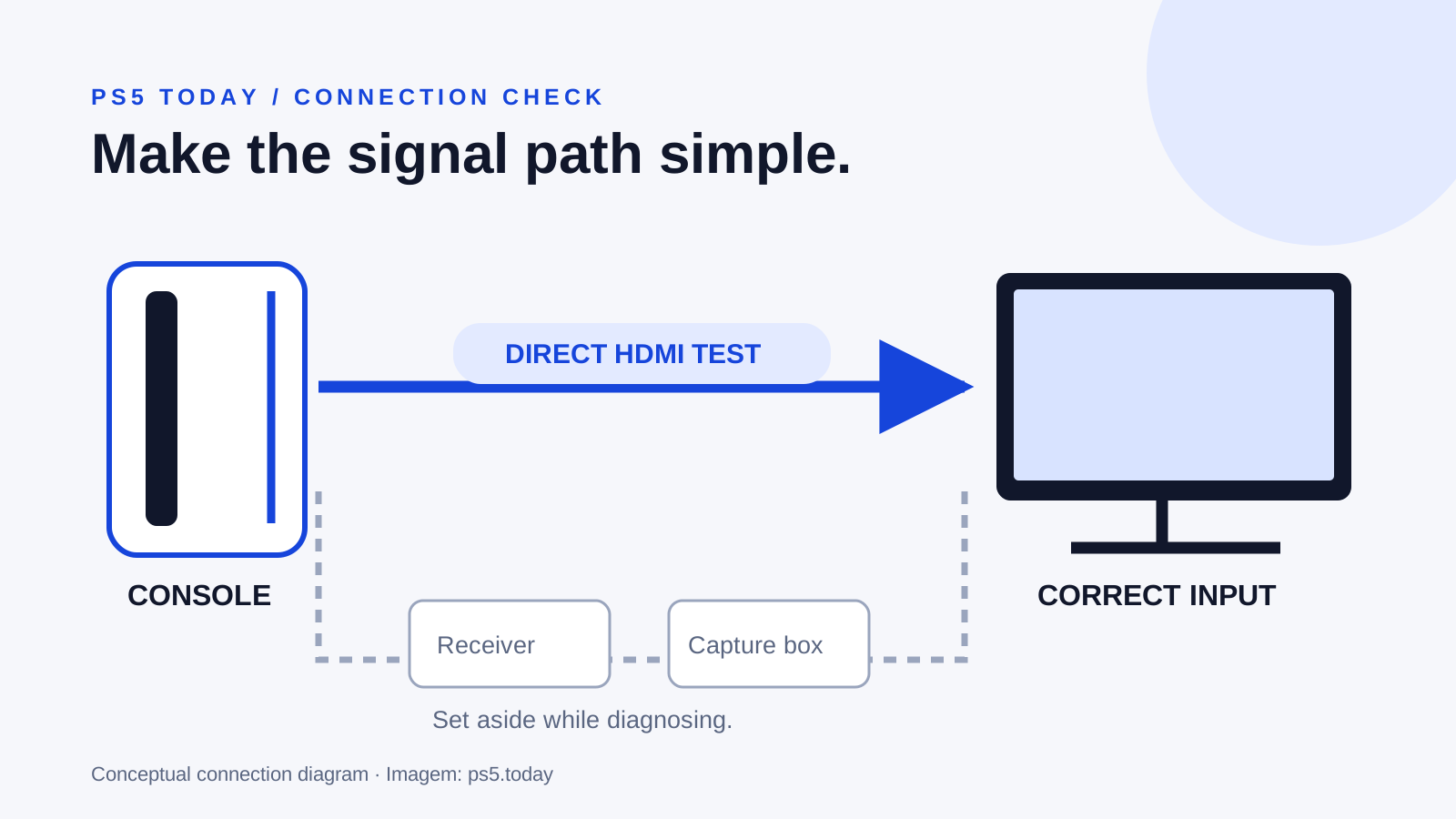
If your PS5 turns on but the TV says “No signal,” start with the selected HDMI input, a secure cable connection and a direct connection from the console to the screen. Remove a soundbar, receiver, HDMI switch or capture device from the video path while testing. A blank screen does not, by itself, prove that the console needs repair or that your television is too old.
The useful goal is to find which part of the connection changes the result. Work through one change at a time, record what happens and stop once you have enough evidence to choose the next step. Buying a new cable, display and adapter together makes that much harder.
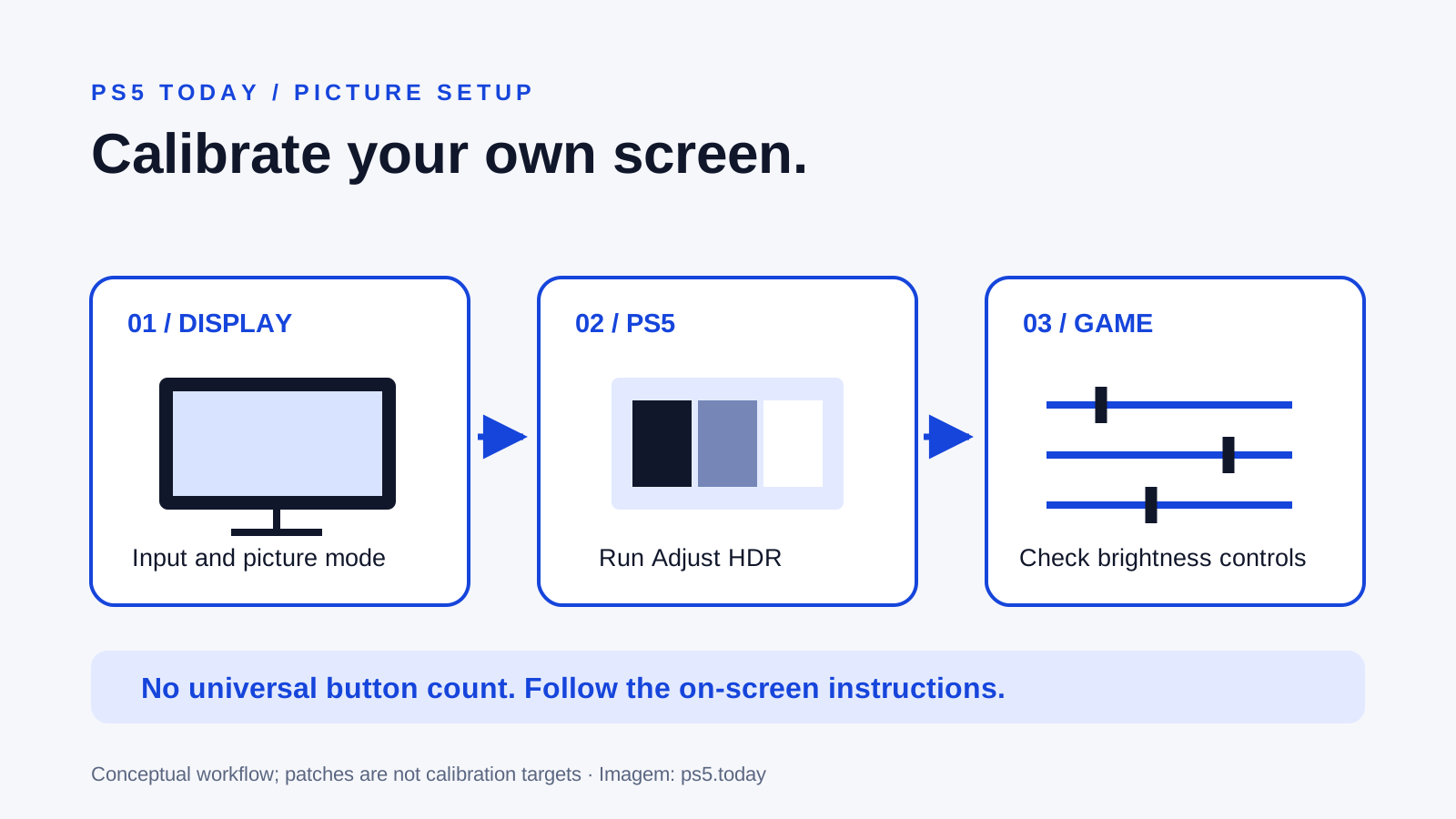
This guide concerns missing video. If you already have a stable picture and only a high-refresh-rate game fails, use the more specific PS5 120 Hz troubleshooting guide. If the picture works but looks washed out, move to HDR setup and calibration.
First, describe the failure accurately
Look at the screen’s actual behavior. “No signal” is usually a message generated by the display. A black image with a visible PS5 menu overlay is a different situation: the screen is receiving something, and the problem may be confined to an application or transition. A picture that appears for a moment and then disappears is different again.
Write down whether the PS5 home screen ever appears, whether the TV identifies the active port and whether a particular game triggers the failure. Include anything that changed immediately before the problem: moving the console, adding a receiver, replacing the cable, changing video settings or updating the display.
For example, if the home screen is always visible but opening one game loses the picture, a complete failure of every video signal is less likely than a problem with the mode that game requests. That observation is a direction for testing, not a diagnosis of a damaged chip. Avoid treating a light color, a beep or a single internet anecdote as proof of a specific failed part.
Check the selected input and the physical route
Read the label beside the TV socket and select that input with the TV remote. HDMI 1 and HDMI 2 are separate destinations even if their names have been customized to “Game” or “Console.” When possible, unplug other HDMI devices temporarily so an automatic source switch cannot confuse the test.
With the equipment turned off, check that the cable is fully seated at both ends. Inspect the connectors and sockets in good light. Do not force a plug, scrape inside a port or bend a cable sharply to make it reach. A connection that only works when the plug is held at an angle deserves service attention rather than tape and repeated pressure.
Use the HDMI cable supplied with the console if it is available. Sony recommends it for the console’s higher-performance output, while also noting that older HDMI cables can work. “Older cable” therefore does not automatically mean “no picture.” The immediate question is whether you can establish a reliable basic connection.
If a wall-mounted screen makes the ports inaccessible, resist moving it alone or stretching cables under tension. A temporary test on another accessible screen can be cheaper and safer than buying a long cable without knowing the fault.
Connect directly before investigating accessories
A receiver or capture device adds another connection and another set of supported video modes. To simplify the problem, connect PS5 HDMI output straight to a display input. Leave the intermediate equipment disconnected from the video path for this test.
If direct video works, the next job is to investigate the removed path. Reintroduce one component and its associated cable at a time. Read that exact product’s documentation for its supported inputs, output modes and any required enhanced-bandwidth setting. “4K compatible” on a box does not explain every supported combination of resolution, HDR and refresh rate.
Imagine a console that works on a television until a capture device is inserted. Replacing the console immediately would overlook the strongest evidence: the failure follows the added route. The capture device might require a different supported signal, a setting or a cable correction. Its own manual is more useful than a generic PS5 accessory list.
You can keep sound troubleshooting separate. Once direct video is dependable, decide how to restore audio using the television’s and audio device’s documented connections. Do not alter several audio and picture settings during the same test.
Try another port, cable or screen methodically
Choose the cheapest available comparison first. If the display has another HDMI port, test it and select its matching input. If you have another known-working cable, test that next. A second screen can then help separate an issue that follows the console from one confined to the original display.
Keep a small record like this:
| Connection | What to record |
|---|---|
| Original screen, original port, direct cable | Does any picture appear? |
| Original screen, different port | Does the behavior change? |
| Original screen, different cable | Is the picture stable? |
| Different screen, direct connection | Does the same failure follow the console? |
“Known working” should mean you recently saw the cable or screen work, rather than remembering that it worked years ago. Even then, success with a different device does not prove support for every PS5 output mode. Use comparisons to narrow the next test, not to make absolute claims.
If the new port works, check the first port’s manual and configuration before declaring it physically broken. If only the cable changes the result, you have a much stronger basis for replacing that cable. Buy for the required signal and length, not for unsupported promises that an expensive cable improves every game’s graphics.
Restart both ends of the connection properly
Sony’s picture-troubleshooting instructions include a full power cycle: turn the PS5 and screen off, disconnect their power cables, wait 20 minutes, then reconnect and test. Shut the console down properly before disconnecting it. Rest mode is not the same as fully off.
Plan this step rather than repeatedly pulling power in frustration. If you can see the console’s menus on another screen, save your game and use the power menu there. Do not interrupt a visible update or storage operation. The rest mode guide explains the difference between a sleeping console and a console ready to unplug.
A successful power cycle is useful, but write down whether the problem returns at the next game launch or restart. A temporary recovery and a stable fix are different results. If a particular component has to be disconnected every time, that pattern is worth reporting to its manufacturer.
Use Safe Mode for a video-setting problem
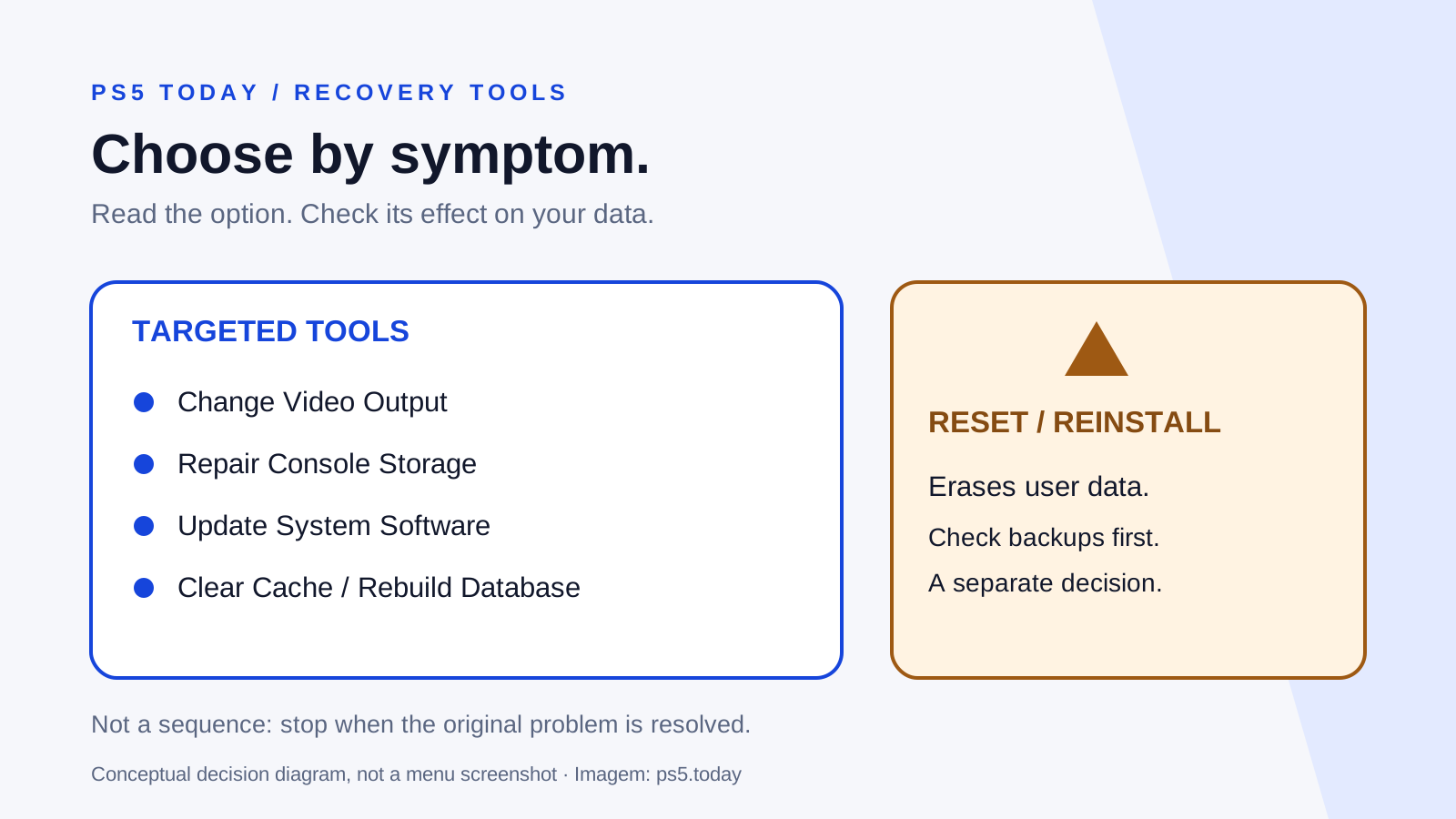
Safe Mode provides a basic troubleshooting menu. Its Change Video Output option can help when the usual video configuration produces a blank screen. Follow the PS5 Safe Mode guide for entry and for the important distinction between display settings and options that erase user data.
Do not navigate destructive options blindly by counting button presses from a video. If you cannot see the menu, you cannot confidently confirm what you selected. Try the direct connection and another accessible screen before proceeding further.
If changing video output restores the image, start with a stable configuration and add features gradually. Check the connected-device information under Settings, Screen and Video, Video Output. Compare what the console reports with the exact display port’s documentation. A supported feature on one input may not be configured identically on another.
Update the TV or monitor firmware using the manufacturer’s process. If the picture only fails during demanding output modes, Sony’s video-output guide includes controls such as 120 Hz Output and Video Transfer Rate. Use the setting relevant to the symptom, understand that limiting output is a compatibility tradeoff and retain a note of the original value.
Know when further home troubleshooting has little value
If the console produces no usable picture through a direct connection on more than one known-working screen and cable, and Safe Mode cannot be displayed either, use PlayStation’s repair diagnostics. That collection of results is useful evidence for support. It still does not identify a particular internal component without proper diagnosis.
Stop earlier if a port is visibly damaged, a connector is loose or you notice an electrical fault. Do not open the console to attempt HDMI soldering as an extension of basic setup advice. A repair provider needs the model, symptoms, connection tests and any relevant incident history.
Before shipping a console, follow the service provider’s instructions about accessories, discs and data. If you can access your system through a working screen, check save synchronization before any service that might replace or reset it. A digital game license and your latest saved progress are separate things.
Once the image is stable, reconnect the equipment you actually need and test the same game that originally failed. A clear result is simple to describe: this console, this cable, this input and this output setting now work together. That is a better foundation for the next purchase than guessing which box was at fault.
Sources and references
Written by PS5 Today.
Something changed? Send a correction →