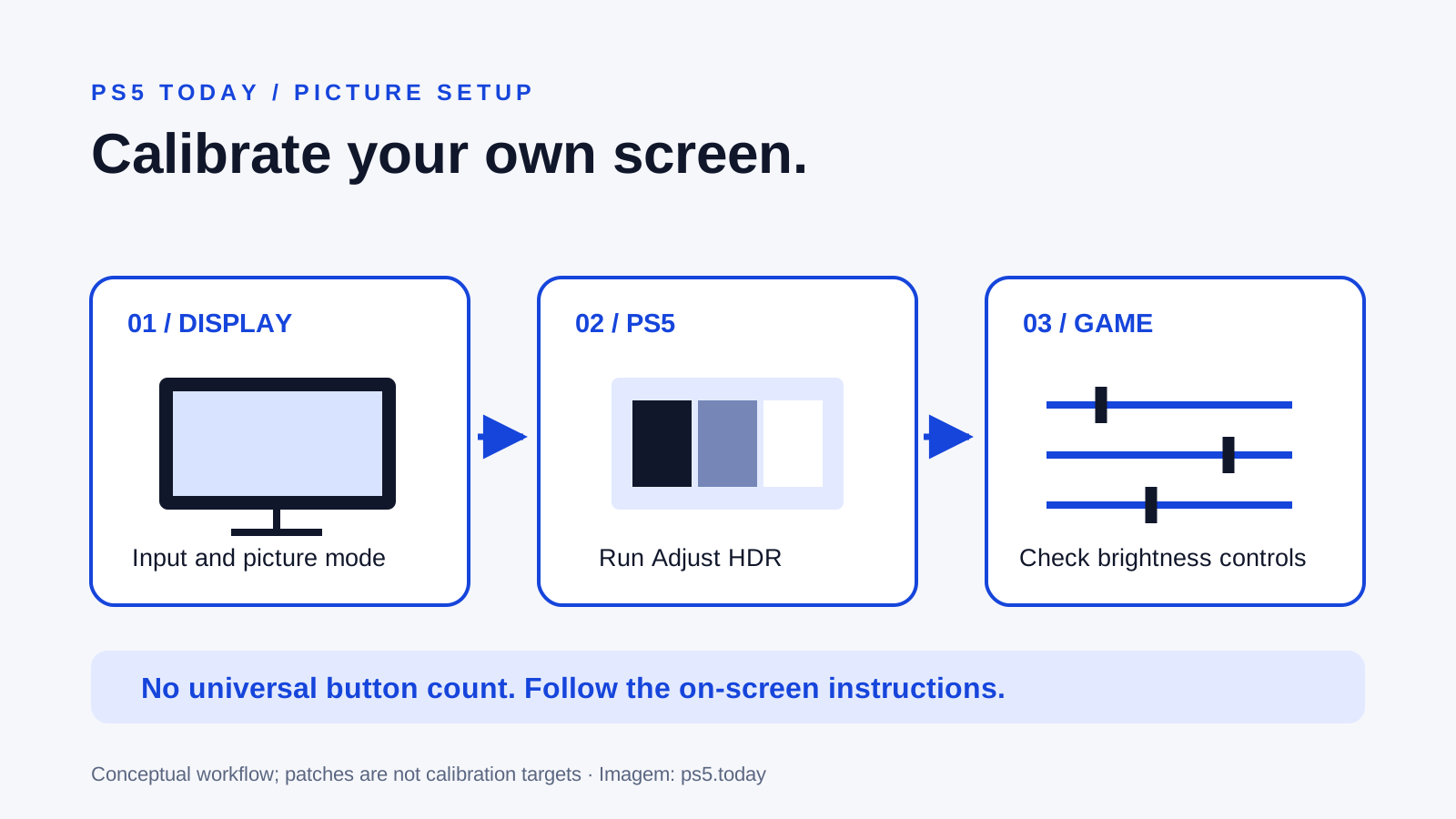
For a useful PS5 HDR starting point, prepare the TV or monitor’s correct gaming input, select Settings, Screen and Video, Video Output, HDR, then choose On When Supported. Run Adjust HDR and follow the instructions on your own screen. Finish by checking the game’s separate brightness controls. Do not copy a fixed number of button presses from someone with a different display.
HDR means high dynamic range: a way of representing a wider range of brightness and color than standard dynamic range, or SDR. It can make bright effects and darker detail more convincing, but the result depends on the display, its settings and the game. An HDR-compatible label does not guarantee that every screen will produce the same impact.
If the image is completely absent rather than merely dark or washed out, use the HDMI no-signal guide first. Calibration requires a stable picture. Changing brightness sliders cannot repair a missing connection or a physically damaged port.
Identify the picture you are trying to improve
Describe the problem before changing settings. Are dark objects disappearing into black? Does a bright sky lose its clouds? Does the entire picture look gray? Does the issue affect one game, every HDR game, or only content that originally uses SDR?
Those observations help separate different causes. A dim daytime scene is not the same as missing shadow detail. A dramatic game may intentionally have a dark environment. A display can also switch to a different picture preset when it detects HDR, so the settings you liked in an SDR menu may no longer apply.
Use a familiar scene for comparison and return to it after each change. For example, choose a paused indoor scene with both a window and objects in shadow. You want to see how the relationship changes, not simply make the entire screen brighter until every dark area is gray.
Write down the previous settings before you experiment. A simple note of the display input, picture preset, PS5 HDR option and game slider values lets you reverse an unhelpful change. Avoid altering five controls together and then trying to remember which one improved the image.
Prepare the display input first
Use the display’s manual for the HDMI port connected to PS5. Some televisions require an enhanced signal option on that input for particular HDR or high-bandwidth modes. The name varies by manufacturer and model, so instructions for another brand can lead you into the wrong menu.
Choose the display’s documented gaming picture mode or suitable low-latency setup. Then check which brightness, contrast and picture-processing controls apply specifically to HDR. Do this before running the console’s adjustment process, because changing the display’s behavior afterward can undermine the comparison you just made.
Do not treat maximum color saturation, a vivid showroom preset or every enhancement switch as a calibration. Those settings may look impressive in a bright store while obscuring the distinction you want to judge at home. Use the manufacturer’s instructions to understand its controls rather than assuming a familiar label means the same thing across screens.
Take the room into account too. Sunlight reflecting off the panel can hide dark detail even when the signal is correct. Calibrate and compare under the conditions in which you normally play, while keeping light reasonably consistent during the test. You do not need a completely dark room for every game; you need a fair comparison.
Confirm that the PS5 sees HDR support
Go to Settings, Screen and Video, Video Output. The connected-device information can show the display capabilities recognized through the current HDMI connection, including HDR. Read that information rather than relying only on the screen’s marketing name.
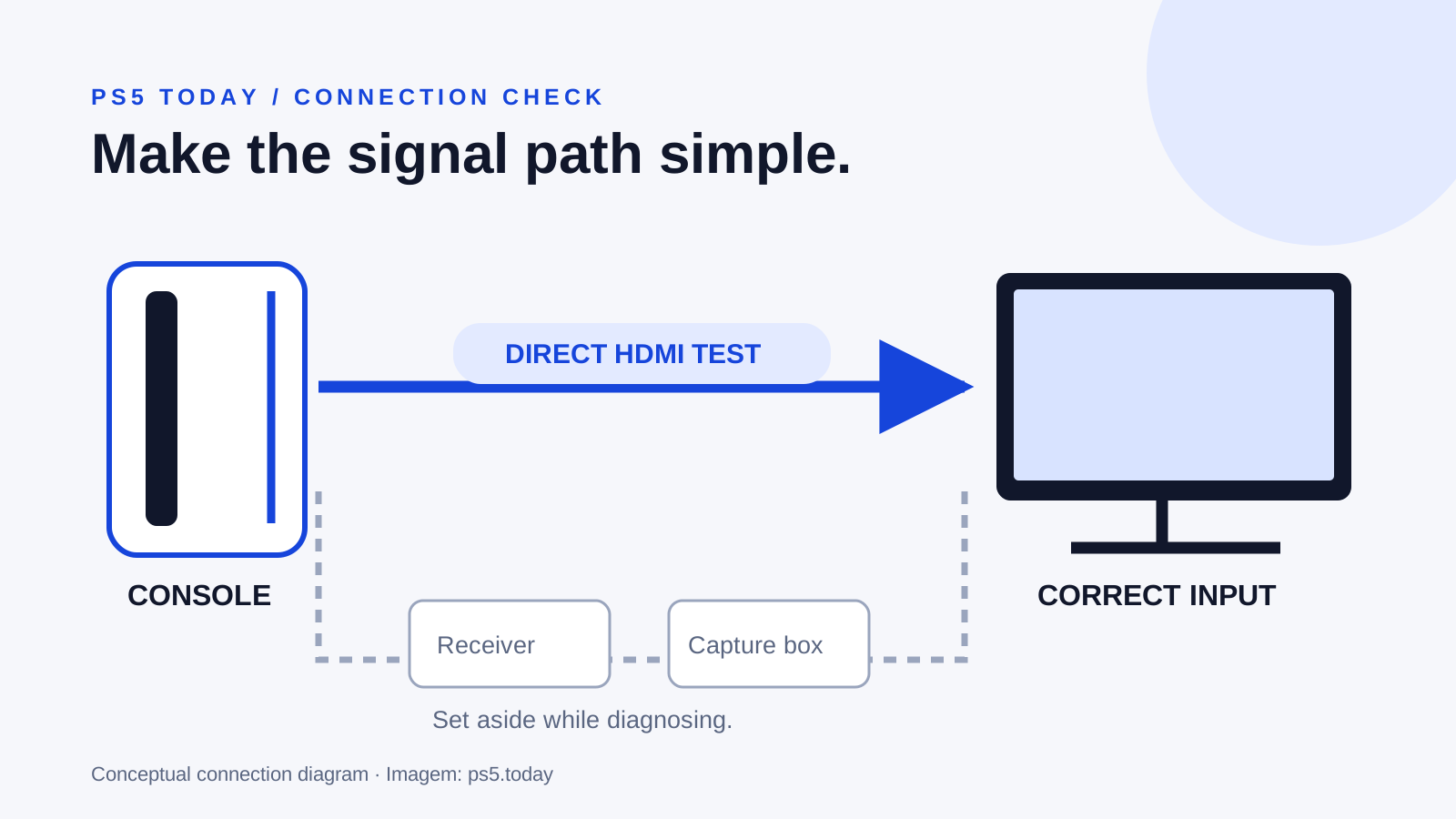
If HDR is not recognized, check the exact input’s settings and specifications, the cable connection and any device between the console and screen. A receiver, HDMI switch or capture device is part of the signal path. Connect the console directly to the display as a diagnostic step if the intermediate path is uncertain.
Use the included HDMI cable when available and update the display’s firmware through the manufacturer’s documented process. Buying another cable makes sense when your testing or required signal gives you a reason, not merely because an advertisement promises richer colors.
Resolution and HDR are separate features. A display accepting a 4K signal does not establish every HDR mode or guarantee strong HDR presentation. Likewise, the console’s ability to output HDR does not make the panel brighter than its hardware permits. A realistic goal is the best supported picture from the equipment you have.
Choose On When Supported as a clear baseline
Sony’s HDR menu distinguishes Always On from On When Supported. Always On converts even non-HDR games and apps to HDR output. On When Supported leaves non-HDR content in SDR. That difference is particularly useful when diagnosing why an older game looks different from what you expected.
On When Supported gives you a straightforward baseline: supported content uses HDR, while content without HDR support remains in SDR. It does not mean that HDR is always preferable on every screen or that the game has no other picture controls.
If you like the appearance of converted output, that is a personal preference you can evaluate after establishing the baseline. Compare the same scene and do not call conversion proof that the original game was authored for HDR. The output format and the game’s original presentation are different facts.
When comparing HDR with SDR, remember that the display may retain separate picture settings for each. Switching the console option can therefore change both the signal and the active display preset. Check those presets before concluding that a single toggle revealed a defective console.
Run Adjust HDR using what the screen shows
Open Settings, Screen and Video, Video Output, Adjust HDR. Read each screen’s instructions and adjust the displayed symbol according to the requested visibility. Make the change gradually and judge it from your normal viewing position.
The point is to communicate useful display limits through the adjustment process. There is no universal button count for a television category, screen size or price bracket. Even owners of the same model may have different relevant settings or viewing conditions.
Do not keep pushing the control after the visual instruction has been satisfied because someone says “more clicks means better HDR.” Overshooting can hide detail or change how bright content is handled. Equally, do not force the whole picture to appear as bright as the console menu if that is not what the adjustment screen asks you to achieve.
If you cannot make the symbol behave sensibly, step back and check the display’s active HDR preset and processing settings. Repeating the console adjustment while the television continually changes how it treats brightness makes comparison harder. Consult the exact display manual if a control’s role is unclear rather than guessing at a universal on-or-off rule.
Then check the game’s own controls
A game’s brightness menu may have separate controls for overall brightness, dark detail, highlight limits or the brightness of interface elements. Read its descriptions. A slider labeled for a particular purpose should not be used as a substitute for every other part of setup.
Begin with the game’s recommended or default HDR settings after the system adjustment. Change only the control that matches the remaining symptom. If the interface is uncomfortably bright but the environment looks right, an interface-specific control is more appropriate than shifting the entire image, where the game offers one.
Take a hypothetical nighttime driving scene. Increasing the overall brightness might reveal a wall in shadow but also turn the sky gray. Before accepting that compromise, check whether the display’s black-level matching, the game’s dark-detail control or room reflections explain the lost visibility. There may not be one perfect setting for every artistic scene.
If one game remains troublesome while several others look normal, investigate that game’s current support information and updates. Do not reset the console or rewrite every display setting to accommodate a single scene. Some games use their own picture pipeline, so system adjustment is a starting point rather than a universal override of every title’s presentation.
Diagnose gray blacks, clipped highlights and flicker separately
For a gray-looking picture, check that the intended HDR or SDR preset is active and that the display’s input-range controls match the console’s output. Sony provides RGB Range in Video Output and advises consulting the display information where relevant. Avoid forcing a range simply because “full” sounds better; a mismatch can change black and white detail.
For blown-out highlights, revisit the display preset, Adjust HDR and the game’s relevant highlight control. Use a scene with visible detail to compare rather than judging only the intensity of a bright flash. More light is not automatically more information.
For intermittent black screens or flicker, treat signal stability as its own issue. Sony’s video-output guidance includes Video Transfer Rate limits for some output problems. Those are compatibility adjustments with tradeoffs, not brightness calibration. The 120 Hz guide is more appropriate when the failure follows high-refresh-rate output.
You can choose SDR if your particular display or game produces a more useful result that way. That is a practical choice, not a failure to use the console properly. Compare under consistent conditions and keep the configuration that gives you readable detail and comfortable play.
Know when you are finished
Test a familiar bright scene and a familiar dark scene, then play normally. If the picture is stable, detail is readable and the remaining differences are artistic rather than obvious faults, stop changing controls. Constant adjustments across unrelated scenes can make a working setup worse.
Repeat the process after a meaningful change such as replacing the display, moving to another input or changing the display’s HDR behavior. There is no need to recalibrate merely because a console build number changed without a relevant picture change.
If you are considering a new screen, identify the problem your current one cannot solve before spending. Stable HDMI compatibility, usable HDR presentation and the output modes you actually play matter more than a single label. Our console buying guide can help keep the console decision separate from a limitation of the screen already connected to it.
Sources and references
Written by PS5 Today.
Something changed? Send a correction →