For 120 Hz output on PS5, you need a game and mode that support it, a display that accepts the intended signal through HDMI, suitable console settings and a compatible connection between them. One missing part can stop the result. A monitor advertised as 144 Hz or faster does not by itself guarantee the PS5 mode you want.
Start with Settings, Screen and Video, then Video Output. Inspect the information for the connected HDMI device and the current signal. Enable the supported 120 Hz setting, then check the game’s own graphics options. You may need to enter a supported gameplay mode before the display reports the higher refresh rate.
The menu details are covered in PlayStation’s resolution and video-output guide. Use the steps below to identify the weakest link instead of immediately replacing the console, screen and cable together.
Understand the numbers first
Hertz describes how often the display can refresh in one second. Frames per second describes how often the game produces a new image. A 120 Hz signal does not prove every moment of gameplay is rendered at 120 fps, and a console capable of high refresh output does not make every game support it.
Resolution is another variable. A game may trade some image detail for a faster mode, and the display’s accepted combinations can vary by resolution. The useful target is a specific supported combination, such as the game mode and HDMI input you intend to use, not the biggest number mentioned anywhere on the product page.
Think of it as a chain. The game supplies the experience, the console sends the selected signal, the connection carries it and the screen displays it. Buying one impressive link does not replace the requirements of the rest of the chain.
Confirm the game has the mode
Open the game’s current video or graphics settings and read what the choices do. A performance mode may target smoother play without specifically being a 120 Hz mode. Different games use different names, so do not assume the same label always means the same output.
Check official game information for the console version you installed. A PC feature, a Pro-specific mode and a standard PS5 mode can be different offerings. A trailer uploaded at a particular frame rate is not a specification for every version of the game.
If you are troubleshooting with a game that does not offer the intended mode, change the test rather than buying hardware. Use a game with confirmed support and follow its setup instructions. This gives you a meaningful way to test the display path. It also prevents a long search for a setting that does not exist in that title.
Read the display’s HDMI specifications
Look up the exact display model and the supported HDMI resolutions and refresh rates. Do not stop at the headline panel refresh rate. A monitor’s highest advertised mode may depend on another input, and a television may offer different capabilities across its HDMI ports.
Check whether the manufacturer requires an enhanced input setting, a particular port or a specific picture mode. Use the manufacturer’s terminology for your model. Menu names copied from another brand can send you looking in the wrong place even when the feature is available.
For a secondhand screen, ask for the full model code rather than a description such as gaming monitor. Similar-looking products can have different connections. A photograph of the front tells you little about which console signal the actual input accepts.
Simplify the connection
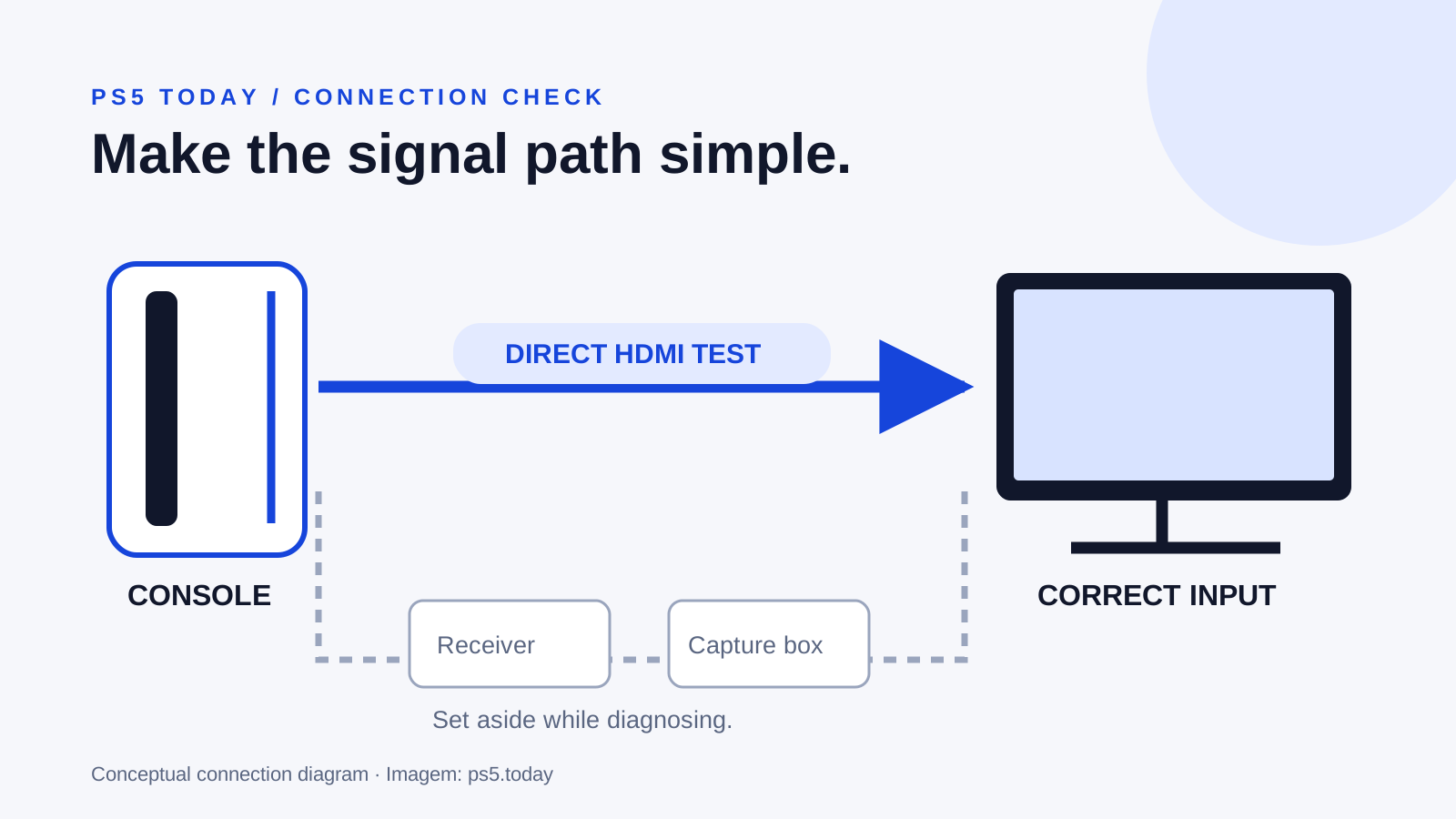
If possible, connect the PS5 directly to the display while testing. A receiver, capture device, switch or adapter between them can introduce another limitation. Removing an intermediate device temporarily helps establish whether the basic console-to-screen path works.
Use the supplied appropriate cable or a known compatible cable for the target signal. Inspect the connectors and reseat them carefully. An expensive replacement is not automatically better than a working correct cable you already own. Buy only after you know what requirement the existing connection fails.
If direct connection works but the usual arrangement does not, investigate the intermediate device’s exact passthrough support and settings. You may be able to change a port or configuration. Replacing the television would not solve an upstream device that still limits the signal.
Check console and game settings together
Inspect Video Output on the console and use the current supported setting for 120 Hz. Then return to the game and select the intended mode. Some games apply changes after a restart or only in particular gameplay states, so read their prompts rather than assuming the dashboard must always display the same signal.
For a 1440p screen, the console provides an output test. Use it where appropriate and inspect the results. The point is to learn what the connected equipment reports, not to force an unsupported combination by repeatedly switching settings.
Change one variable at a time. If you alter resolution, HDR, VRR, cable, port and game mode together, a successful result will not tell you which change mattered. A short, deliberate sequence is easier to undo and easier to explain if you need manufacturer support.
VRR is related but different
Variable refresh rate lets supported equipment adjust refresh timing to the game’s output within its supported behavior. It can help with how uneven frame delivery looks, but it does not create performance the game is not producing. Treat it as its own compatibility check.
Sony warns that results vary by television and that applying VRR to unsupported games can cause unexpected behavior. If a visual problem appears after enabling that option, turn it back off while testing. A feature being available does not mean every game benefits equally from enabling it.
Avoid bundling all display features into one yes-or-no question. A screen might work well at your preferred resolution while lacking another feature. Decide whether the missing feature affects your actual games enough to justify new equipment.
When the picture flickers or disappears
Return to a stable supported combination before continuing. Flickering, intermittent blanking and a completely missing picture are different symptoms from simply seeing a lower refresh rate. Note when the failure happens: entering a game, changing a mode or passing through another device.
Consult the console and display support instructions for the exact symptom. Do not keep increasing settings because a maximum is available in a menu. The aim is a dependable picture. A theoretically higher mode that repeatedly interrupts a session is not a useful upgrade.
If only one cable or port causes trouble under otherwise identical conditions, keep that observation. It helps narrow the issue far more than a general statement that PS5 120 Hz is broken. Share the exact model codes and tested connection path when asking support for help.
Decide whether a screen upgrade is worthwhile
Once you understand the limitation, compare the cost of removing it with the benefit in your regular games. Someone mainly playing slower single-player adventures may value image quality and comfort more than the highest refresh mode. Someone playing supported fast competitive games may prioritize responsiveness.
Also consider seating distance, text size, sound and ordinary use outside gaming. A technically faster monitor can still be an awkward living-room screen. A large television can be inconvenient at a small desk. Choose the product around the room and person, not only the console’s capability list.
Before buying PS5 Pro to solve this issue, read whether Pro is worth it. Before changing your game, see what to play on PS5. A working supported setup is the goal; a high number on one box is only one part of getting there.
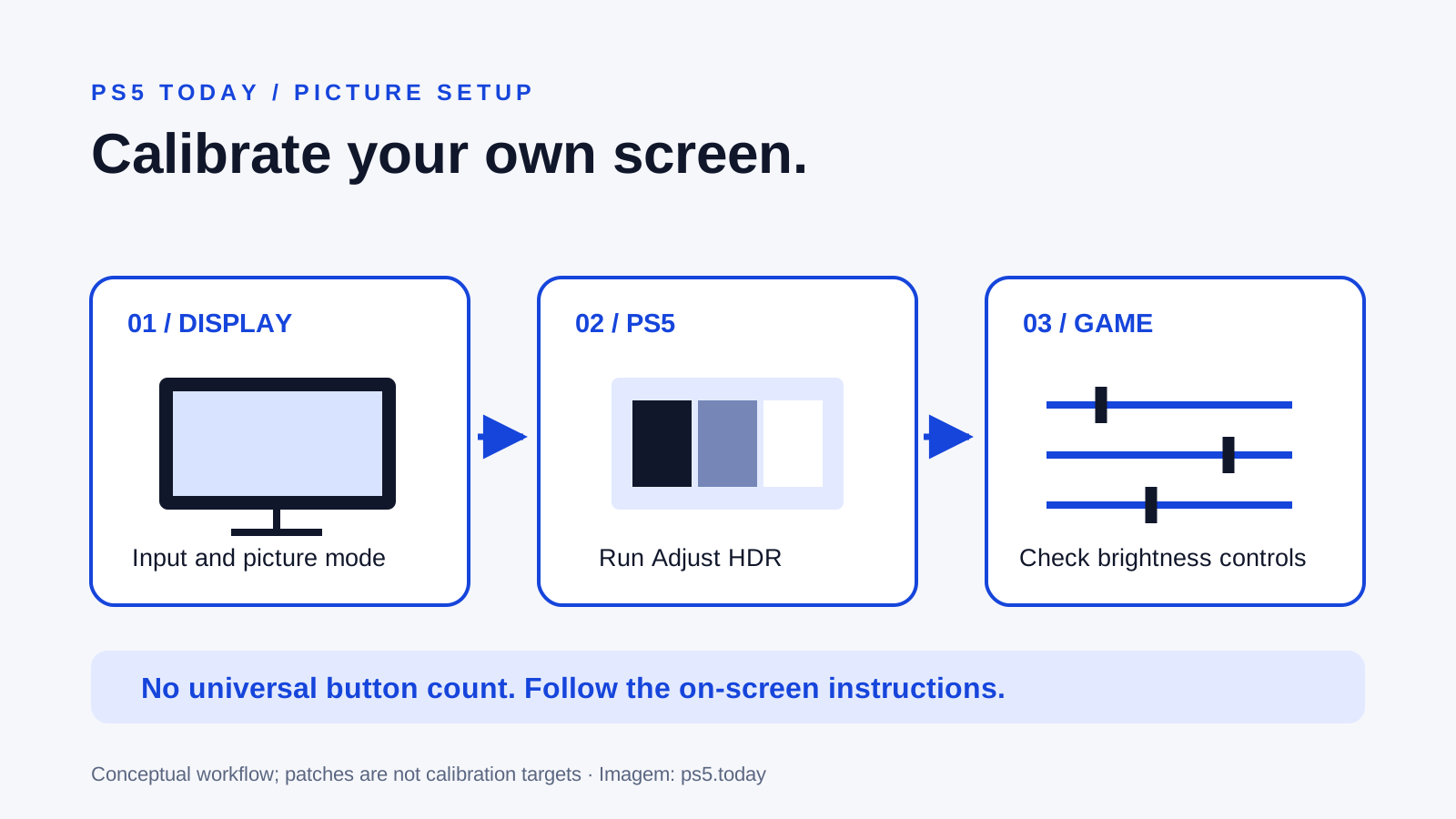
If the display has gone completely blank, use the no-signal HDMI troubleshooting path first. Once the picture is stable, our HDR calibration guide handles brightness and highlight detail as a separate task from refresh rate.
Sources and references
Written by PS5 Today.
Something changed? Send a correction →